


New article
Recently updated
Revising a document

Who is this article for?
Users responsible for document management.
Document Acknowledge permissions are required.
Once you have decided that a document needs to be updated, you will need to create a new revision of it. This will usually come as a result of change requests being raised against the document.
You have to decide whether you will make a draft revision (which has to be approved) or an active revision. Activating the revision archives the previous version in the system.
This article shows you how to perform a document revision.
1. Creating a revision
To create a Document revision:
- Access the Documents module
- Choose Documents.
- Select the Document record.
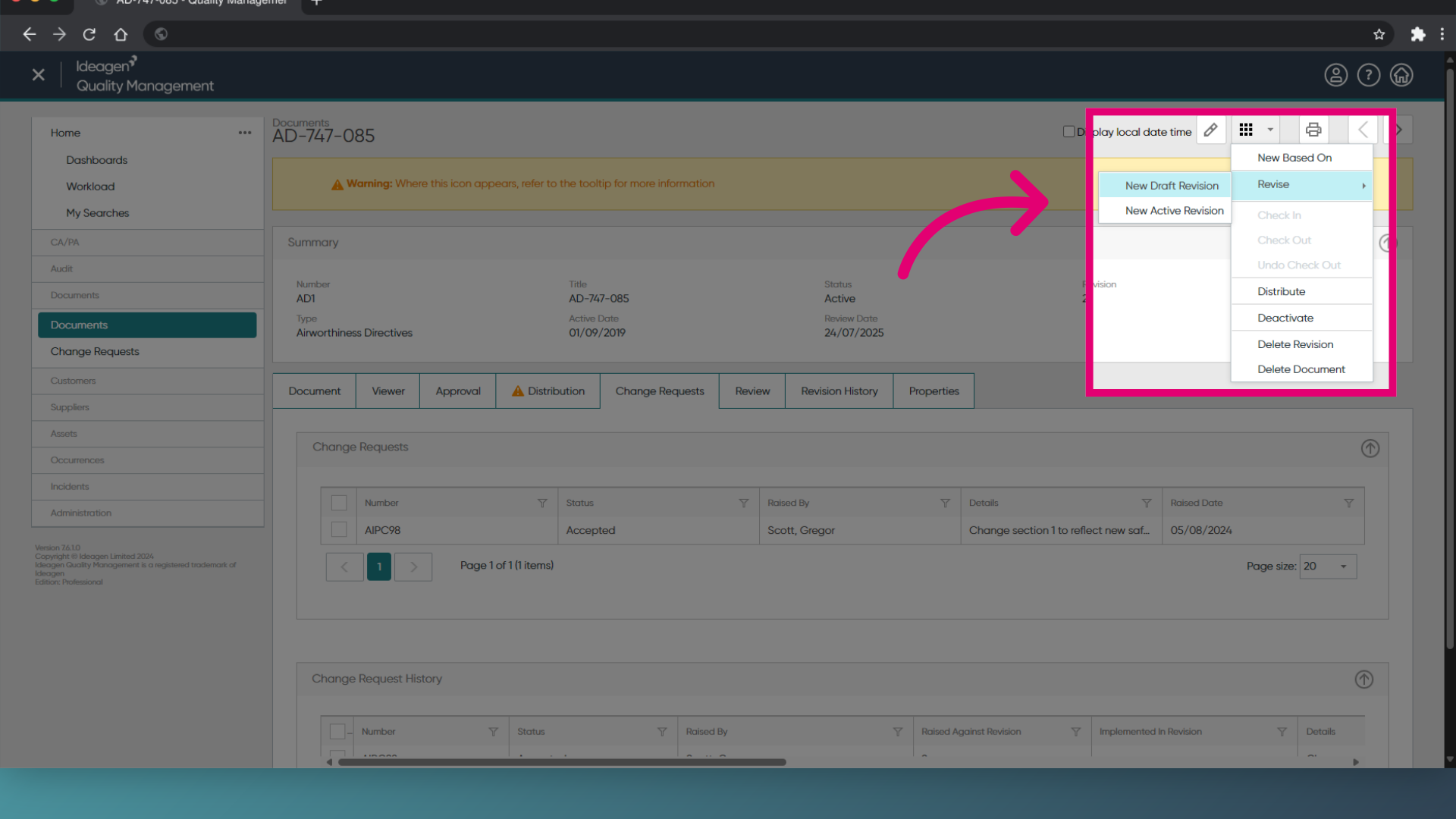
- Open the Actions menu.
-
Choose New Draft Revision or New Active Revision.
Draft revisions go through the usual approval process, while active revisions get distributed to copyholders immediately.
- Click OK to proceed.
- Click Save (Tick icon).
Note: If you have enabled PDF conversion then the original attachment will still be attached to your document record and you can edit this once the document draft has been created. The updated version will be converted to PDF when it is published.
1. Creating a Document revision
1.1. Revising the Document
To create a Document revision:
- Access the Documents module.
-
Open the Document record.
Alternatively, you can right-click the record in the list view. - Click Revise.
-
Choose Draft... or Active....
Draft revisions go through the usual approval process, while active revisions get distributed to copyholders immediately.
- Make required changes.
- Click Next.
-
Review the approvers.
This is only needed if you're creating a new draft. - Click Next.
-
Attach the new revision file.
You can leave this blank and update it later. - Click Finish.
1.2. Updating the Document attachment
To update the Document attachment:
- Open the Document record.
- Click File.
- Select Check Out Document.
- Enter a Reason for checking the document out.
- Confirm the Location.
- Click OK.
- Make the changes to the Document.
- Return to the Document record.
- Click File.
- Select Check In Document.
- Confirm the Location.
- Click OK.
Further reading
- Completing a Document change request
- Submitting a Document for approval
- Activating and distributing a Document
Note: If you have enabled PDF conversion then the original attachment will still be attached to your document record and you can edit this once the document draft has been created. The updated version will be converted to PDF when it is published.