


New article
Recently updated
Submitting a Document for approval

Who is this article for?Users needing a Document to be approved.
Document Submit for Approval permissions are required.
All Document drafts and revisions need to be approved by specific users to ensure accuracy and compliance before they can be activated.
This article explains how you can do this for a single Document record.
1. Adding Approvers
To assign Approvers:
- Access the Documents module
- Select Documents.
- Open the Document record.
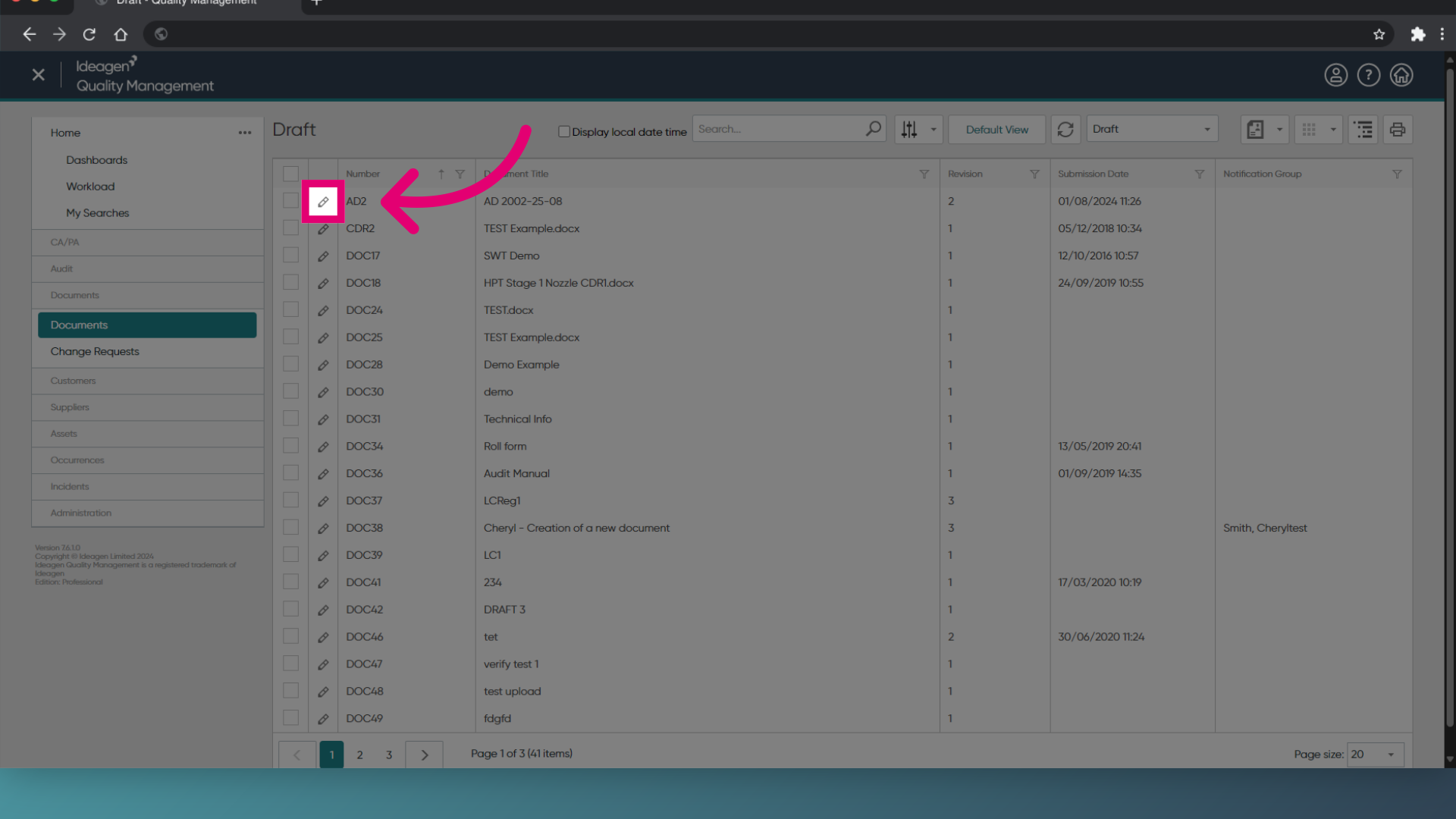
- Click Edit (Pencil icon) next to the record name.
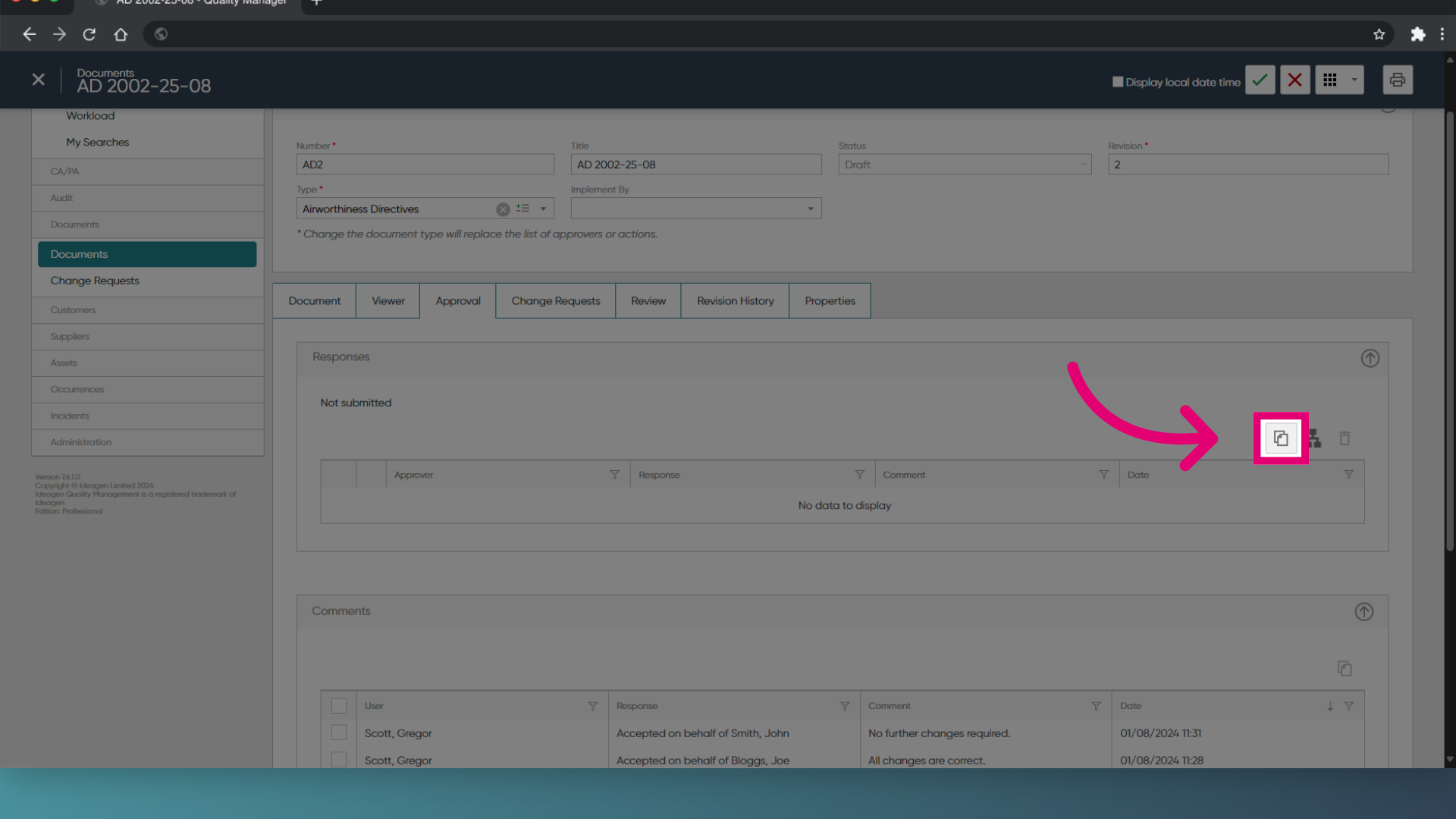
- Switch to the Approval tab.
- Click Add Approver.
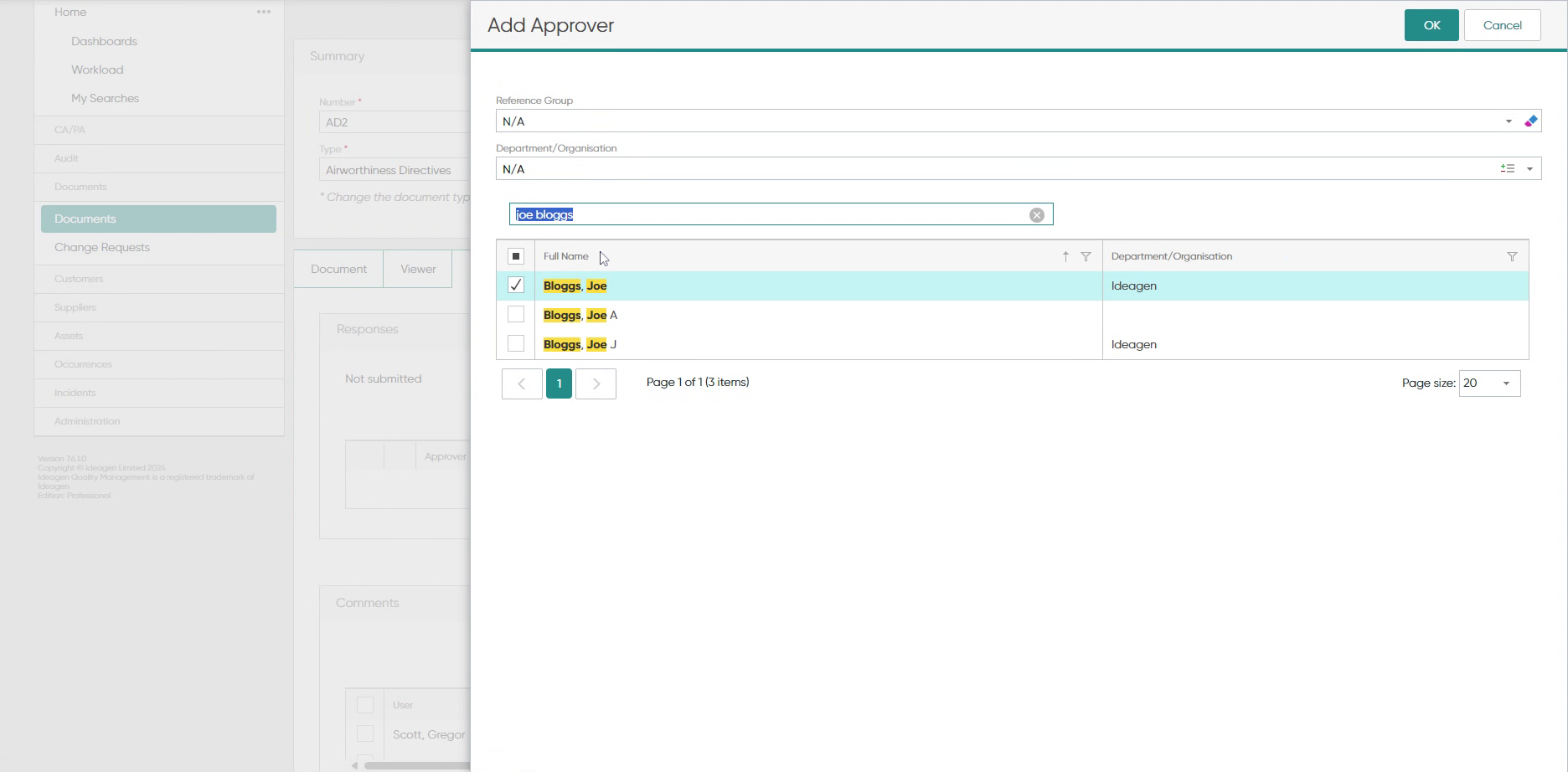
- Tick the box next to each user to add.
- Click OK.
2. Reviewing approval workflows
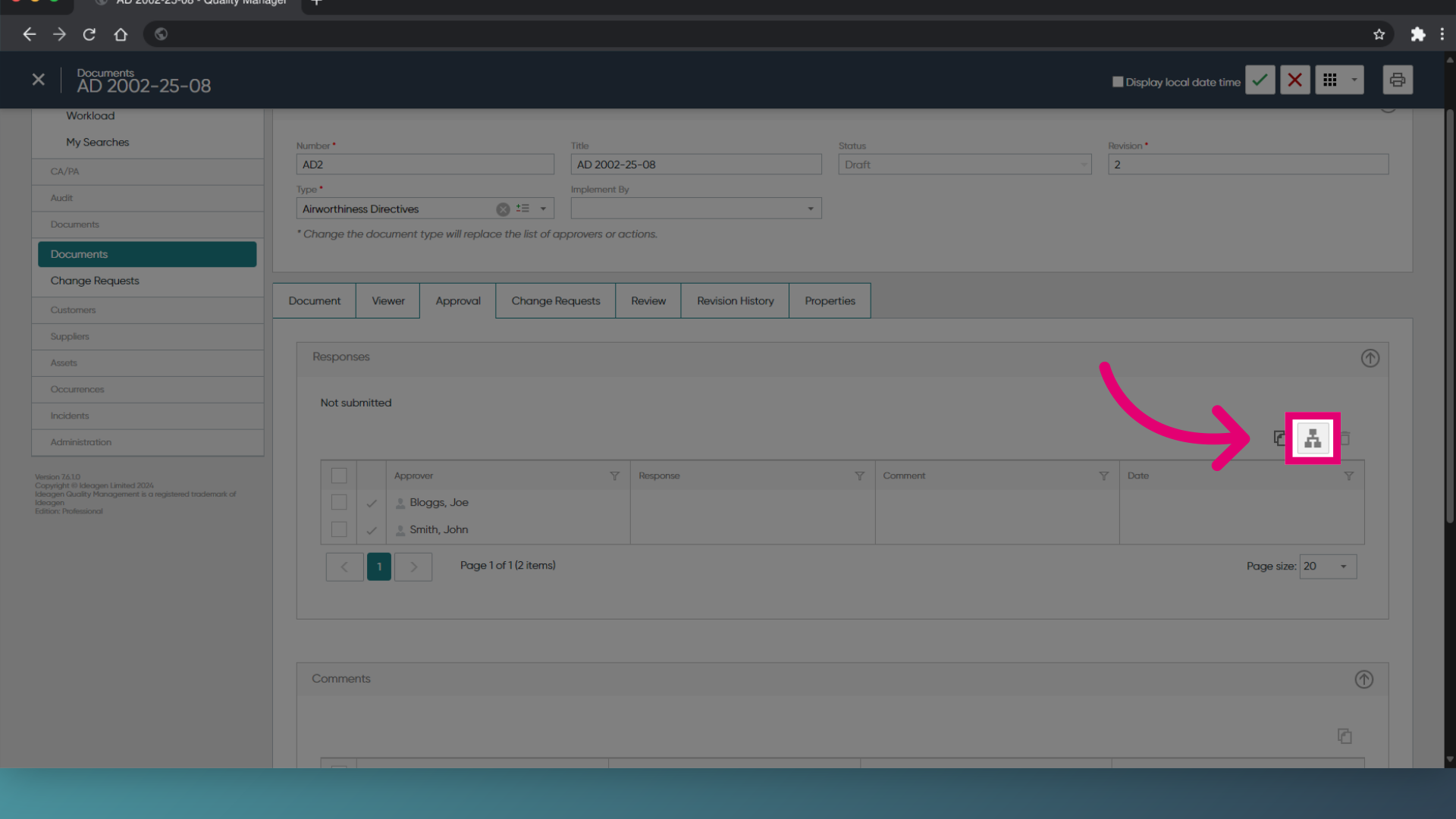
Approval workflows dictate the sequence of necessary approvals. They're structured by levels, necessitating approval from individuals at Level 1 initially, followed by those at Level 2, then Level 3, and so on.
To review the workflow:
- Click the View Workflow button.
- Use the Arrow buttons to move Approvers into the desired order.
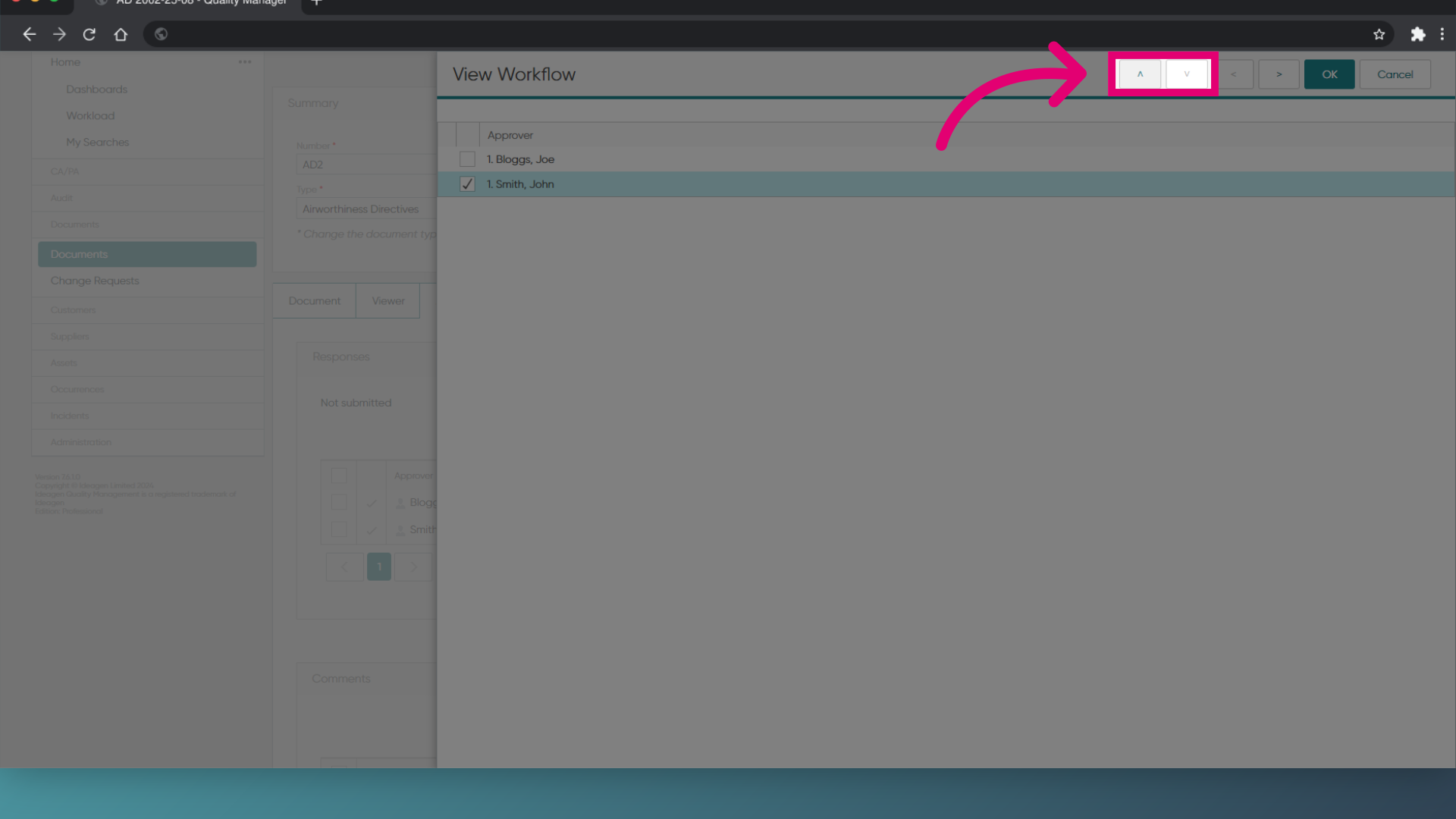
- Click OK.
- Click Save (Tick icon).
3. Requesting approval
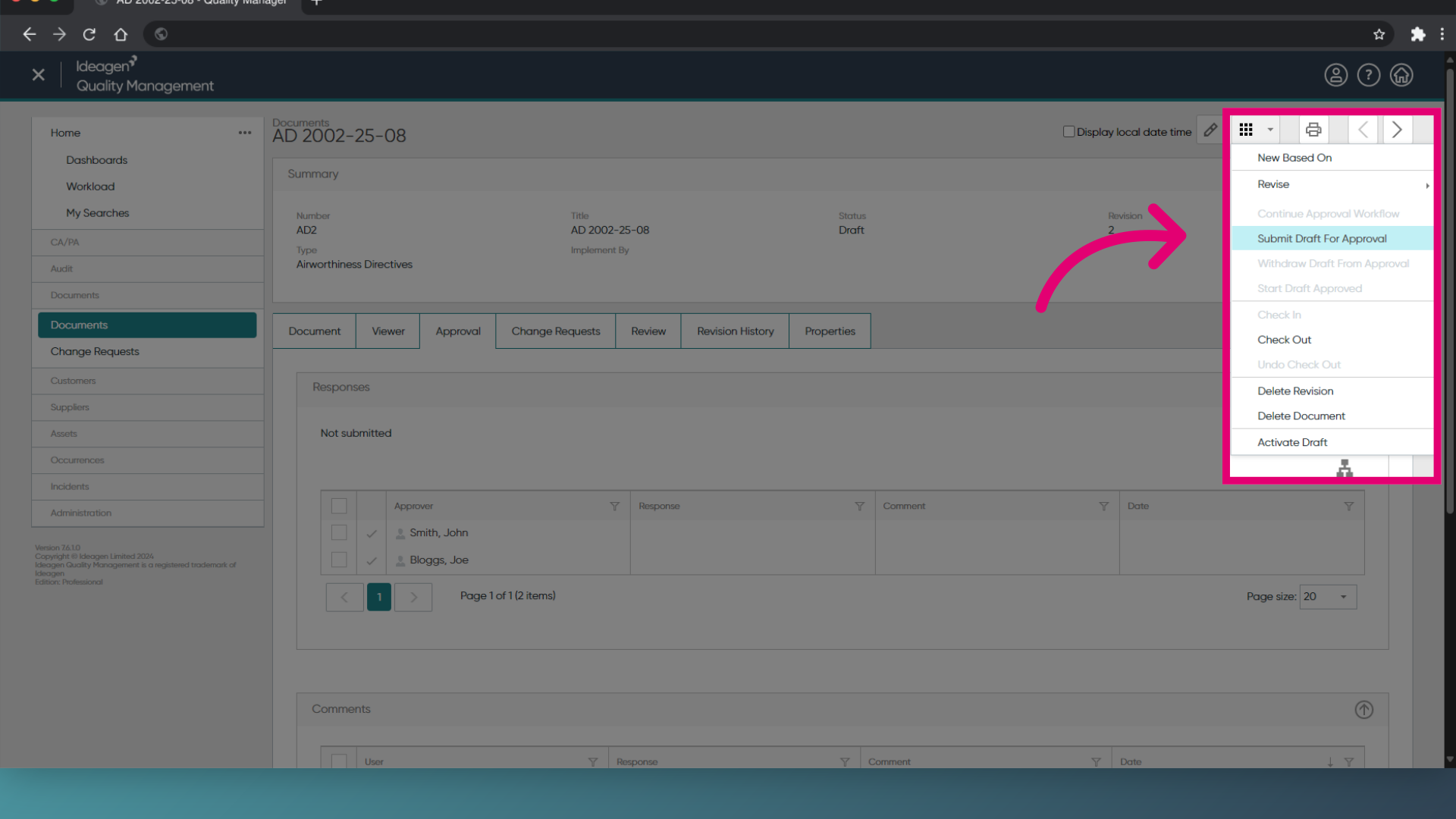
To submit a Document:
- Open the Document record.
- Open the Actions menu.
- Select Submit Draft for Approval.
- Click OK.
4. Managing rejections
If someone rejects your Document, you will receive a notification and the approval workflow will be paused so you can take action.
You can view the reason for rejection by double-clicking the Approver's name.
Depending on the nature of the comments, you can:
- Withdraw the Document so you can implement the changes and resubmit for approval later.
- Continue Approval Workflow until all approvals have been received or the Document is rejected again.
1. Adding Approvers
Approvers can be added to Documents manually or automatically through templates.
1.1. Manual
To assign Approvers:
- Access the Documents module
- Open the Document record.
- Expand the Approved By section.
- Click Add Approver.
- Highlight all required users.
Hold down the Ctrl key while selecting names to highlight multiple users. - Click OK.
- Click Save.
1.2. Automatic
To assign Approvers to templates:
- Go to the Documents module.
- Click Edit.
- Select Approval Templates.
- Create or edit a Template.
- Add the Approver names.
- Click OK.
Not sure how to use Templates?
Approval Templates are automatically assigned if your draft Document Type matches the Type associated with the Template.
2. Requesting approval
To submit a Document:
- Open the Document record.
- Expand the Approved By section.
- Click Submit Draft for Approval.
3. Managing rejections
If someone rejects your Document, you will receive a notification and the approval workflow will be paused so you can take action.
You can view the reason for rejection by double-clicking the Approver's name.
Depending on the nature of the comments, you can:
- Withdraw the Document so you can implement the changes and resubmit for approval later.
- Continue Approval Workflow until all approvals have been received or the Document is rejected again.
Further reading