


New article
Recently updated
Configuring the Document Viewer

Who is this article for?Administrators responsible for module management.
Administration module access is required.
To make referring to Documents easier, you can enable the Document Viewer - a tool designed to view embedded files directly in the system.
This article shows you where you can enable the viewer and set security options.
1. Enabling the Viewer
To enable the Document Viewer:
- Access the Administration module.
- Select Preferences.
- Choose Document Security Options.
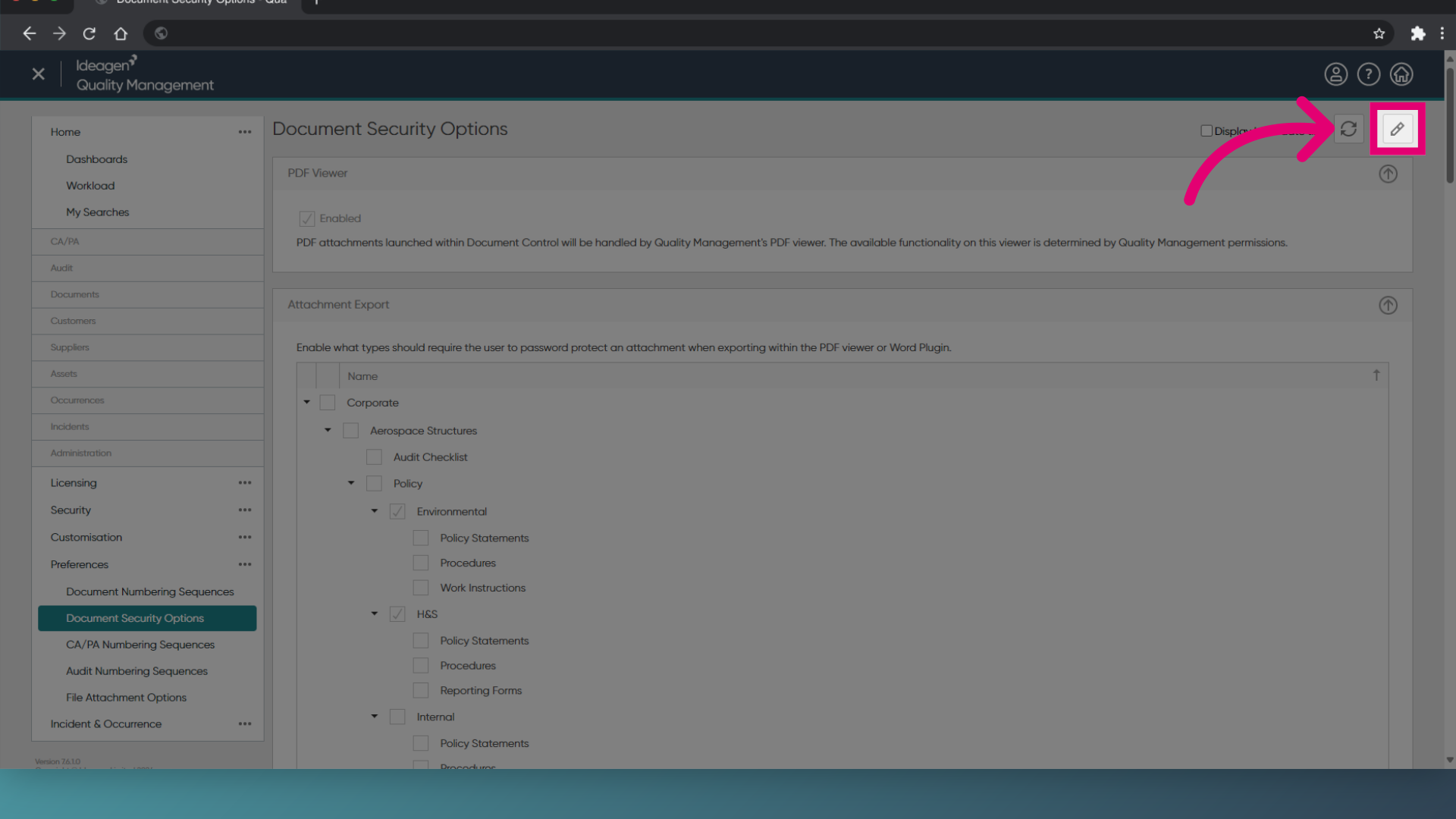
- Click Edit (Pencil icon).
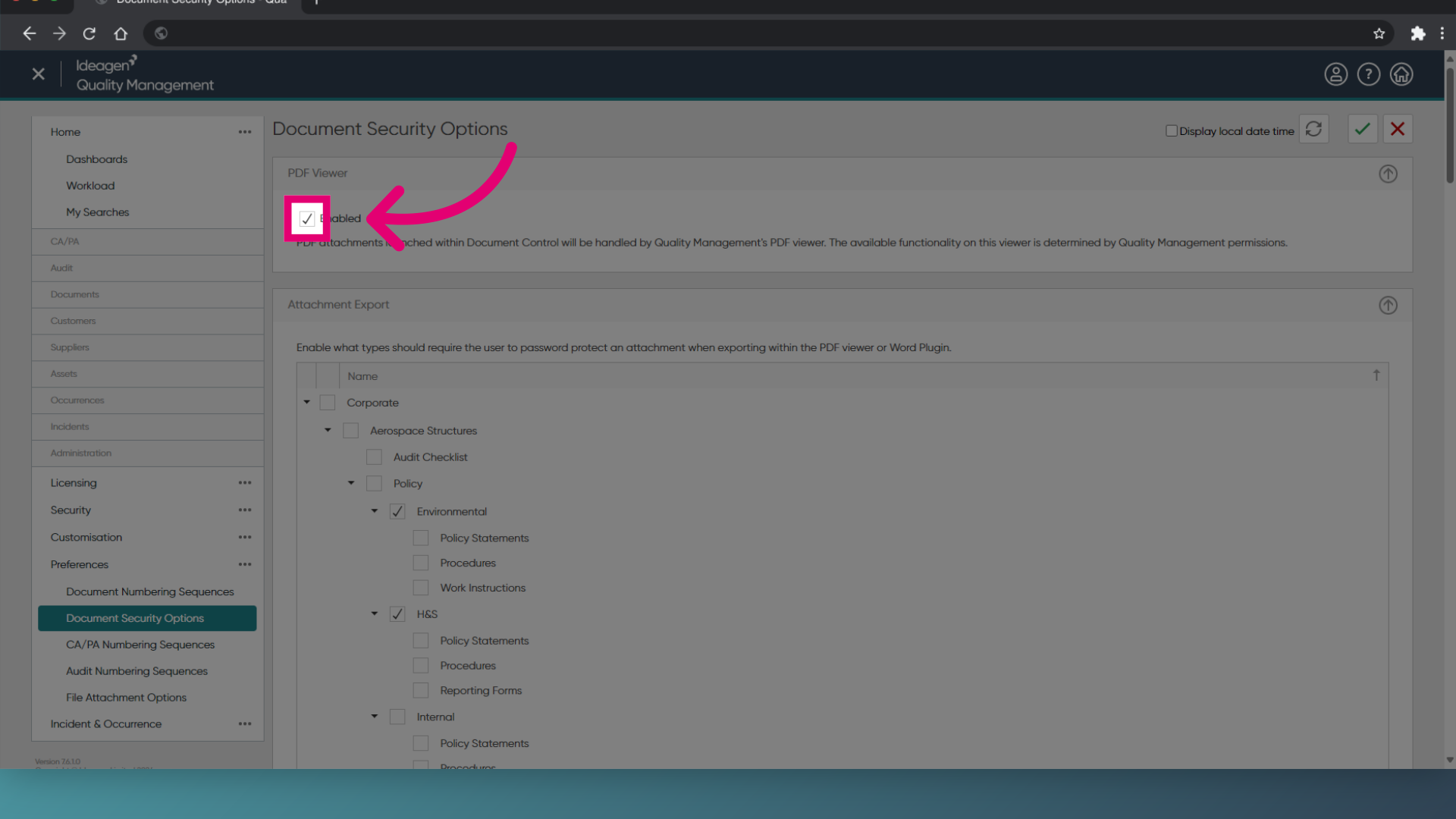
- Tick Enabled (in the PDF Viewer section).
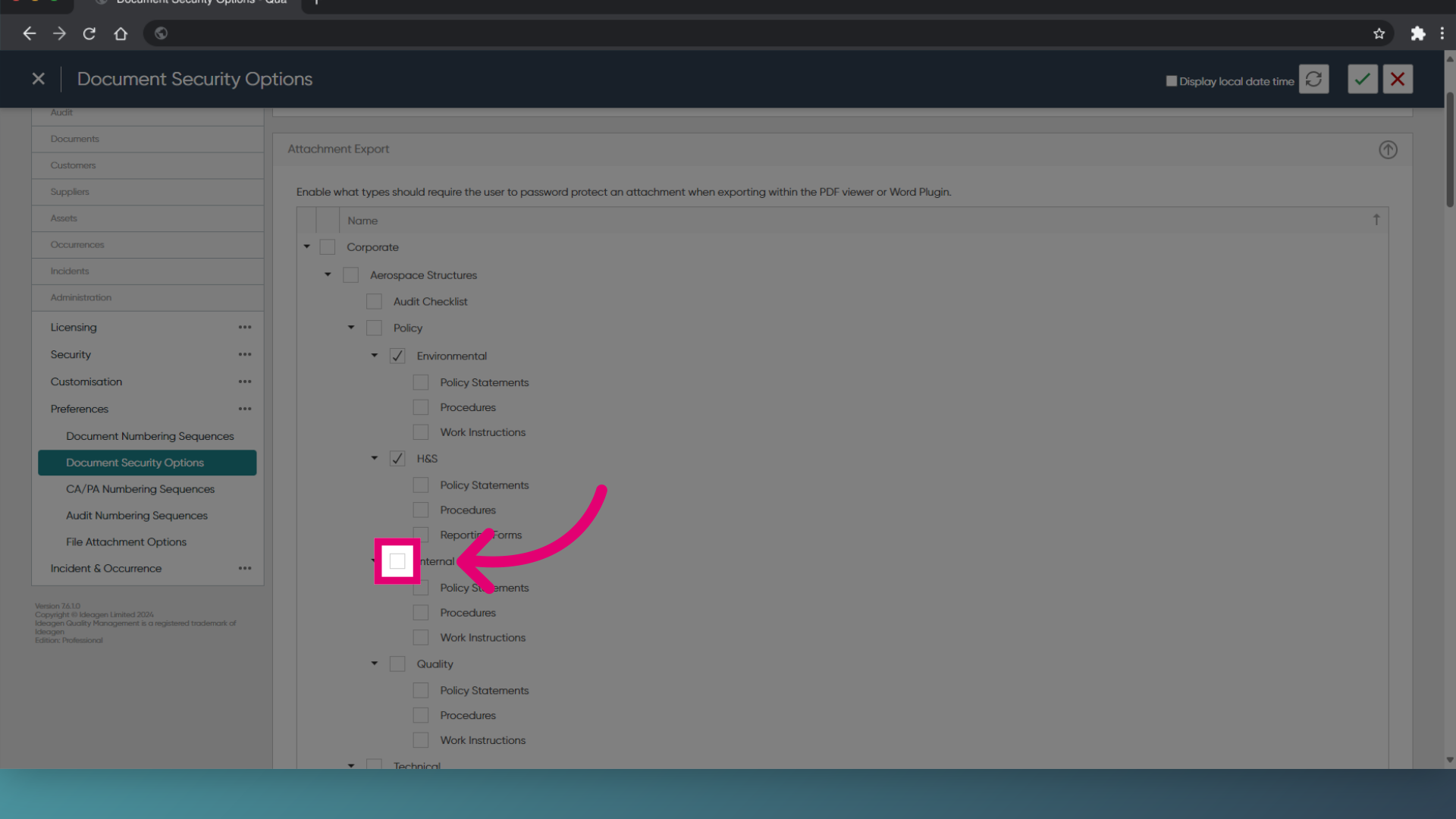
- Tick the Document Types that require password protection.
- Click Save (Tick icon).
2. Configuring security
Once enabled, users will need to be granted correct permissions to be able to access the Viewer.
To configure permissions, follow the steps outlined in our guide to assigning permissions to users and groups.
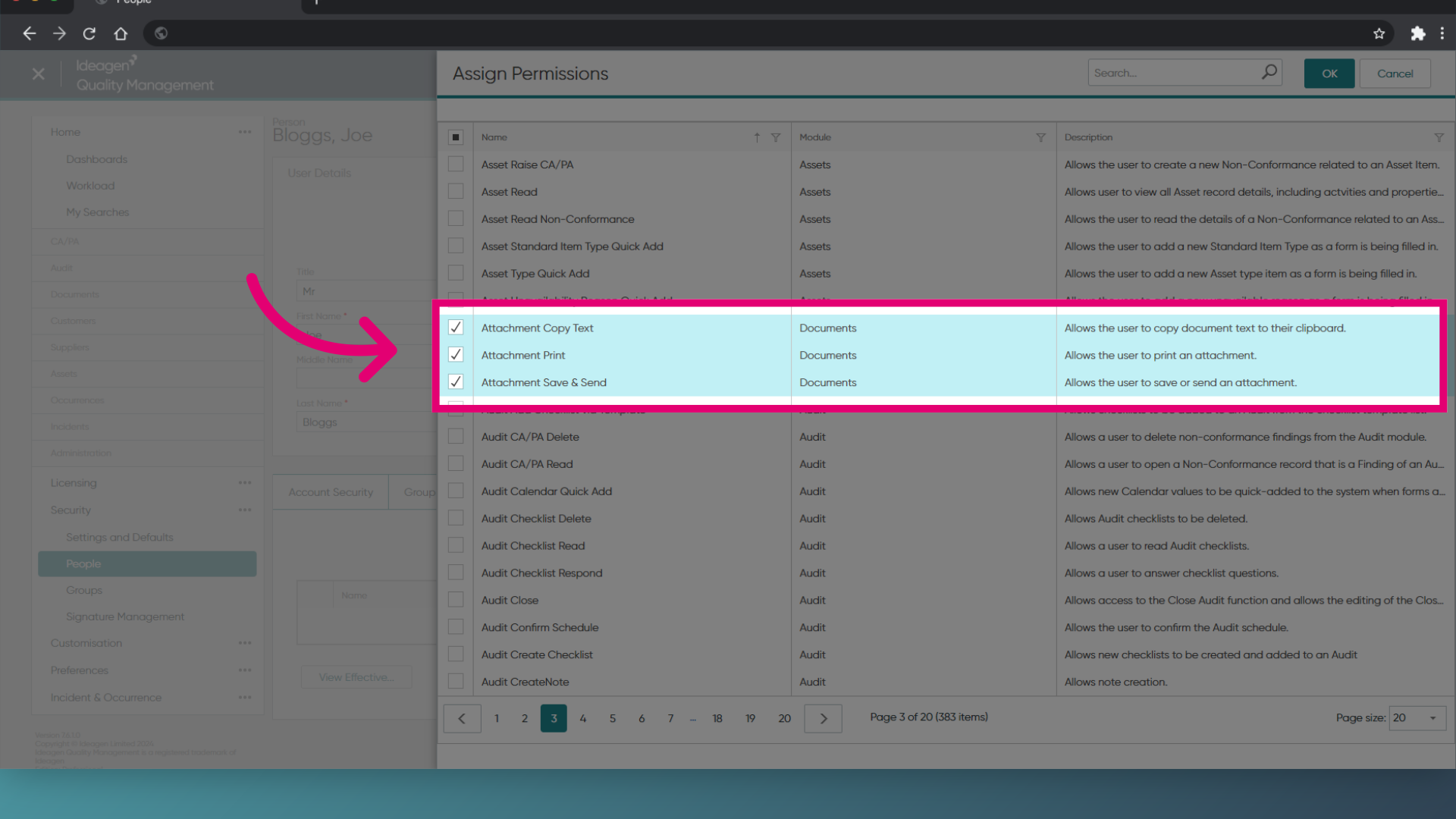
You need to apply the following permissions:
- Attachment Copy Text
- Attachment Print
- Attachment Save & Send
1. Enabling the Viewer
To enable the Document Viewer:
- Access the Administration module.
- Select Document Security Options (under Preferences).
- Tick Enabled (in the PDF Viewer section).
- Tick the Document Types that require password protection.
- Click OK.
2. Configuring security
Once enabled, users will need to be granted correct permissions to be able to access the Viewer.
To configure permissions, follow the steps outlined in our guide to assigning permissions to users and groups.
You need to apply the following permissions:
- Attachment Copy Text
- Attachment Print
- Attachment Save & Send