


New article
Recently updated
Raising a change request against a Document

Who is this article for?Users who want to flag a Document needing to be updated.
Document Raise Change Request permissions are required.
As your processes and procedures evolve, so will the documentation that comes with them. Documents can be updated as part of a scheduled review, revision, or change request raised by anyone they have been distributed to.
This article walks you through the latter process of requesting a change to the Document.
1. Raising a change request
To request a change to the Document:
- Access the Documents module.
- Select Documents.
- Open the Document record.
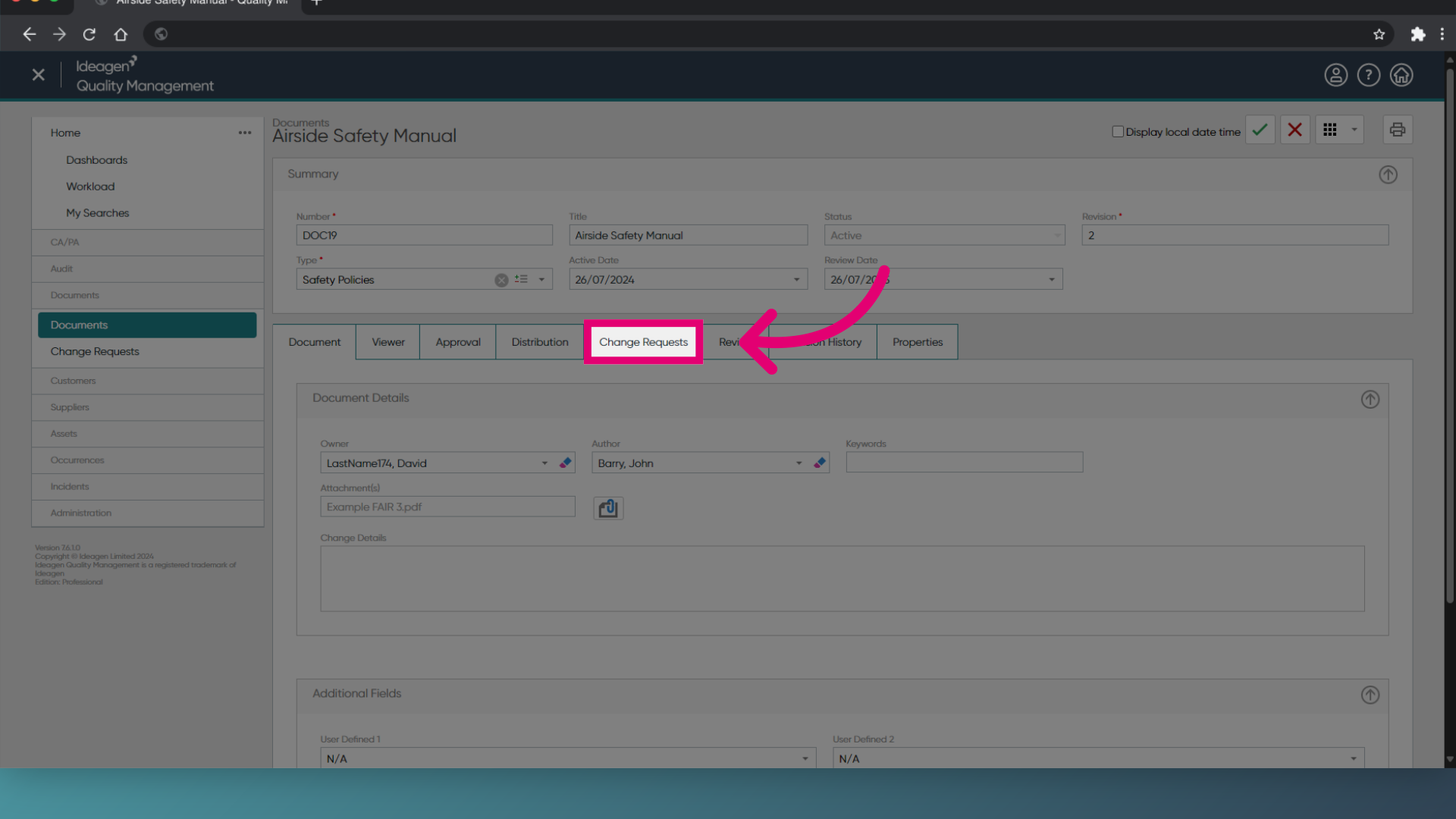
- Switch to the Change Requests tab.
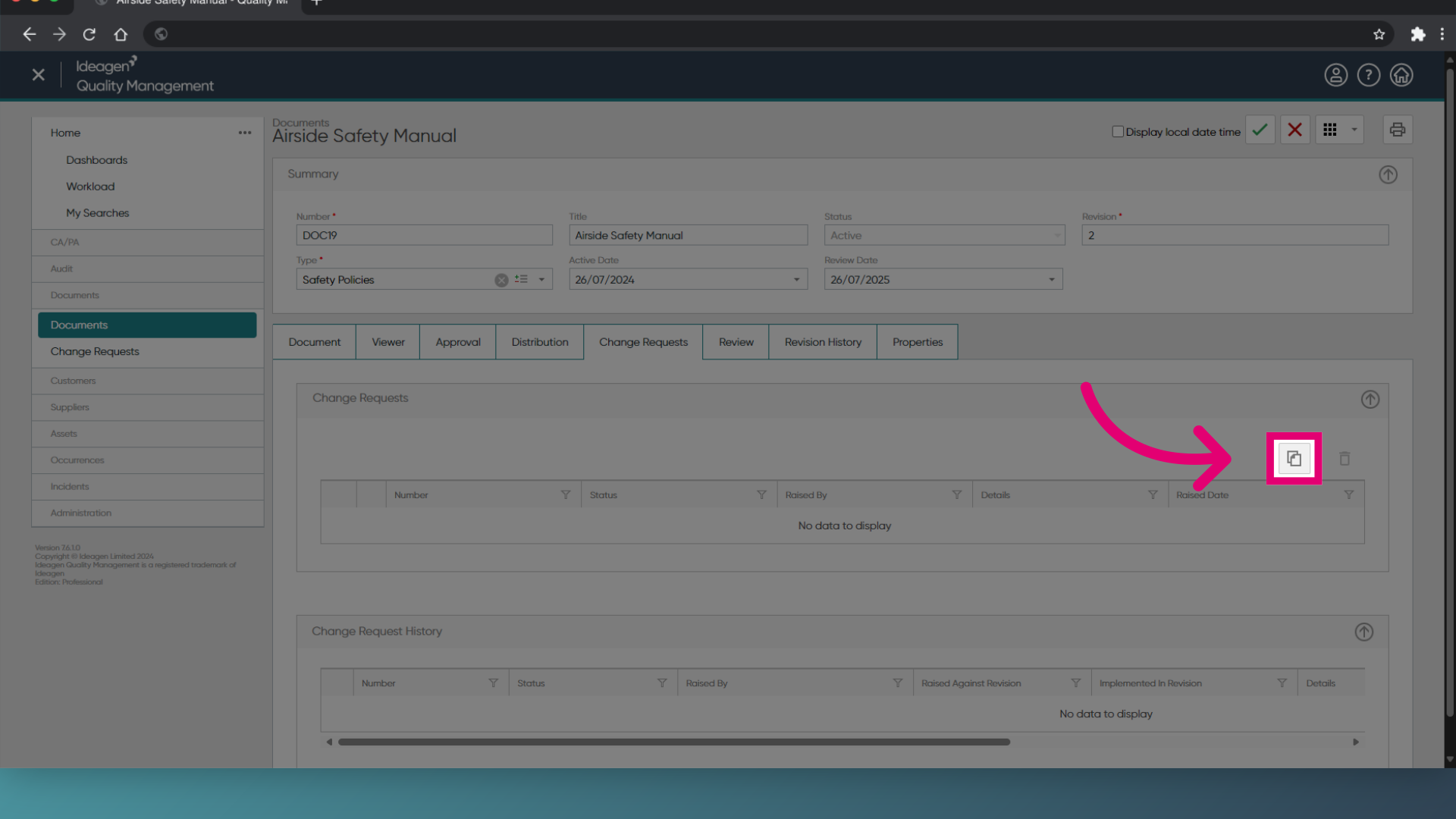
- Click Add Change Request.
- Enter Details of your request.
- Add Supporting information if available.
- Set the Severity.
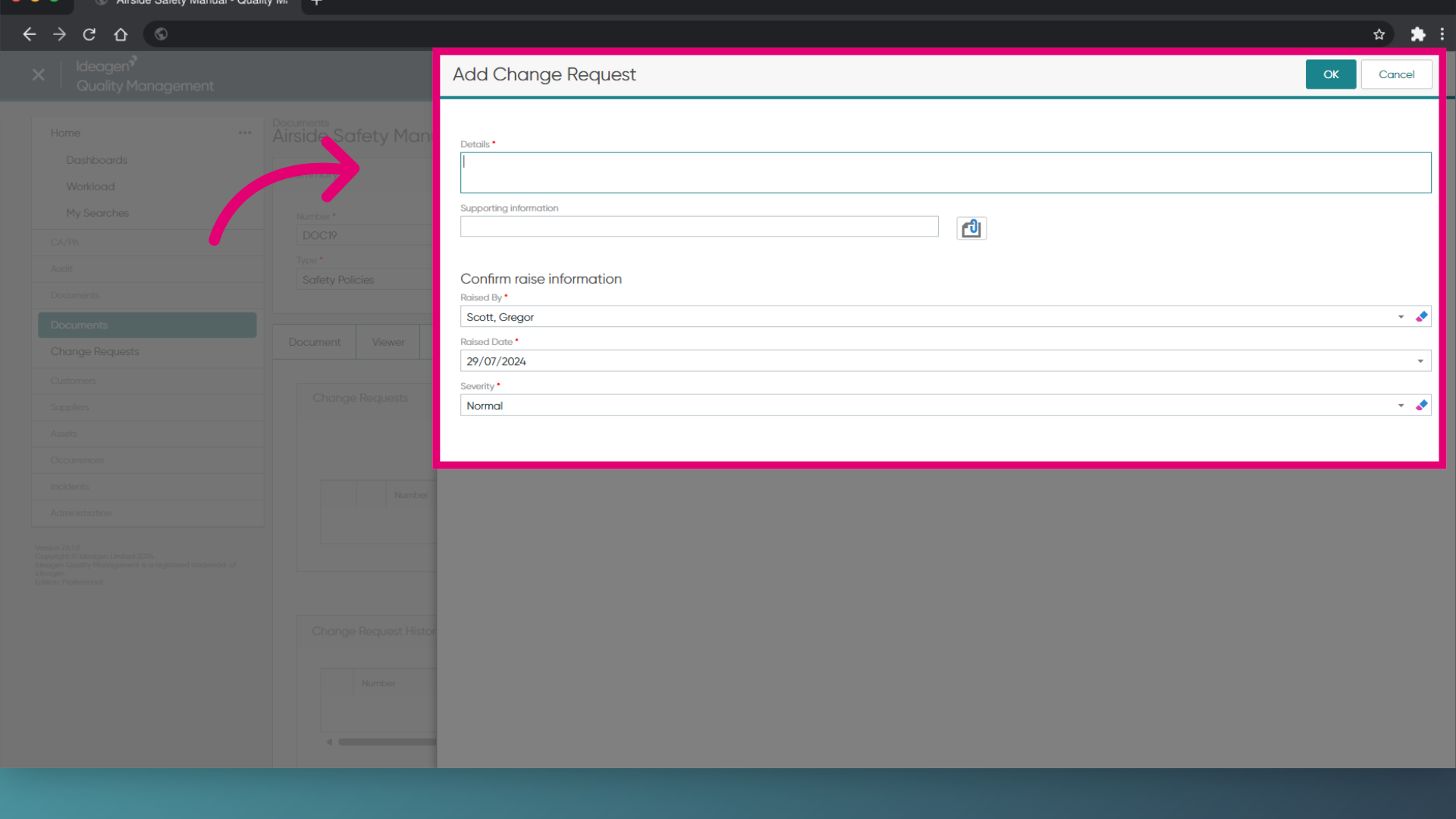
- Click OK.
- Click Save (Tick icon).
1. Raising a change request
To request a change to the Document:
- Access the Documents module.
- Open the Document record.
Alternatively, you can right-click the record in the list view. - Expand the Change Requests section.
- Click Add Change Request.
- Enter Details of your request.
- Add Supporting information if available.
- Set the Severity.
- Click OK.
- Click Save.