


New article
Recently updated
Acknowledging a Document

Who is this article for?Users named as copyholders on a Document.
Document Acknowledge permissions are required.
When a Document is activated, it will be distributed to specified users who need to acknowledge the contents. This lets the Document Owners know that you have received it and understood the revision content.
This article walks you through the process of acknowledging a Document.
1. Acknowledging Documents
To acknowledge a Document:
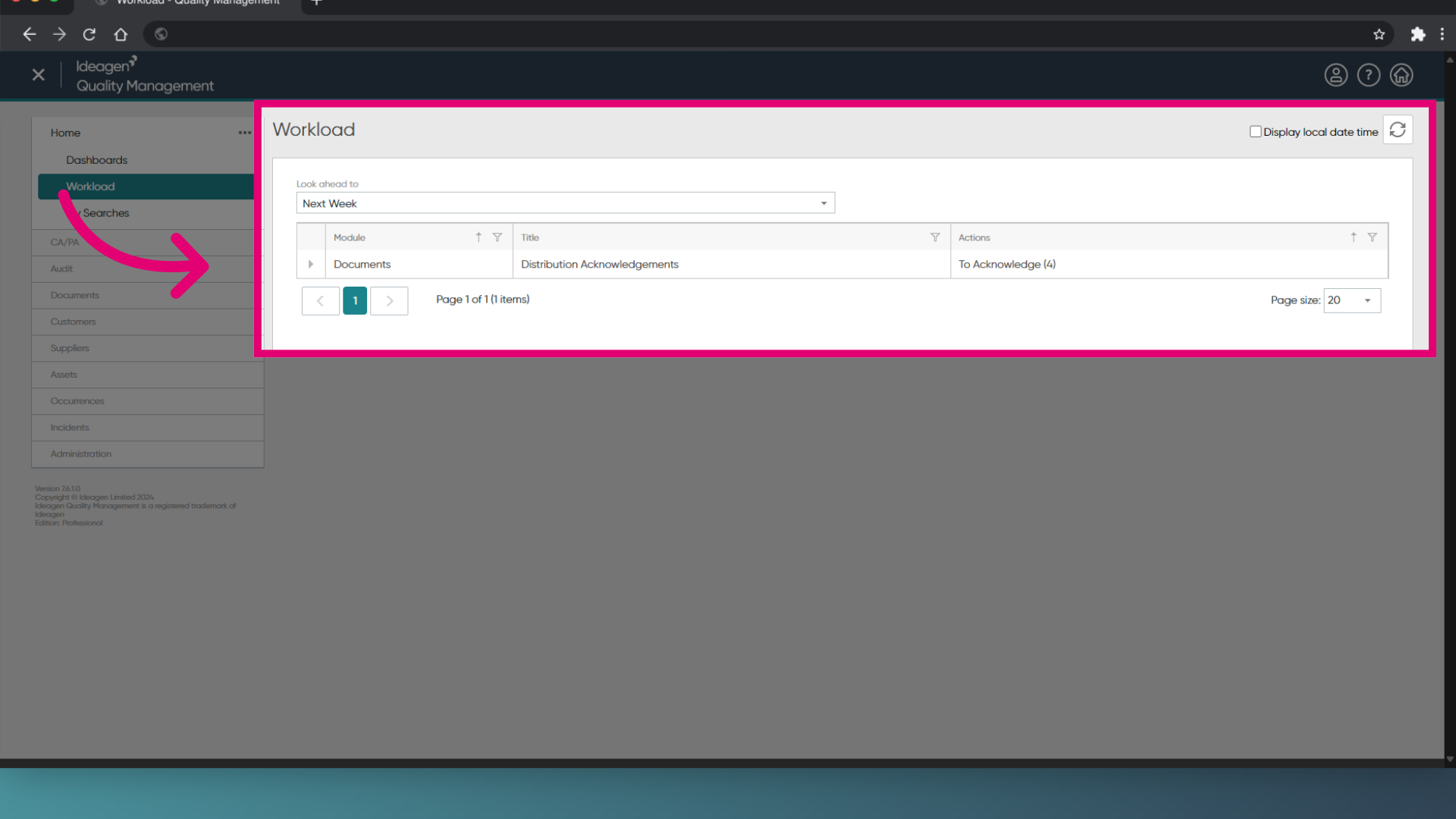
- Select Workload (under Home).
You will see an entry for the Documents module. - Open Distributed Acknowledgements.
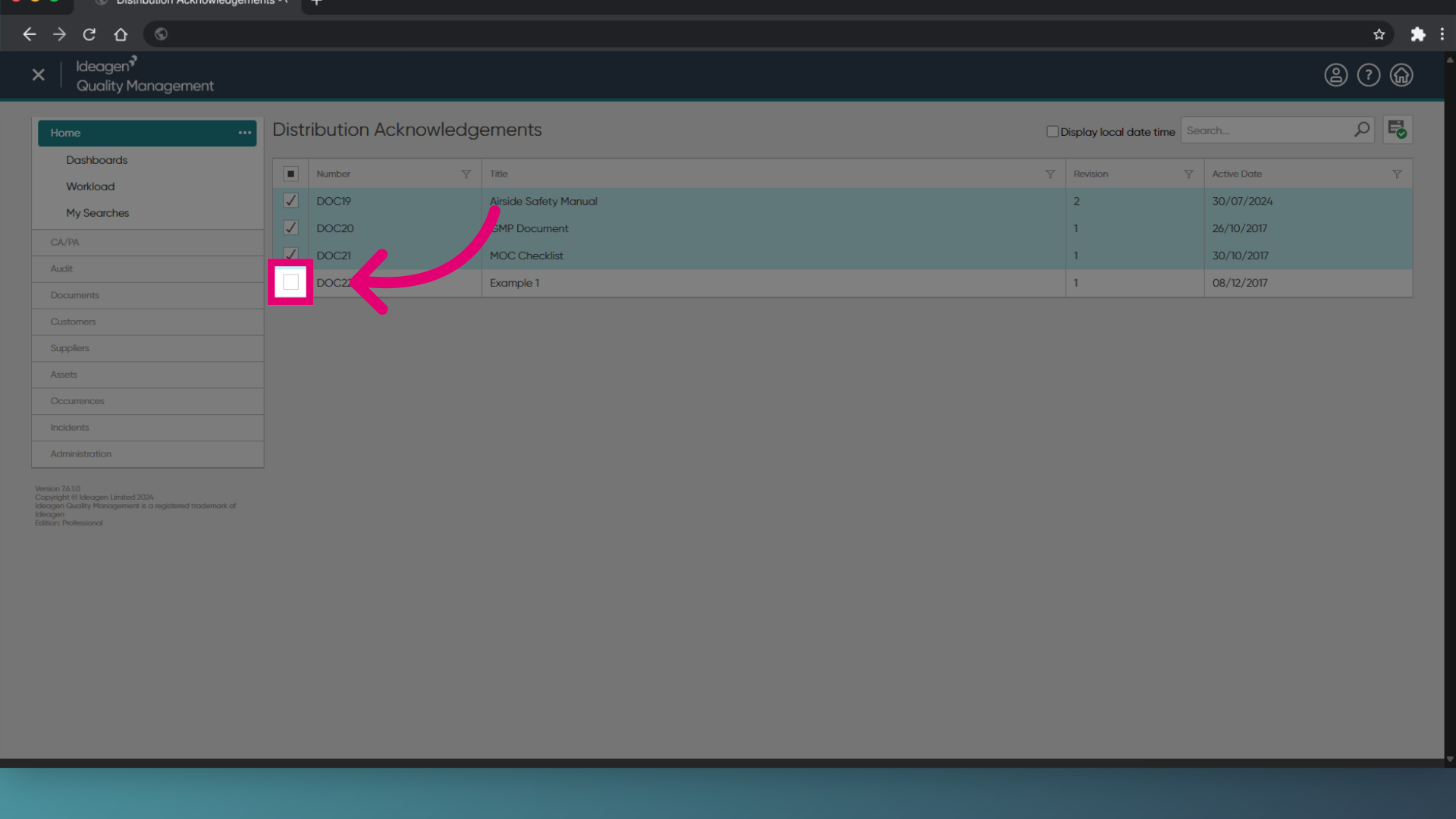
- Tick the box next to each Document to acknowledge.
It's important you read the Document before acknowledging it.
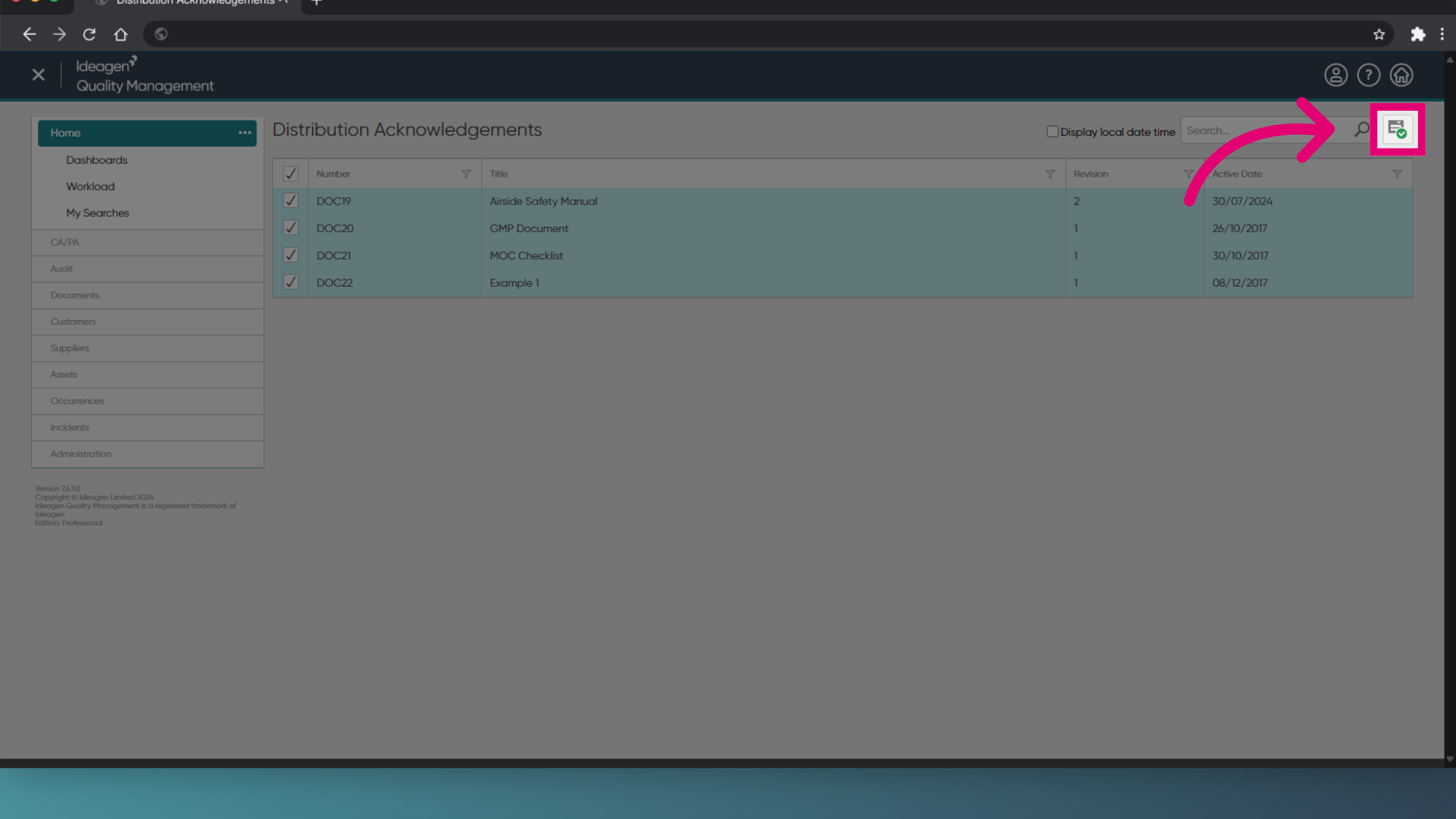
- Click Acknowledge.
Are you being asked to provide a signature?
Depending on the Document Type, you may be asked for an electronic signature. To complete the approval process, enter your system credentials and click Sign.
1. Acknowledging a Document
1.1. List view
To acknowledge a Document:
- Access the Documents module
- Right-click the Document to acknowledge.
You can select multiple entries from this view. - Select Acknowledge.
1.2. Document Details view
To acknowledge a Document:
- Open the Document record.
- Expand the Distribution section.
- Click Acknowledge.
Are you being asked to provide a signature?
Depending on the Document Type, you may be asked for an electronic signature. To complete the approval process, enter your system credentials and click Sign.