


New article
Recently updated
Creating a Document

Who is this article for?Users needing to create a new Document record.
Document Create permissions are required.
Before creating a new Document record in Quality Management, you must first create a local file you need to display within the system.
These files are referred to as Documents throughout Quality Management, but you can add any type of file as a Document, such as text files, spreadsheets, presentations, videos, pictures, etc.
This article shows you how to create a new Document record and attach your local file to it.
1. Creating a Document
To create a Document record:
- Access the Documents module
- Select Documents.
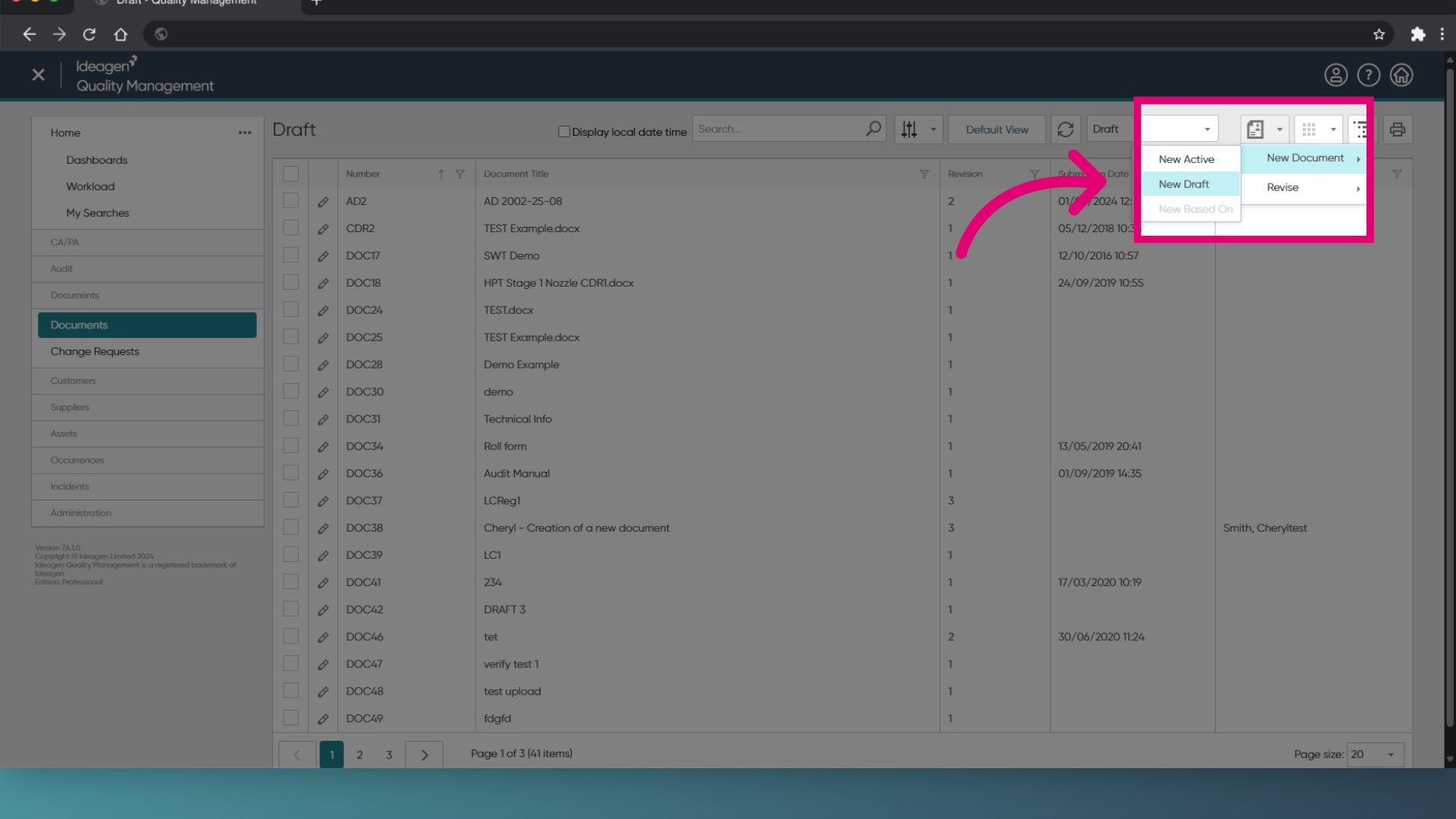
You will be taken to the Documents list. - Open the Actions menu.
- Select the Document type.
Draft Documents need to go through approval before being released to users.
Active Documents are released to users right away.
- Enter a Title for your Document.
- Select the Document Type.
- Assign an Owner.
This is the person who is responsible for maintaining the Document. - Assign an Author.
This is the person who wrote the latest revision of the Document. - Set the Revision.
This is the version number of the Document.
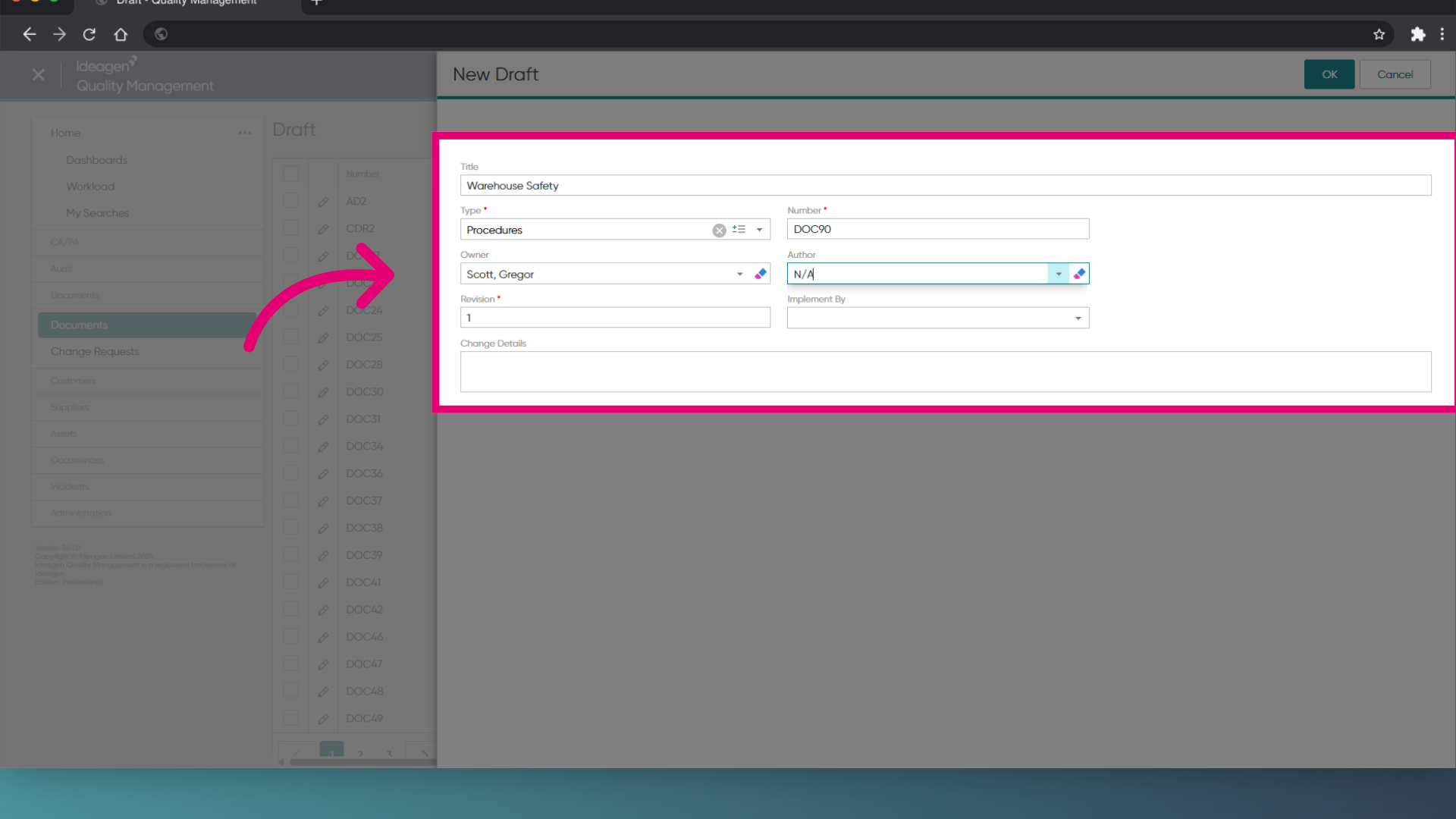
Although the Number field is shown as mandatory, this will be automatically set when a Document Type is specified.
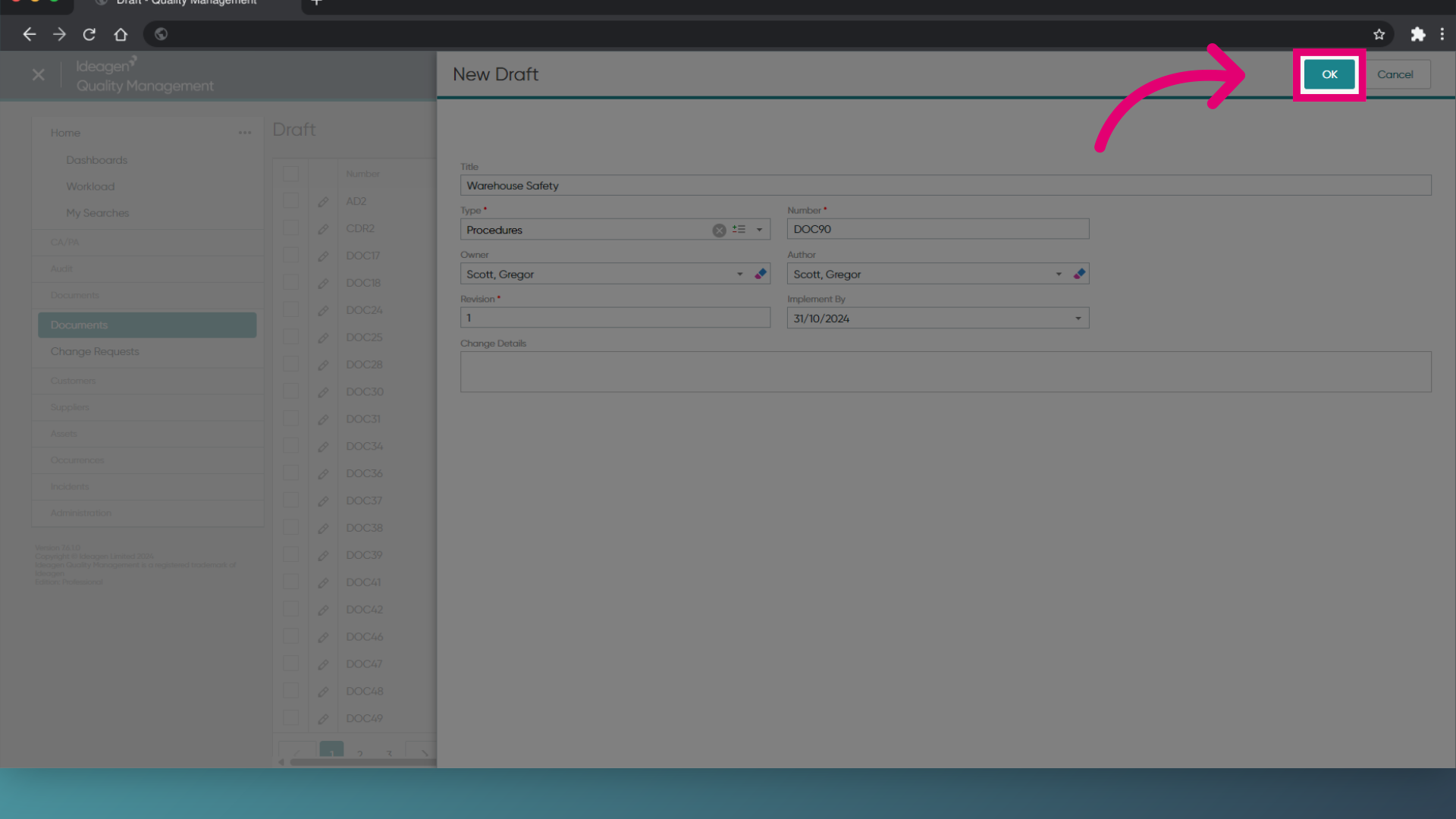
- Click OK.
Unsure how to title your Document?
Document Title is what will be used when searching for a Document, so it's important that the title makes sense and accurately reflects the content inside.
2. Attaching a Document file
Once you have created the record, you can add the actual Document file.
To attach a Document file:
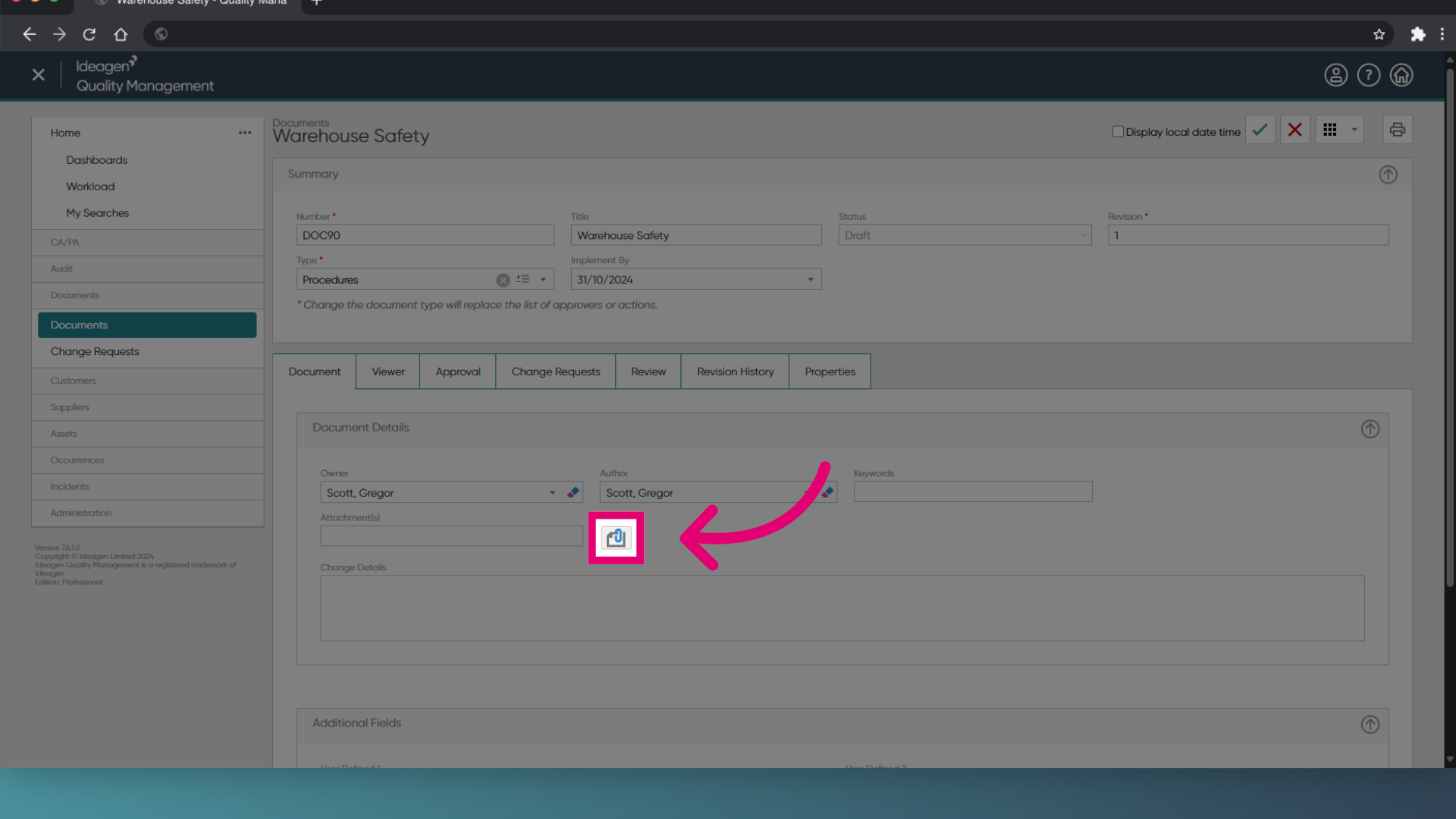
- Open the Document record.
- Click Manage Attachment.
- Enter an Attachment Description.
- Choose Embed in application for Attachment Management.
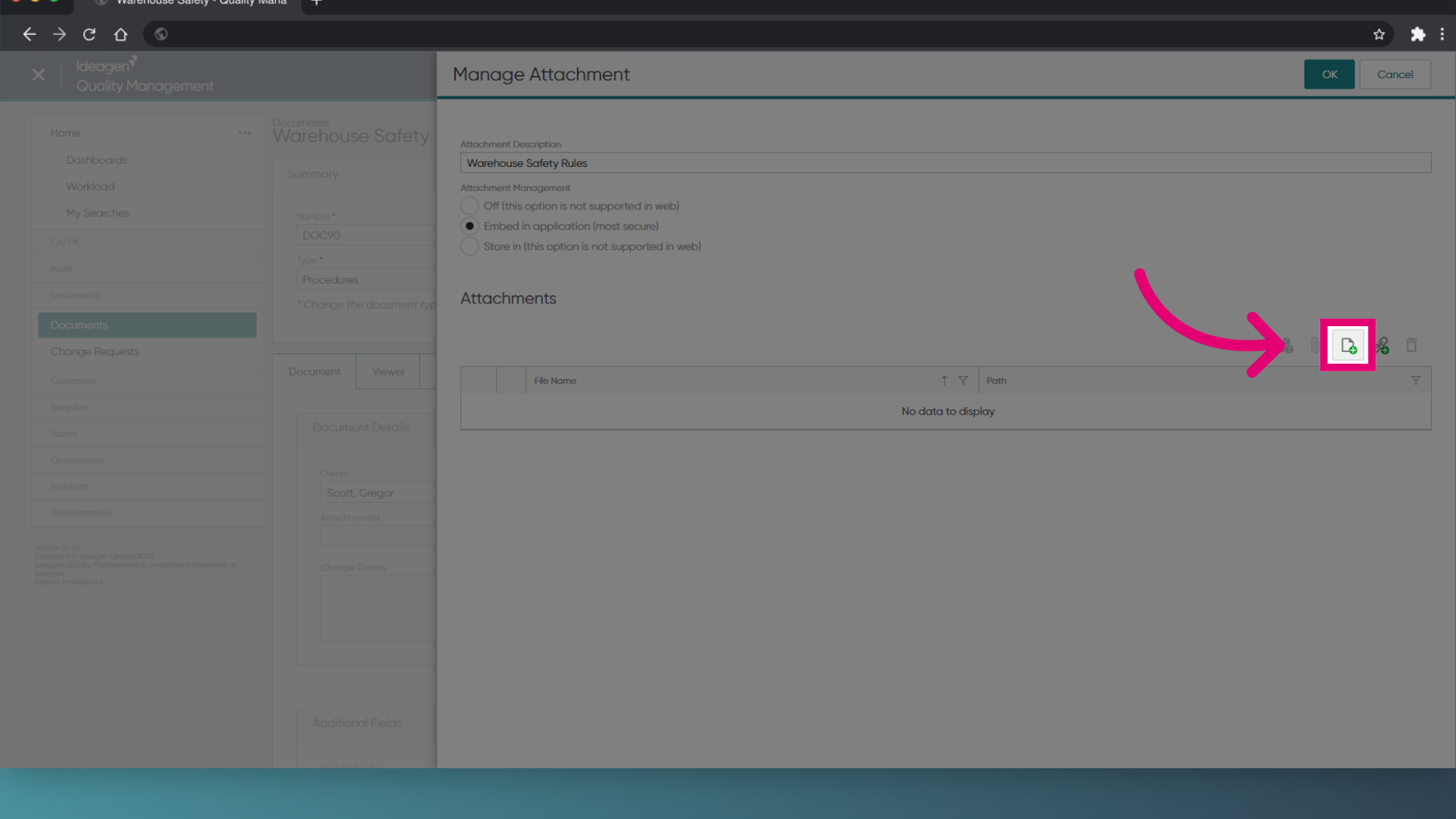
- Click Add File.
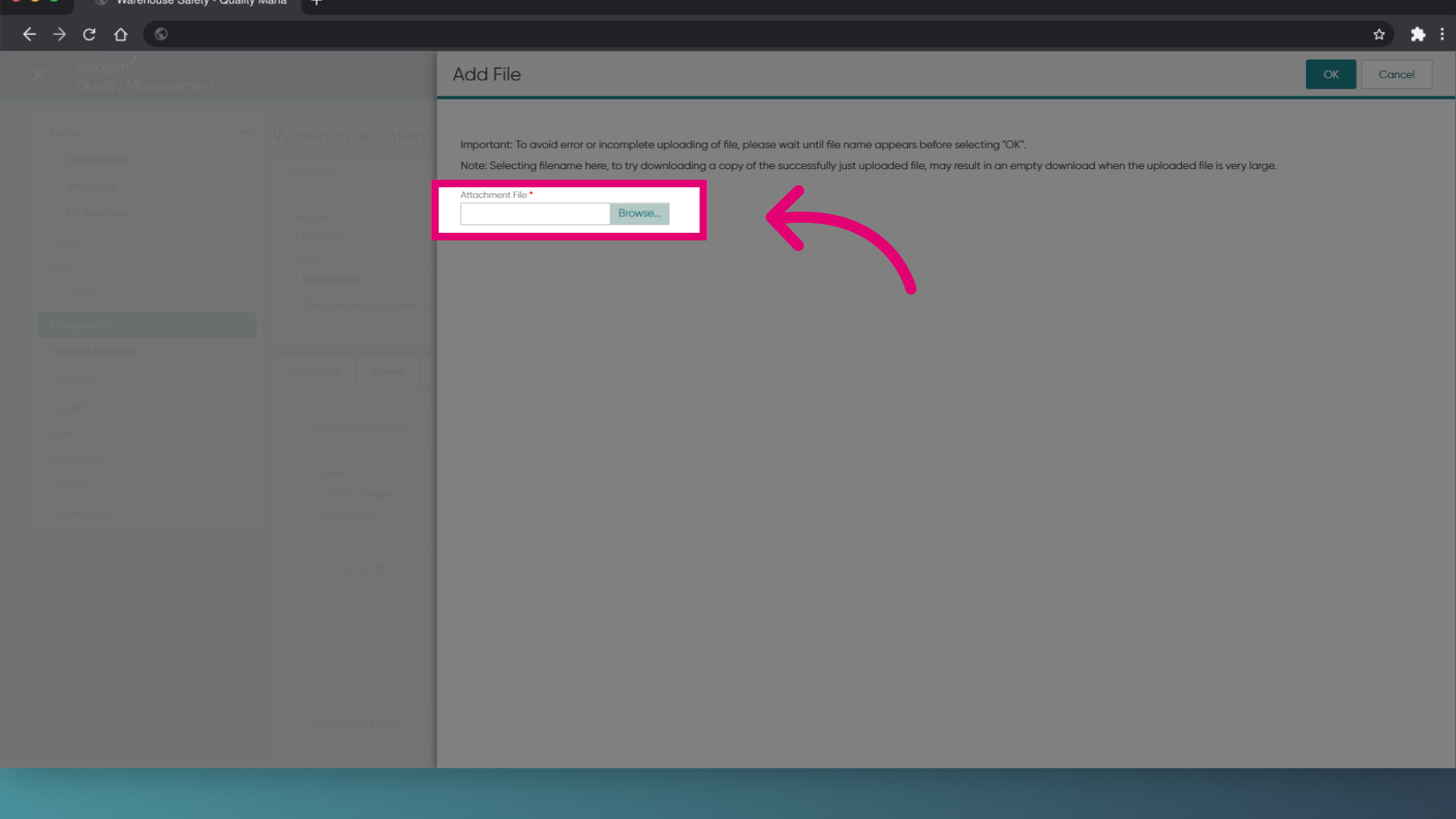
- Browse... to select a file from you computer.
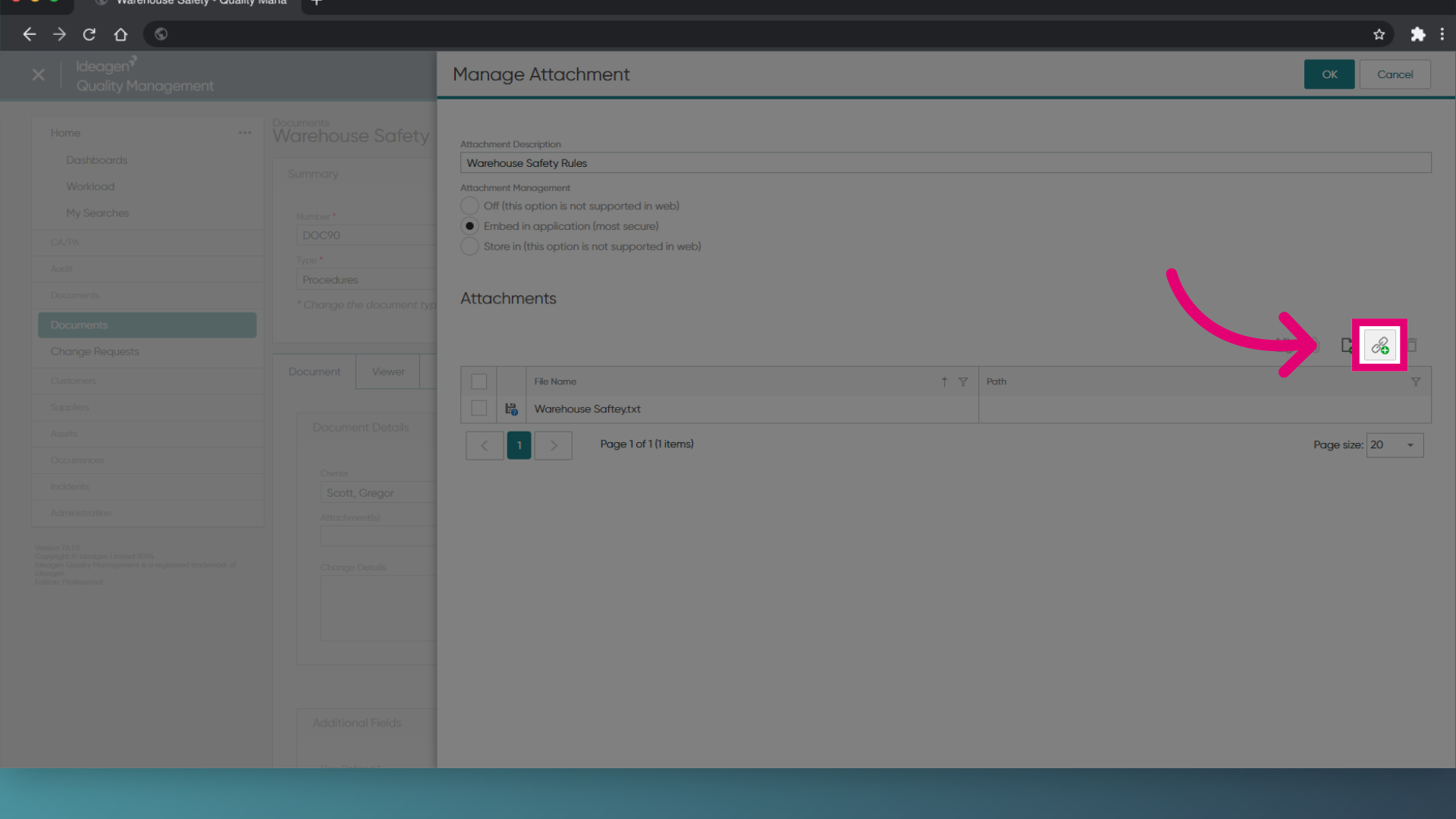
- Use the Link Document button to attach additional files.
This is optional. - Click OK.
Linking external files?
Ideagen Quality Management 7 only supports embedding files as attachments (i.e. storing the attachment inside the Ideagen Quality Management database).
If you need to host the file elsewhere, select 'Embed...' as the management method and use the Link Document feature. Only users who have access to the file path will be able to access the linked file.
3. Managing attachments
To manage attachments:
- Open the Document record.
- Click Manage Attachments.
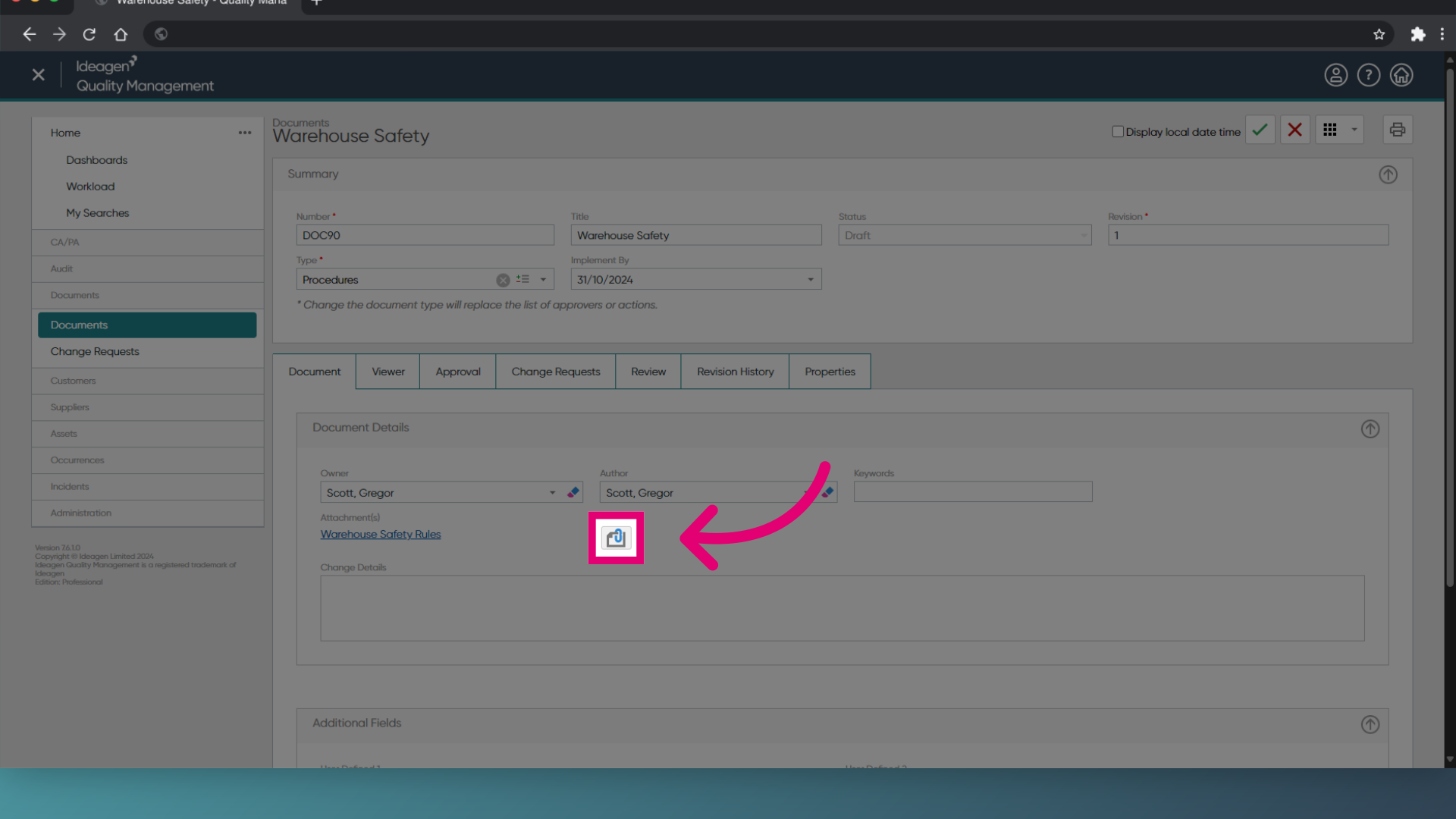
- From here, you can:
- Download the file: This saves the file to your local device.
- Set an index file: If you attach multiple files to a record, the index file is the file that is opened when a user clicks on the link.
- Add a file: This will add a new file to the record.
- Link to a file: This allows you to link an existing file to the record.
- Delete a file: This will remove a file from the record.
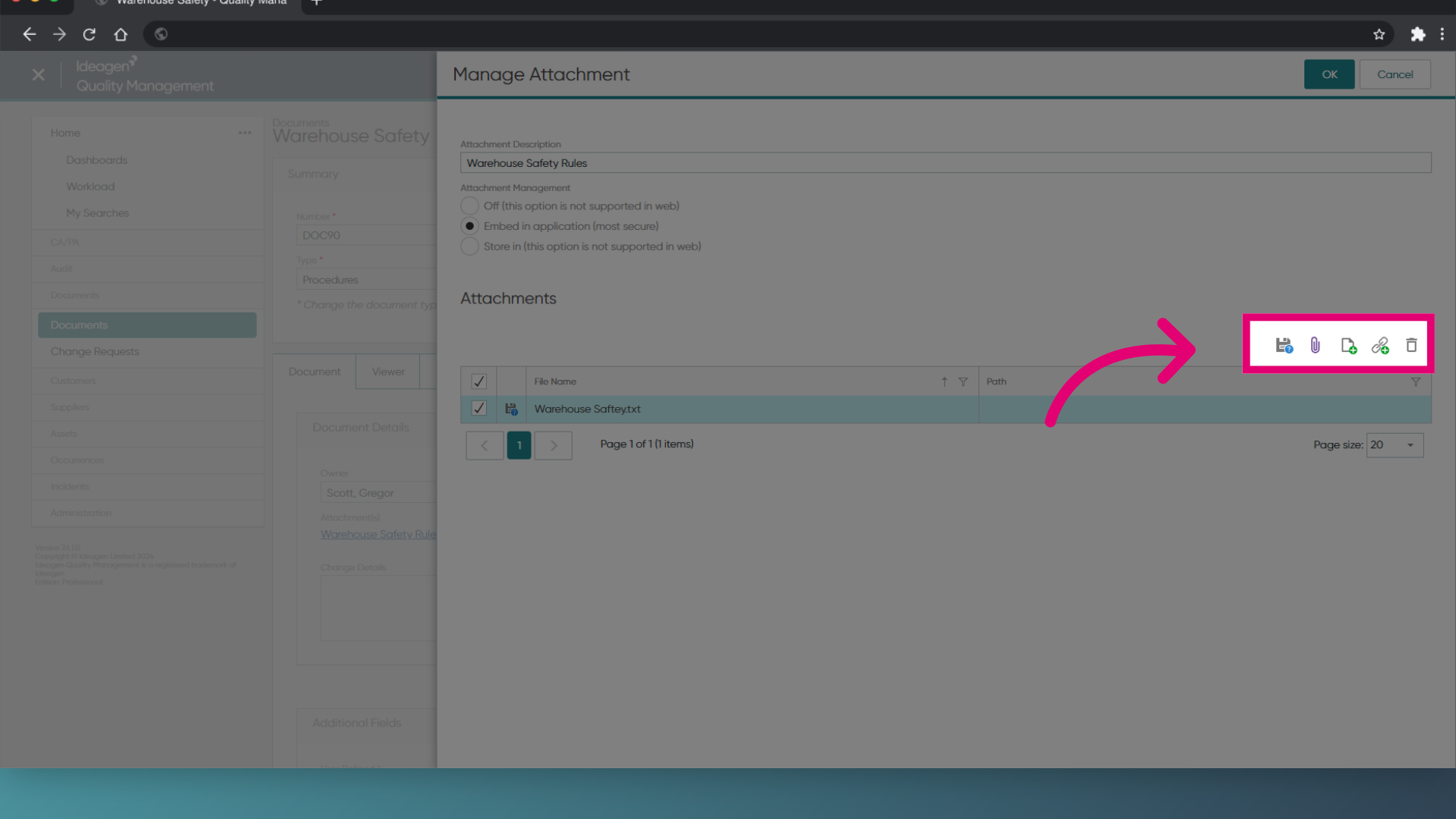
- Click OK to close the pane.
- Click Save (Tick icon) to save the record.
1. Creating a Document
To create a Document record:
- Access the Documents module
- Open File.
- Click New.
- Choose Document.
- Select the Document type.
- Open the Actions menu.
- Select the Document type.
Draft Documents need to go through approval before being released to users.
Active Documents are released to users right away.
- Enter a Title for your Document.
- Select the Document Type.
- Assign an Owner.
This is the person who is responsible for maintaining the Document. - Assign an Author.
This is the person who wrote the latest revision of the Document. - Set the Implement By Date.
This is the date the Document should go live by (Drafts only). - Describe Change Details.
This is a summary of the changes made since the last revision. - Click Save.
2. Attaching a Document file
Once you have created the record, you can add the actual Document file.
To attach a Document file:
- Open the Document record.
- Click the Ellipses icon next to Filename.
- Click Add Files/Folder/URL....
- Browse to the relevant file path.
- Select an Attachment Management option:
- Off keeps the attachment in its original location. Users who don't have access to that file path will not be able to access the attachment.
- Embed copies and stores the attachment in the Quality Management database. Anyone with permissions to access the record will be able to access the attachment.
- Store in lets you select a new home for the file. Users who don't have access to that file path will not be able to access the attachment.
- Click OK.
- Save the record.
3. Managing attachments
To manage attachments:
- Open the Document record.
- Click the Ellipses icon next to Filename.
- Highlight a file.
- Click available actions to modify the attachment.
- Click OK.
- Save the record.