


New article
Recently updated
How to Optimise Microsoft SQL Server for Ideagen Quality Management

Who is this article for?IT personnel responsible for managing Ideagen Quality Management.
IT access will be required.
Ideagen Quality Management can be optimised to improve your overall system performance. Optimisation can be made on the database, the application server or the client depending on your environment.
This article outlines how to optimise the Microsoft SQL Server for use with Ideagen Quality Management and is split into the following sections:
- Set/Increase the SQL Command Timeout
- Set Memory Allocation
- Rebuild Indexes
- Check SQL Server Edition
- Further Reading
Important Note: It is recommended that you backup any files before editing them. If you experience any issues then you can restore the original unedited file.
Looking for details on the Ideagen Quality Management architecture? Visit Ideagen Quality Management System Architecture for more details.
1. Set/Increase the SQL Command Timeout
All of the Ideagen Quality Management data is held in a SQL database. When the information displayed in Ideagen Quality Management is changed, the application will automatically perform SQL operations to update the data on the SQL server. While this is being performed, the default SQL timeout options will determine how long these operations will run for.
Increasing the timeout is recommended if:
- There is a large geographical distance between the application server and database server which may result in a delay carrying out tasks
- The SQL server hosts various other databases which may result in slower performance
- The user will be carrying out actions that require complex calculations to be performed (e.g. restructuring large managed lists)
To set the SQL command timeout:
- On the application server, browse to the Ideagen Quality Management web site folder. By default, this will be C:\inetpub\wwwroot\QPulse5
- Locate and open web.config with Notepad
- Add a new entry to the <appSettings> section:
- <add key="SqlCommandTimeout" value="120"/>
- The value of the SqlCommandTimeout is in seconds and can be changed as needed. Save the web.config.
<add key="SqlCommandTimeout" value="120"/>
2. Set Memory Allocation
Microsoft SQL Server performs automatic and dynamic memory management based on the current memory requirements of the internal SQL Server components and workload on the system. SQL Server also offers memory-related configuration options to aid fine tuning for specific application behaviour patterns and specific advanced requirements.
It might be necessary to decrease maximum server memory if SQL server is using all memory which can result in performance issues on whole system. This is recommended on dedicated single tier setup (where the Ideagen Quality Management application and database are the same server).
It might be necessary to increase maximum server memory if SQL server is not having enough resources to process requests and causes performance problems and SQL command timeouts. This is recommended on dedicated split tier setup (where the Ideagen Quality Management application and database are on different servers).
To modify maximum memory used:
- Go to Object Explorer in SQL Management Studio
- Right click on Server or instance name and select Properties
- Go to Memory and set new maximum value:
3. Rebuild Indexes
As data is modified in a database, the database and its indexes become fragmented. As indexes become fragmented, ordered data retrieval becomes less efficient and reduces database performance. Please use the scripts, which can be downloaded here, to rebuild the indexes for Documents, Audit, CA/PA, People and Incident/Occurrence modules.
To rebuild indexes manually:
- Select and expand table
- Right click on ‘Indexes’
- Select ‘Rebuilt all’
| Module | Tables |
|---|---|
| Documents |
|
| Audit |
|
| Occurrences/Incidents |
|
| CA/PA |
|
| People |
|
4. Check SQL Server Edition
SQL Express utilises only 1GB of RAM per instance of SQL Server Database Engine. This might not be enough if there is more than one database used, the database’s size has increased or a lot of users are accessing the system at the same time. Please refer to Microsoft article for more information. To check what edition if SQL is used:
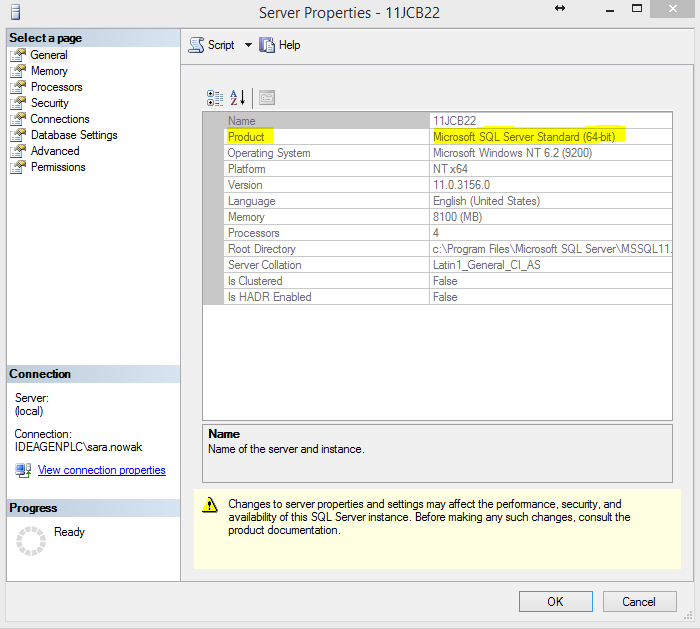
- Open SQL Management Studio and connect to your SQL instance
- Select the server from the Object Explorer and go to Properties
- Check the “Product” section