


New article
Recently updated
How to Make Configuration Changes to Ideagen Quality Management Using ClickOnce

Who is this article for?IT personnel responsible for deploying Ideagen Quality Management.
IT access will be required to implement this update.
ClickOnce is a deployment technology that enables you to create self-updating Windows-based applications that can be installed and run with minimal user interaction. This is used for Ideagen Quality Management to ensure all your users applications remain up to date without any inconvenience to the end user.
This article outlines how to make configuration changes when the client has been deployed using ClickOnce. To make this easier to follow the article is split into the following sections:
Looking to configure Ideagen Quality Management via ClickOnce for the first time? Visit How to Install the Ideagen Quality Management Client Using ClickOnce for details.
1. How to Make Configuration Changes
- Browse to our publishing directory.
- Open the ClientFiles folder.
- Apply any configuration changes required.
- Save the Q-Pulse.exe.config
2. Update the File Manifest
The file manifest contains a listing of the Ideagen Quality Management client files. As the Ideagen Quality Management client files have been edited, the Ideagen Quality Management.manifest will need to be updated with any new/updated files. This is performed using MageUI utility which is contained in the Tools folder previously copied into the publishing directory.
To populate the manifest:
To populate the manifest:
- Browse to the Tools folder and launch MageUI.exe.
- Click File, then Open and then select the manifest file contained in the ClientFiles folder.
- When the file opens, increment the last digit on the version field.
- On the navigation pane at the left, select [Files].
- Confirm that the folder structure shown is the correct path to your ClientFiles folder, then click [Populate]
- Once the files have populated, browse the file list for Thumbs.db. If found, make this file optional as it is a hidden file created by Microsoft Windows and is not needed for the installation.
- Click File, then Save.
- Select your Personal Information Exchange (PFX) certificate file and enter the correct password for the file.
- Click OK.
3. Update the .application File
The .application file is the file that will identify if there is an updated package available for use, therefore it is important to update this otherwise a deployment will not take place.
This file will hold:
- The minimum version of Ideagen Quality Management required for the client to run.
- The location of the Ideagen Quality Management File Manifest.
To configure the .application:
- Open MageUI.
- Click File, then Open and then select the Ideagen Quality Management.application file contained in the ClickOnceManual folder.
- When the file opens, confirm that the correct version of Ideagen Quality Management is displayed.
Note: This should match the version shown in the Ideagen Quality Management.manifest file.
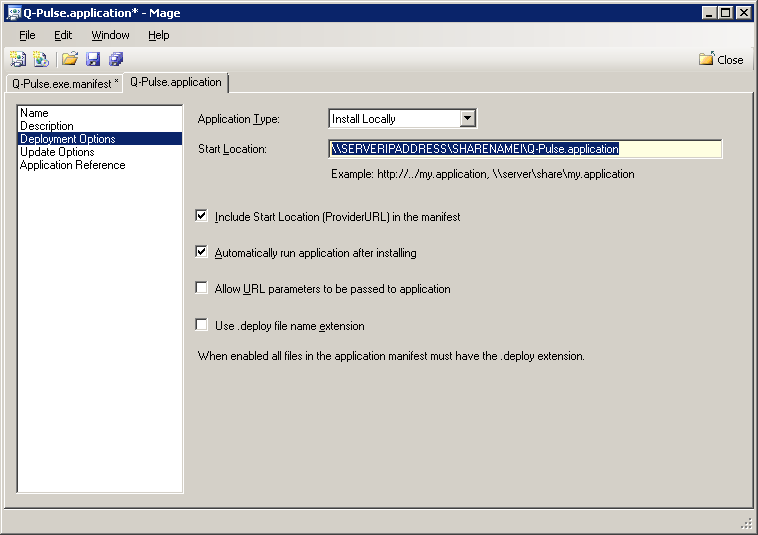
- On the navigation pane at the left hand side, click Deployment Options.
- Update the Start location field with the shared path to your Ideagen Quality Management.application file.
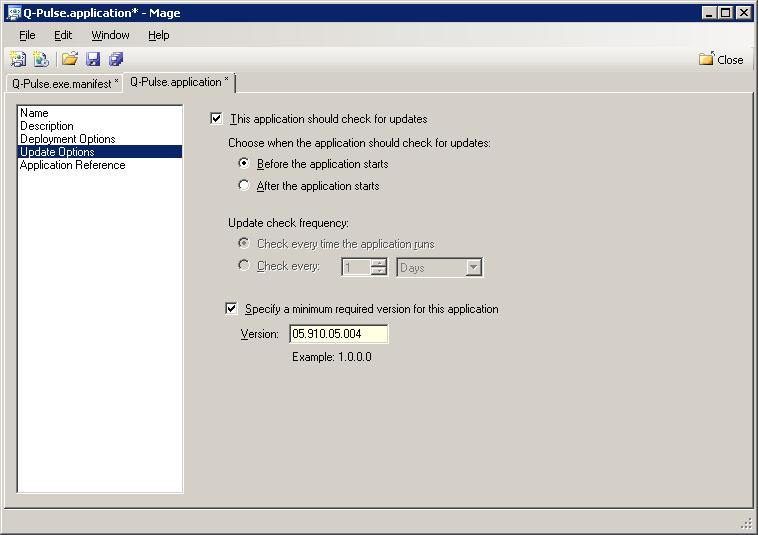
- Click Update Options and ensure that Specify a minimum version for this application has been selected.
- Increment the last digit of the version number.
- Click Application Reference and then click Select Manifest.
- Browse to the ClientFiles folder and select the Ideagen Quality Management.manifest file.
- Click File, then Save.
- Select your Personal Information Exchange (PFX) certificate file and enter the correct password for the file.
- Click OK.
Once this has been configured all users will be automatically updated to the client as they launch Ideagen Quality Management.