


New article
Recently updated
Editing and completing actions on a document

1. Editing an Action
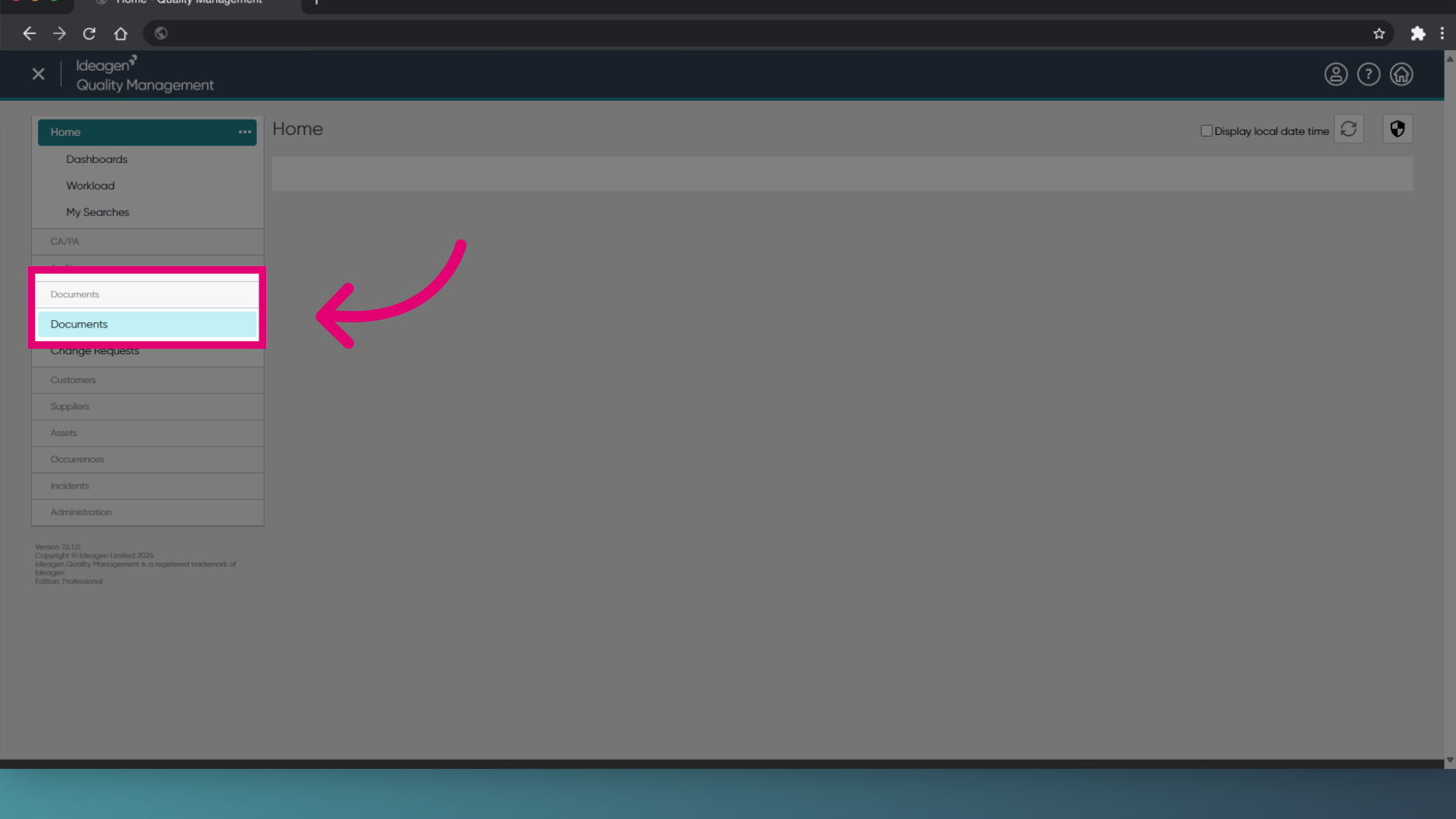
- Access the Documents module.
- Select Documents.
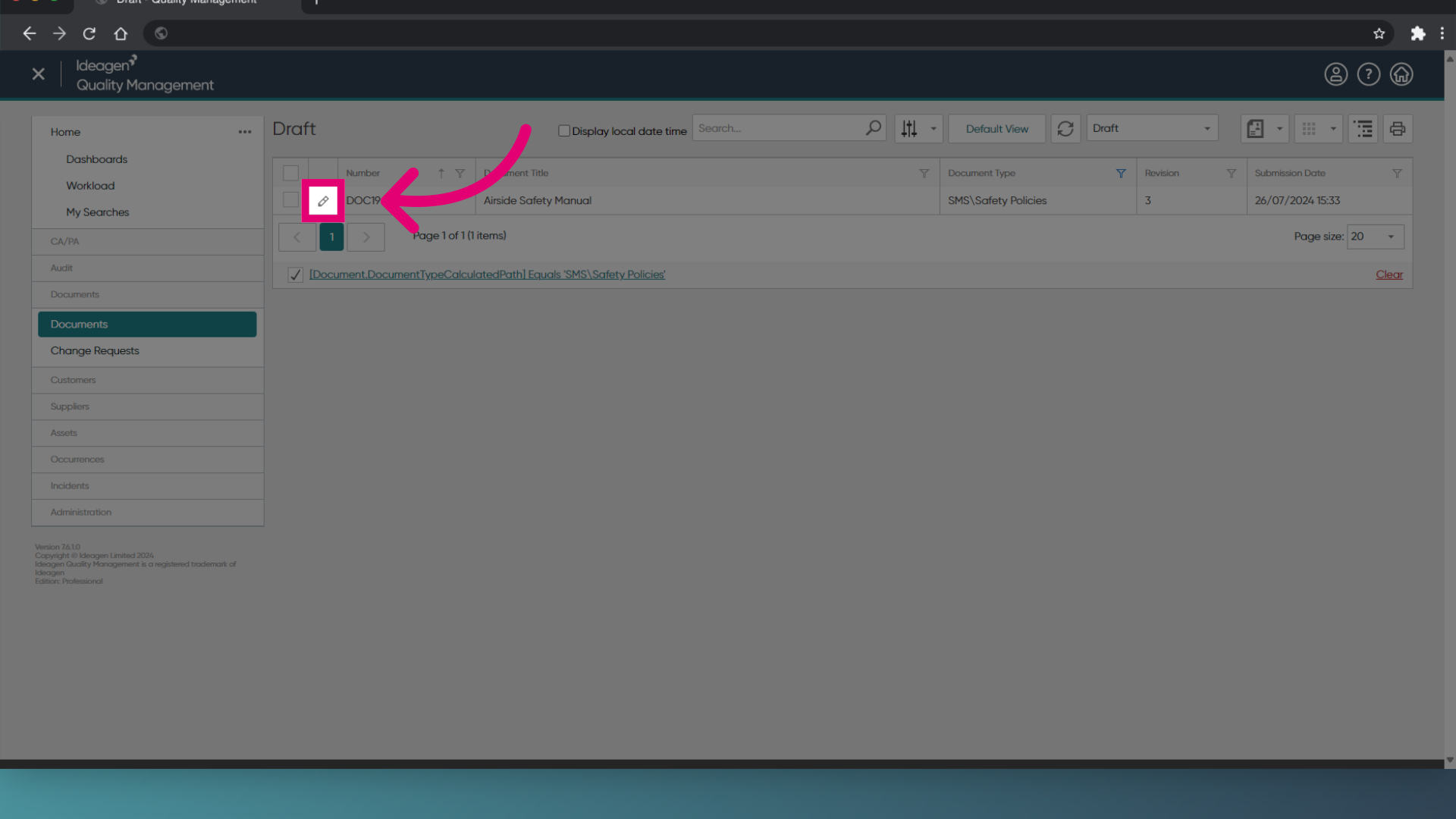
- Locate the document for which you need to edit the action and click on the edit icon next to the document number.
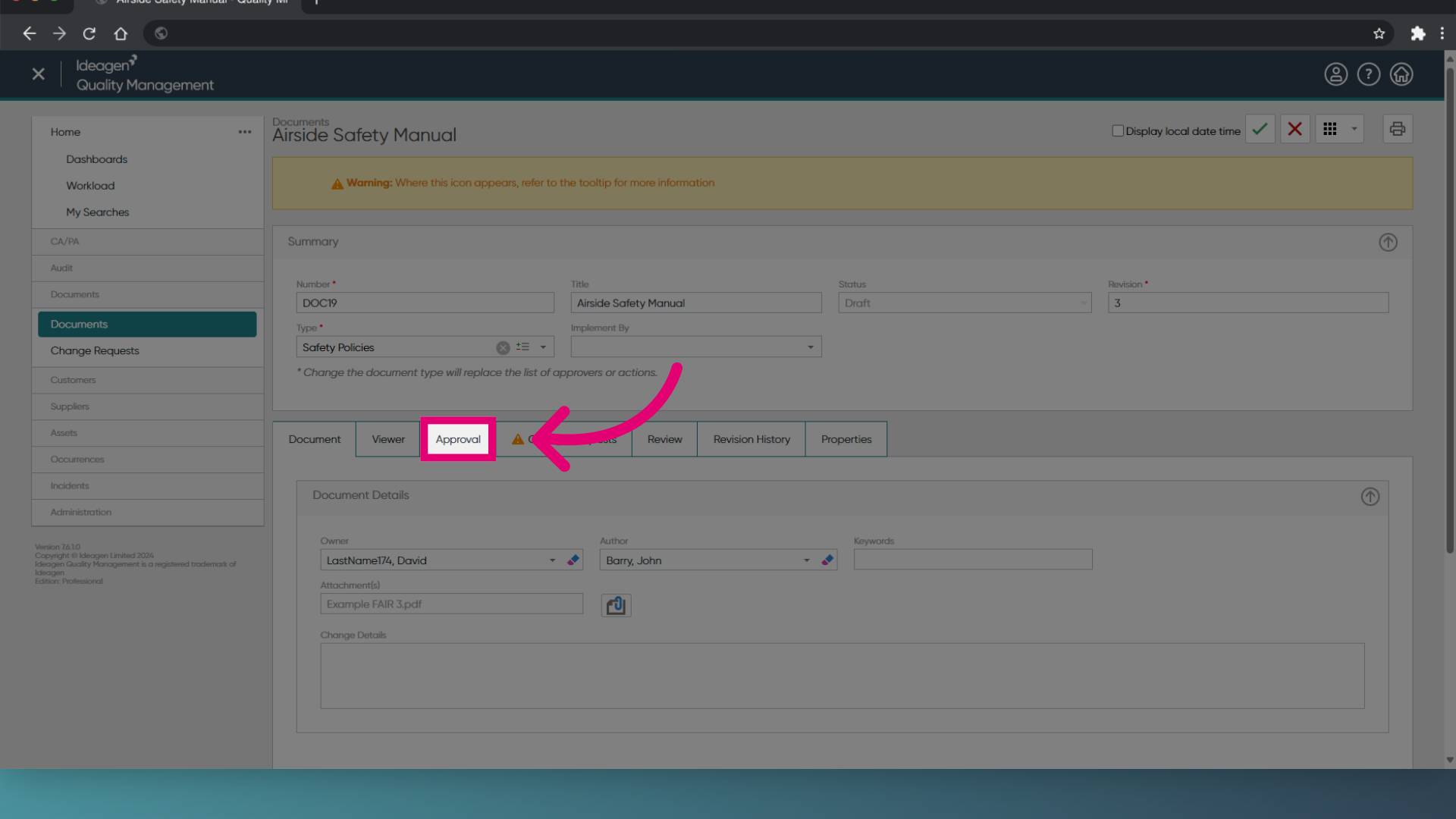
- Select the Approval tab.
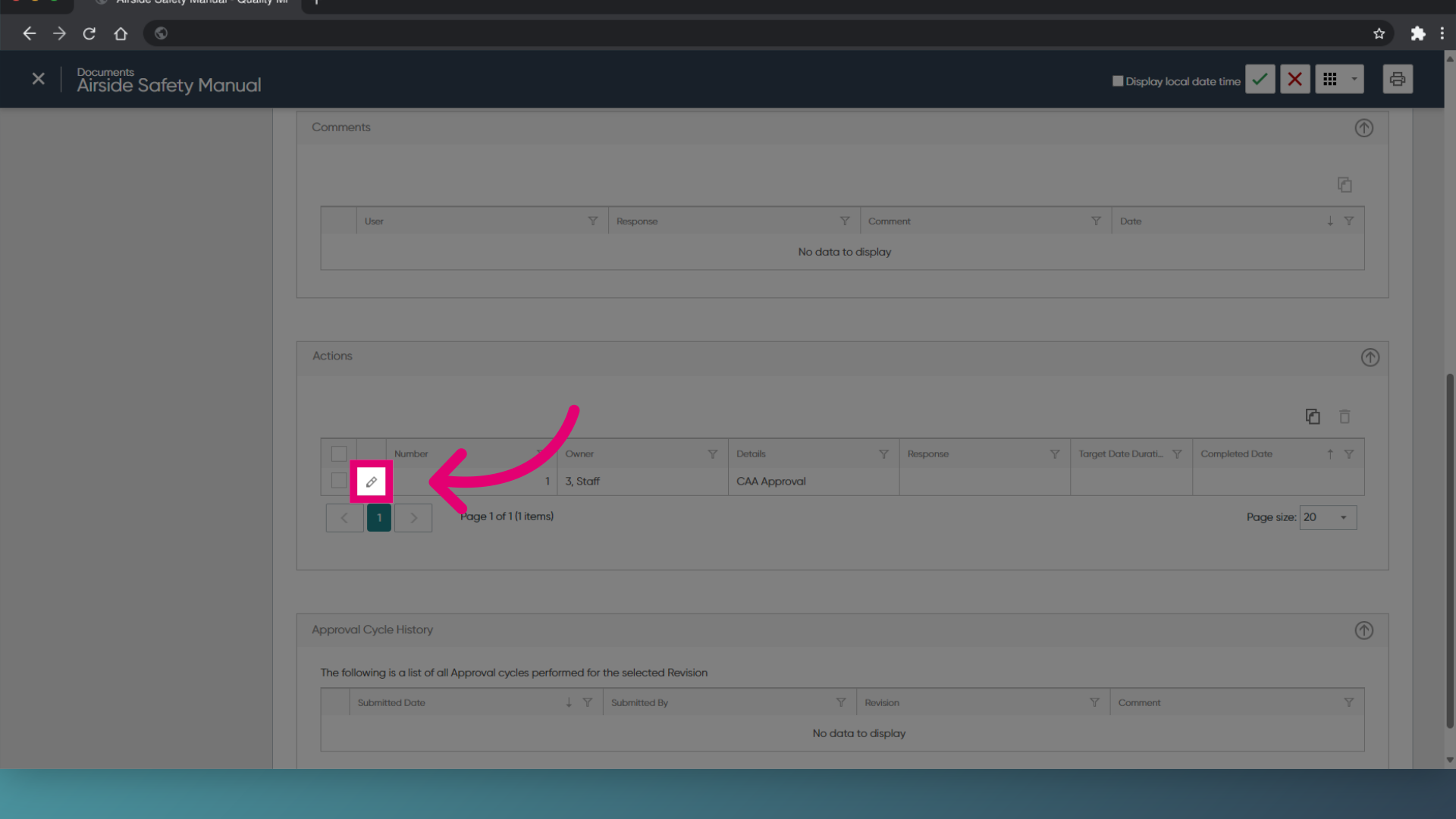
- Click the edit icon next to the action name.
- Edit the action info as required.
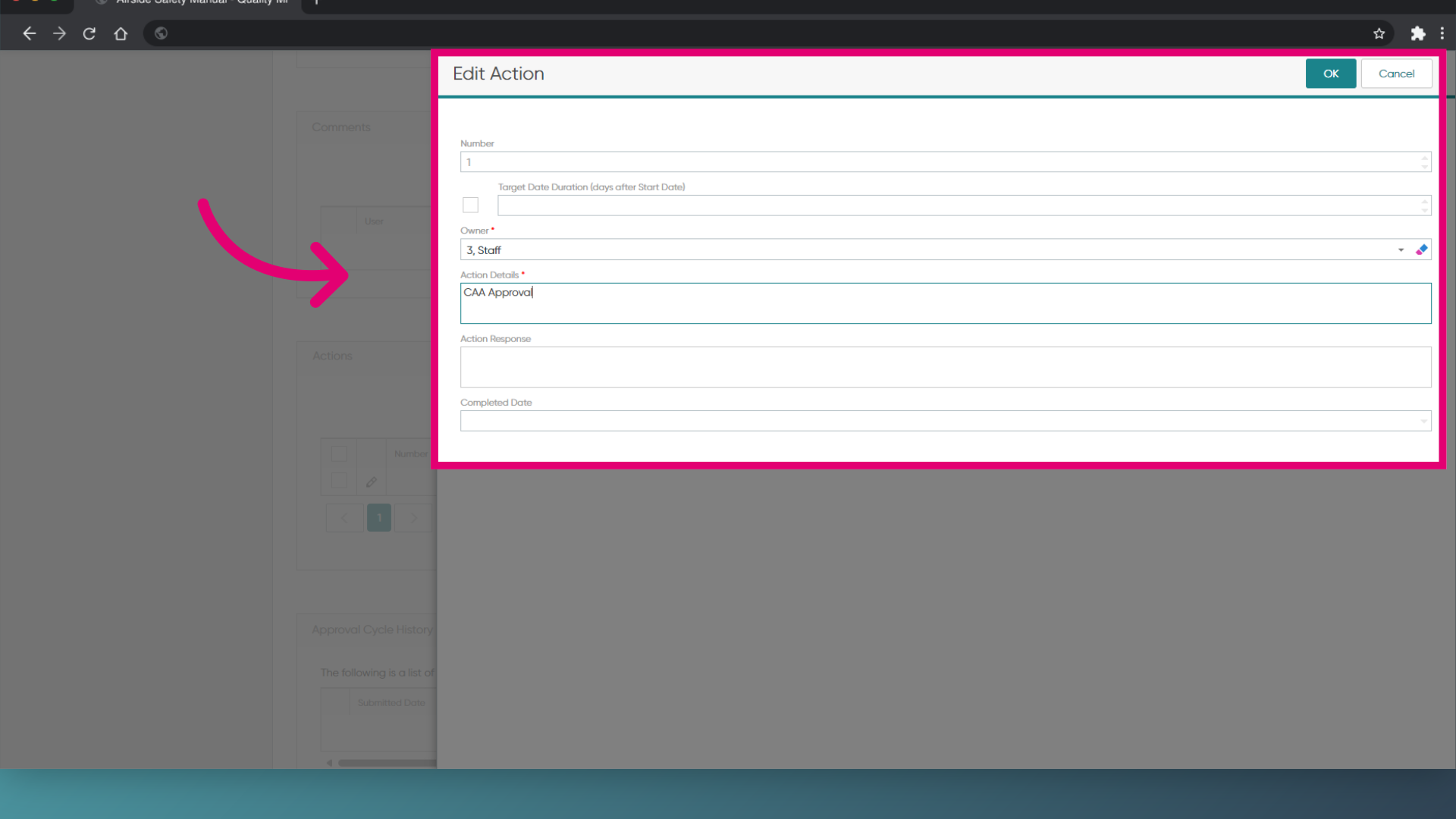
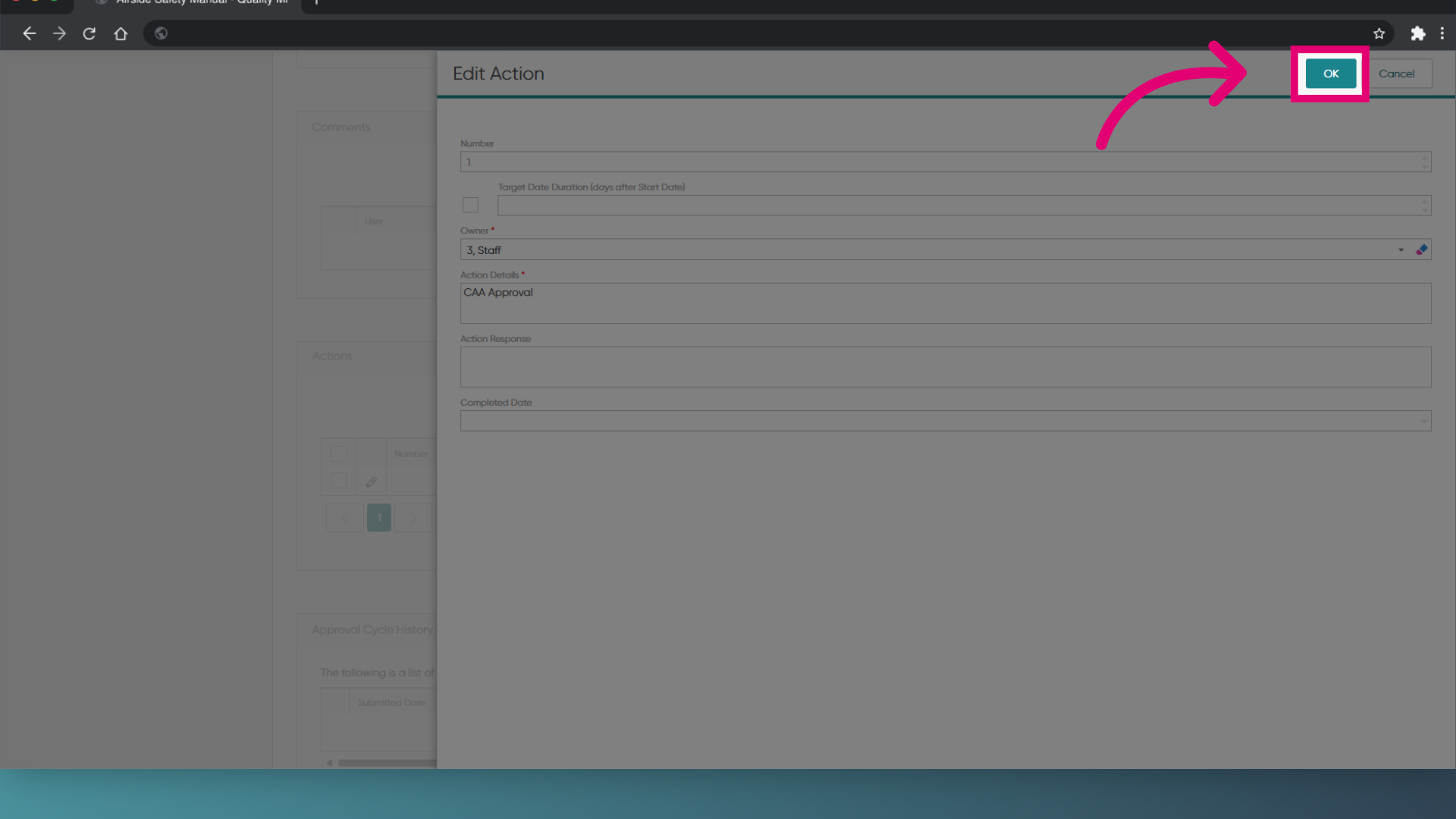
- Click OK to proceed.
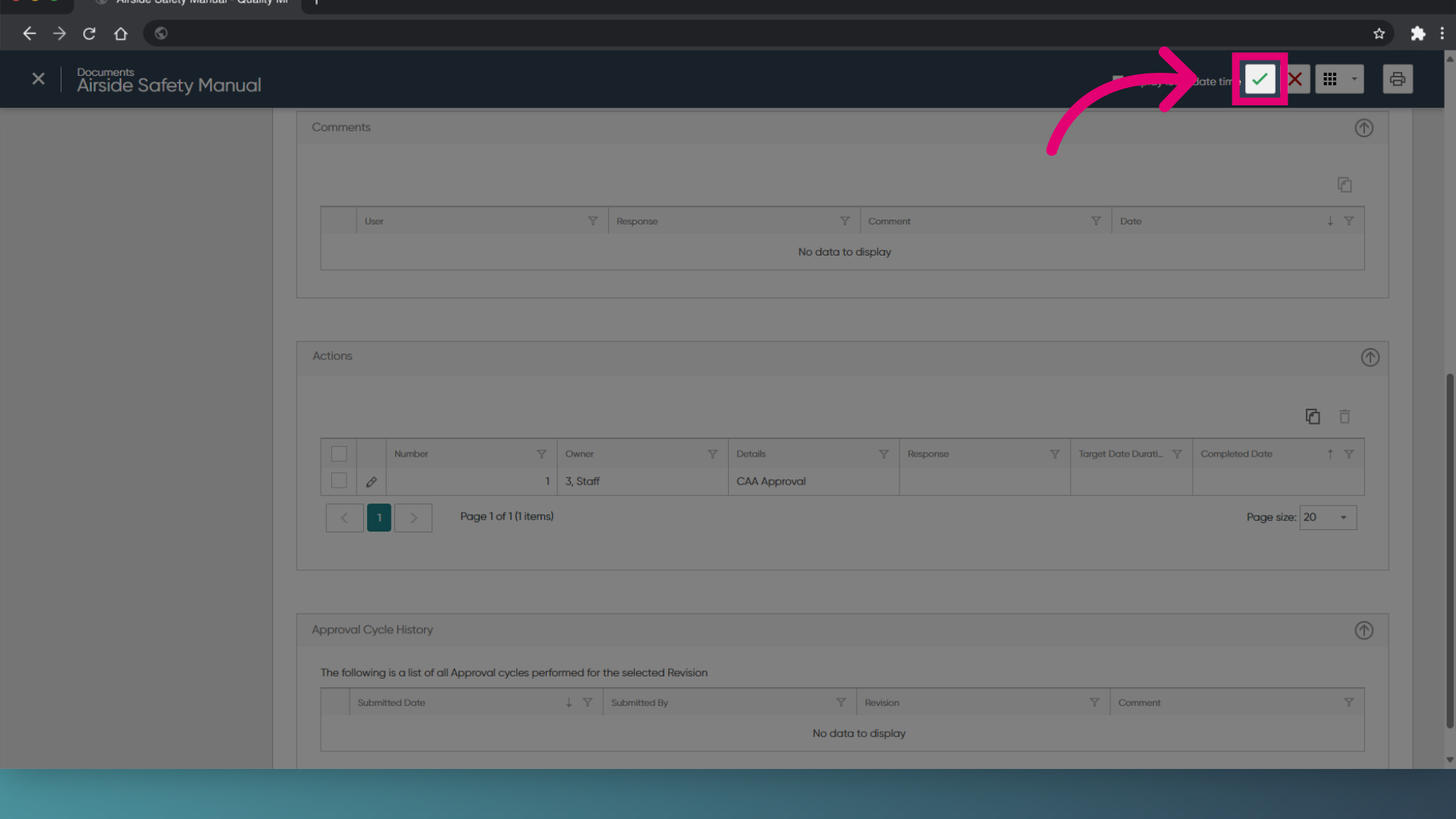
- Click the green tick to save the changes.
2. Completing an action
- You can only complete an action when it is in the Draft Approved status.
- To complete an action, access the Documents module.
- Select Documents.
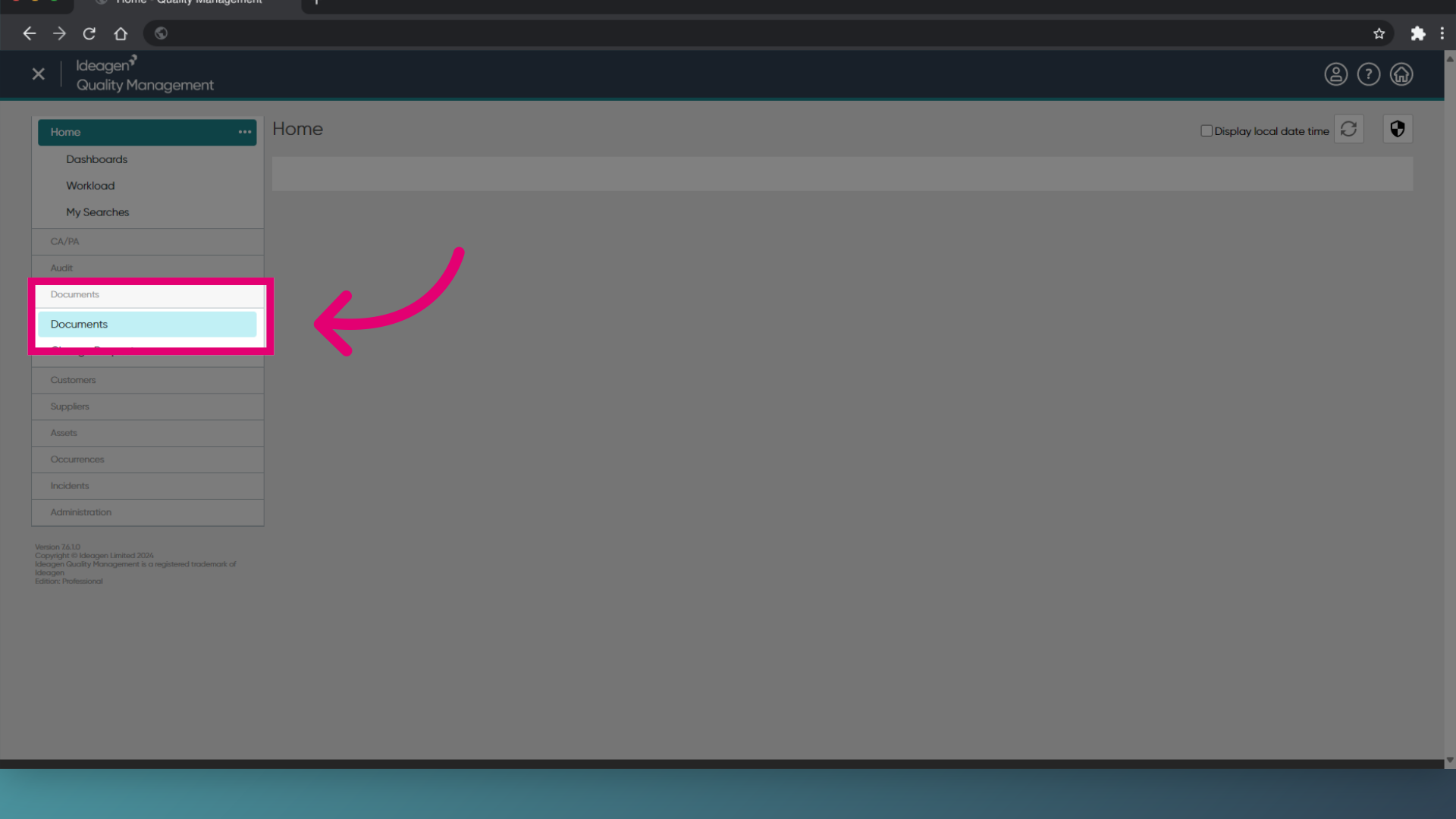
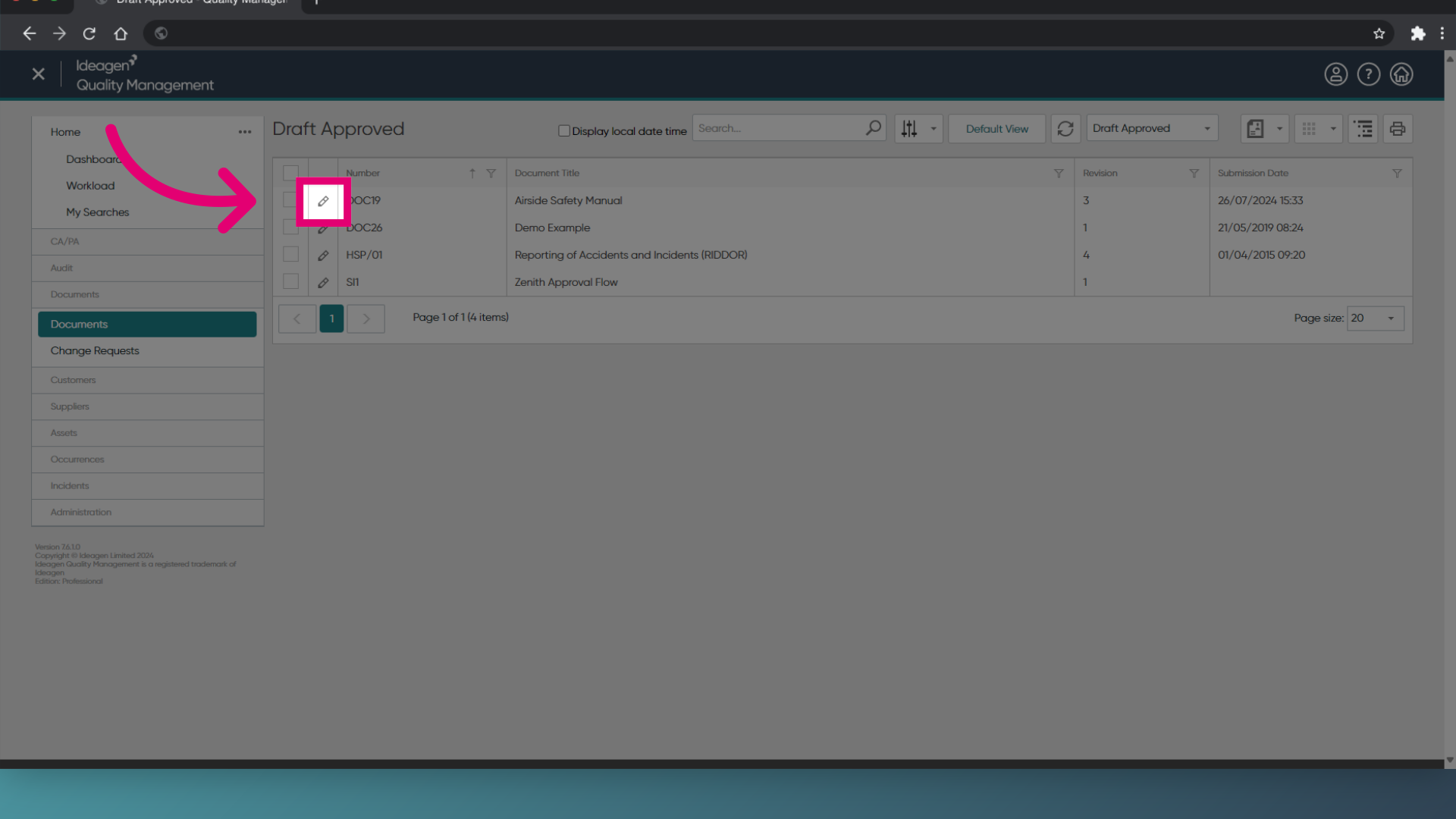
- Locate the draft approved document and click the edit icon next to the document number.
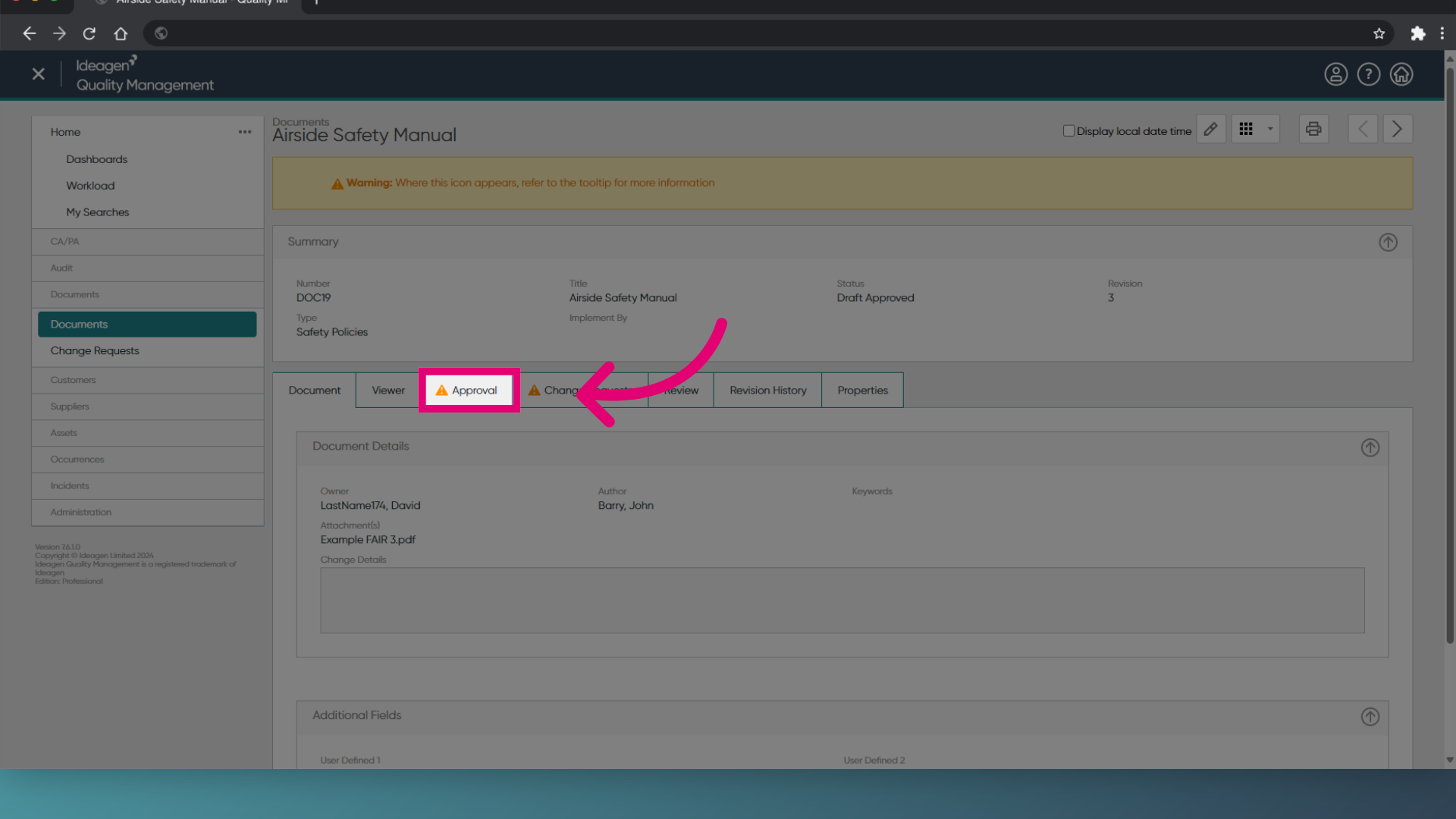
- Select the approval tab.
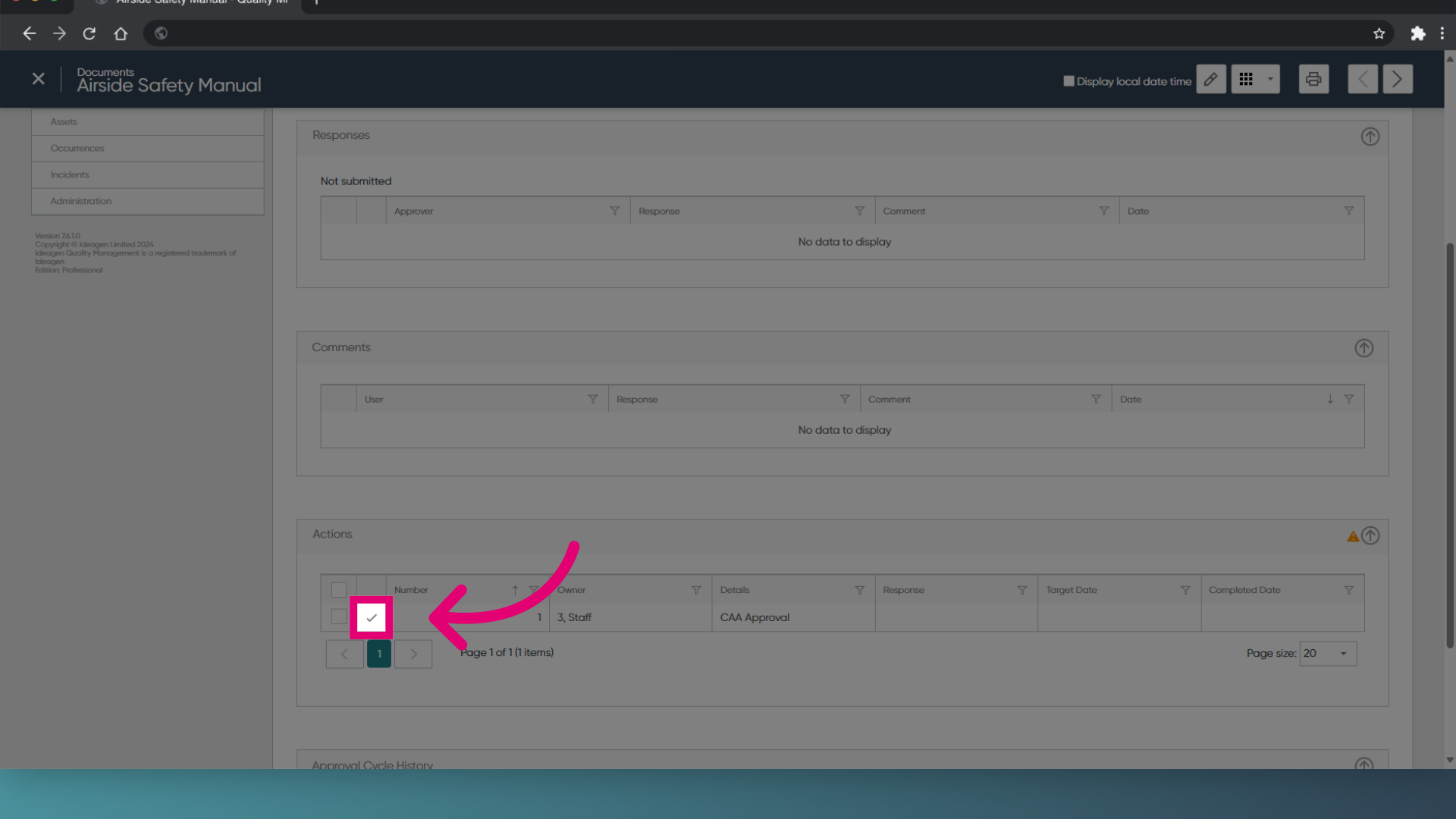
- Click the complete icon next to the action number.
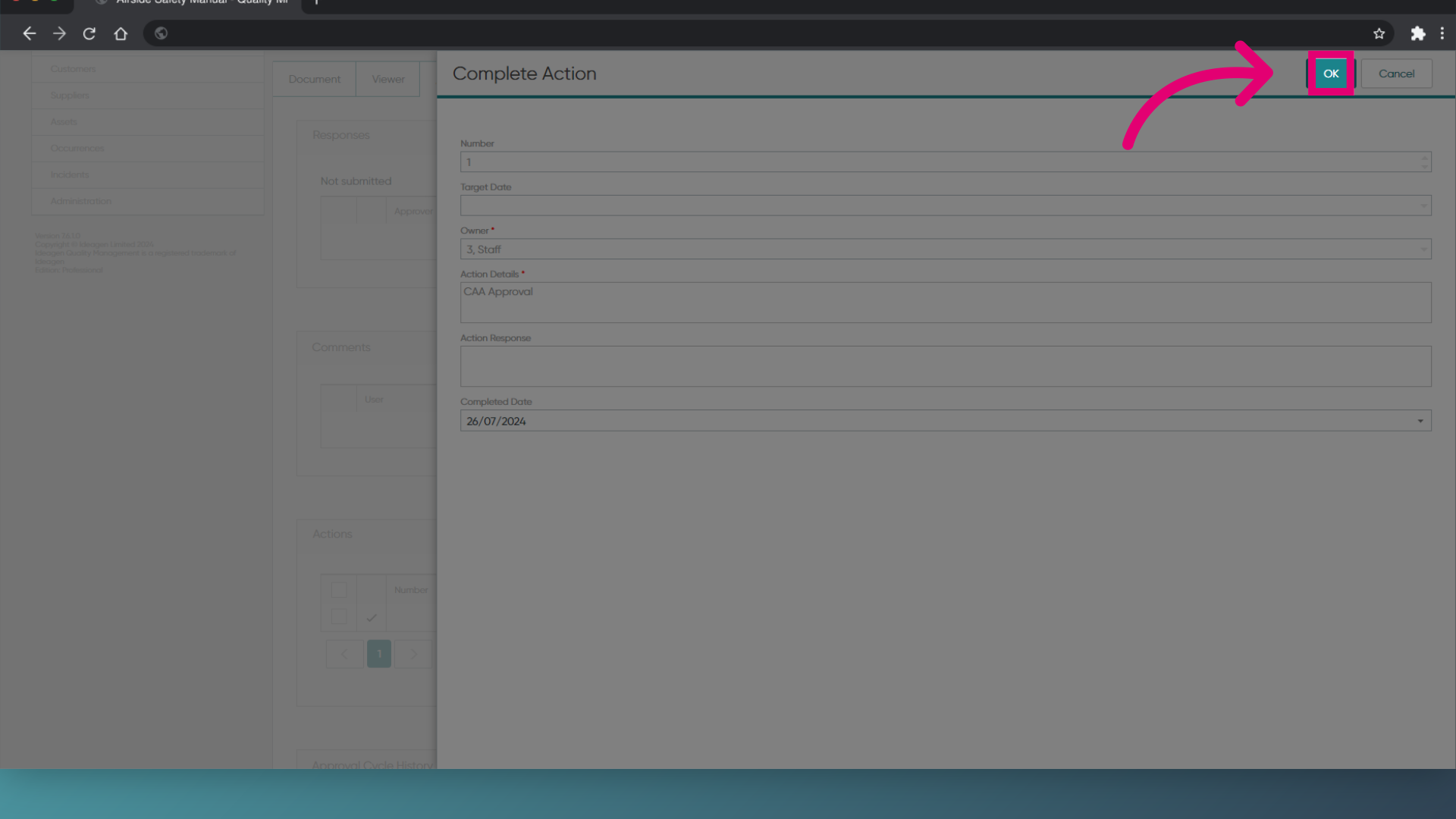
- The action will be populated with a completion date.
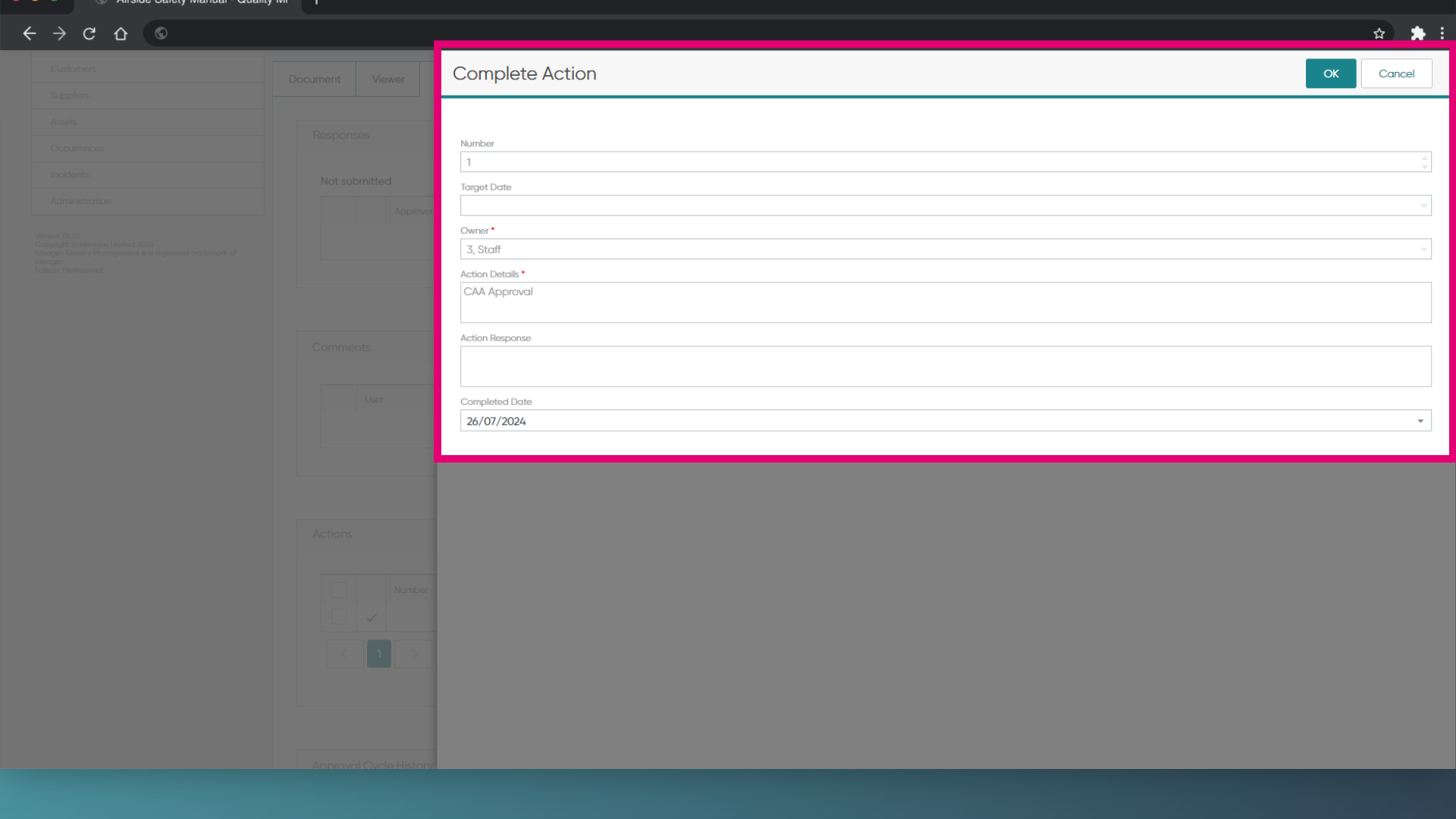
- Click OK to proceed.
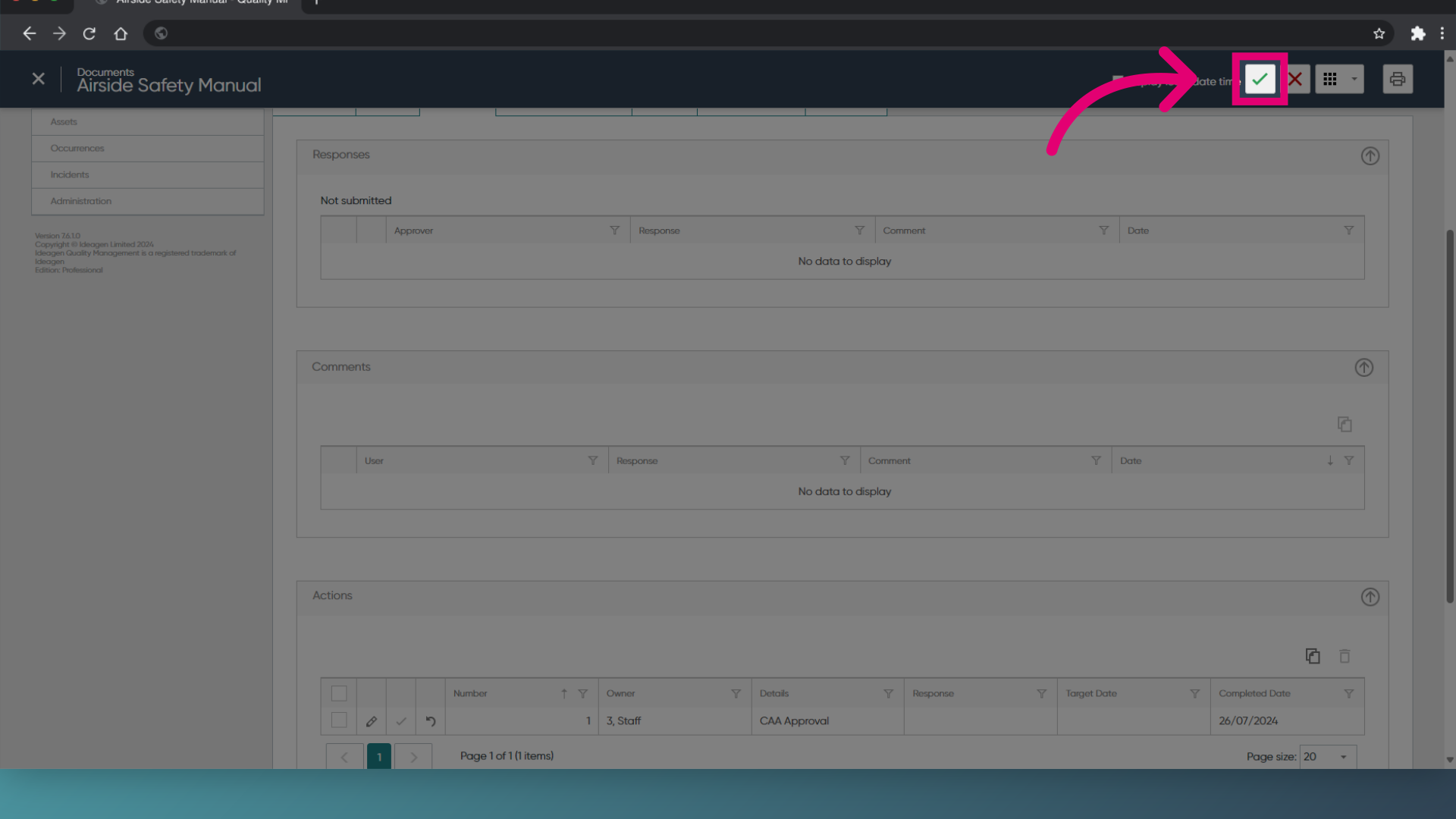
- Click the green tick to save the changes.
When a document has been put into the "Draft Approved" status, action owners will be able to open the document record to view and complete their assigned actions.
Actions themselves are viewable in documents records with any status. However, actions can only be edited when in the draft / draft approved status, and actions can only be completed in the draft approved status.
To view or edit an action, simply press the 'tick' icon on the right-hand-side of the 'Actions' section. You will then be able to enter your response and press the [OK] button to complete the action.
Please note: if the 'tick' is greyed-out, then the document may not be in the required 'Document Approved' stage.
Once an action has been completed, the 'Completed Date' will then be added into the action view:
Once you have completed all your assigned actions, simply save the document record.