


New article
Recently updated
Reviewing a Document

Who is this article for?Users responsible for reviewing a Document.
Document Reviewpermissions are required.
Over time, Documents may change to remain relevant and accurate. While users can raise change requests against a Document at any time, it's good practice to regularly schedule and complete proactive reviews.
This article walks you through the process of scheduling and completing a Document review.
1. Scheduling a review
To schedule a Document review:
- Access the Documents module
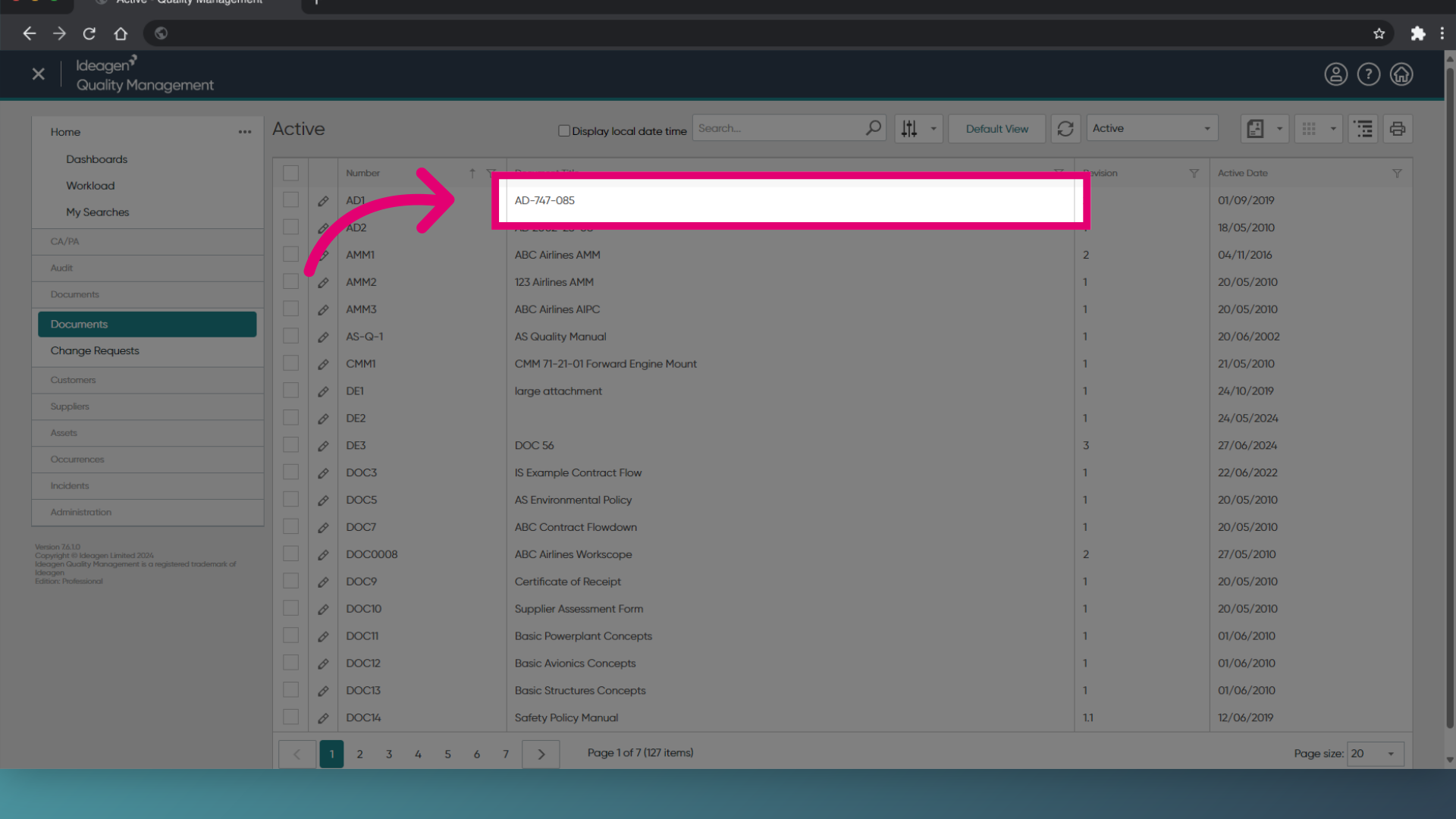
- Select Documents.
- Open the Document record.
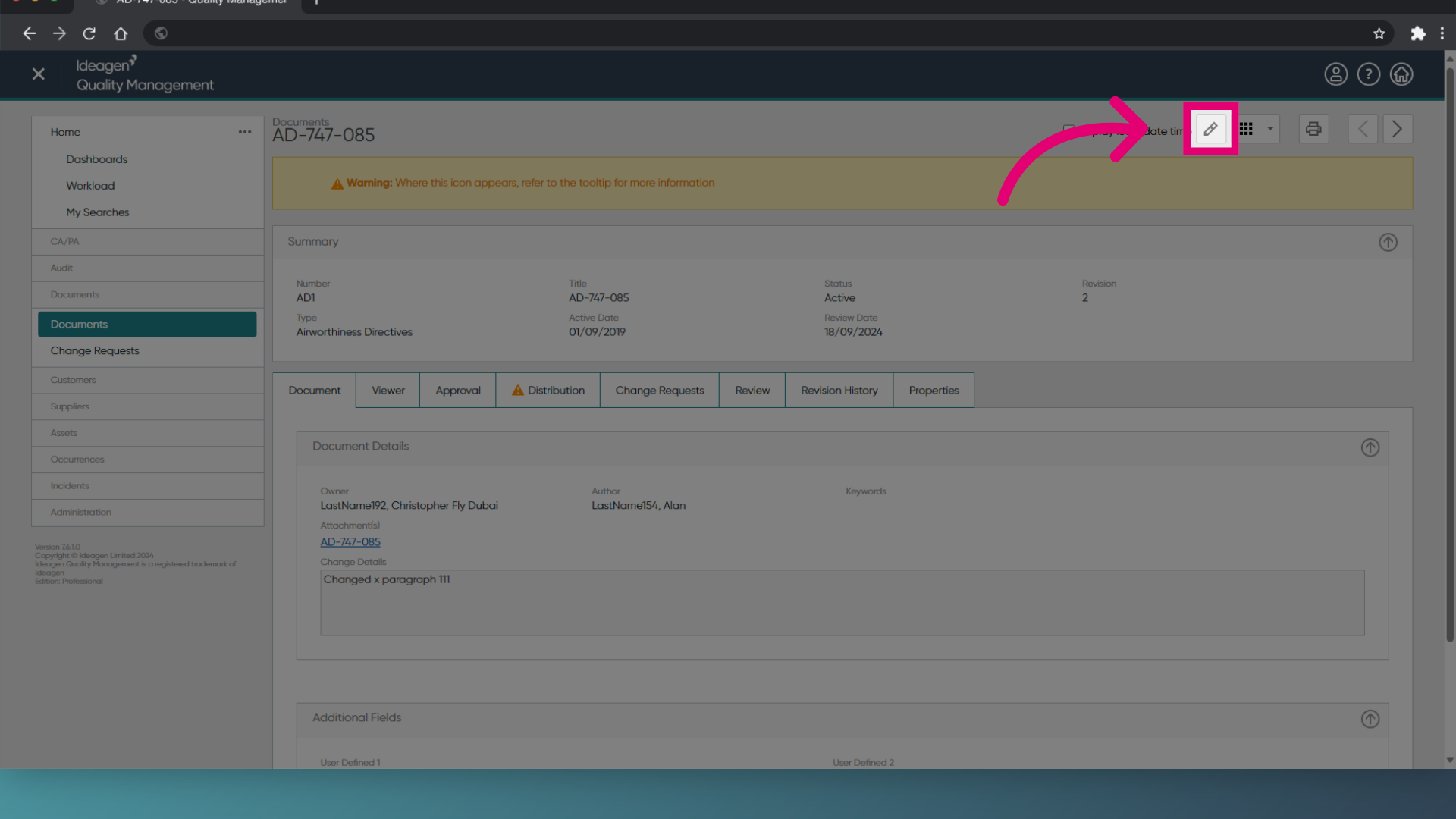
- Click Edit (Pencil icon).
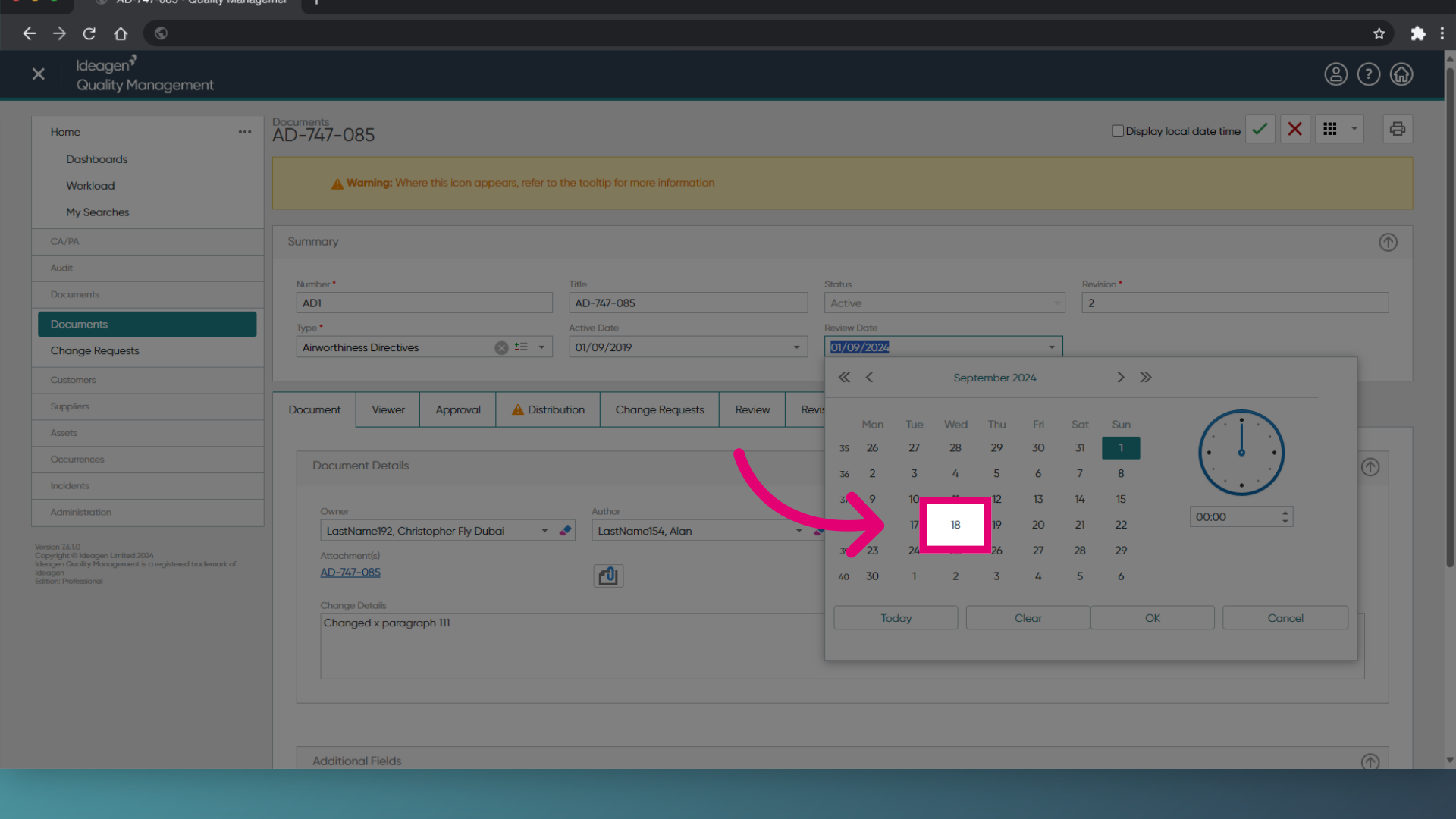
- Select a Review Date from the calendar.
- Click Save (Tick icon).
2. Completing a review
To complete a Document review:
- Open the Document record.
- Click Edit (Pencil icon).
- Switch to the Review tab.
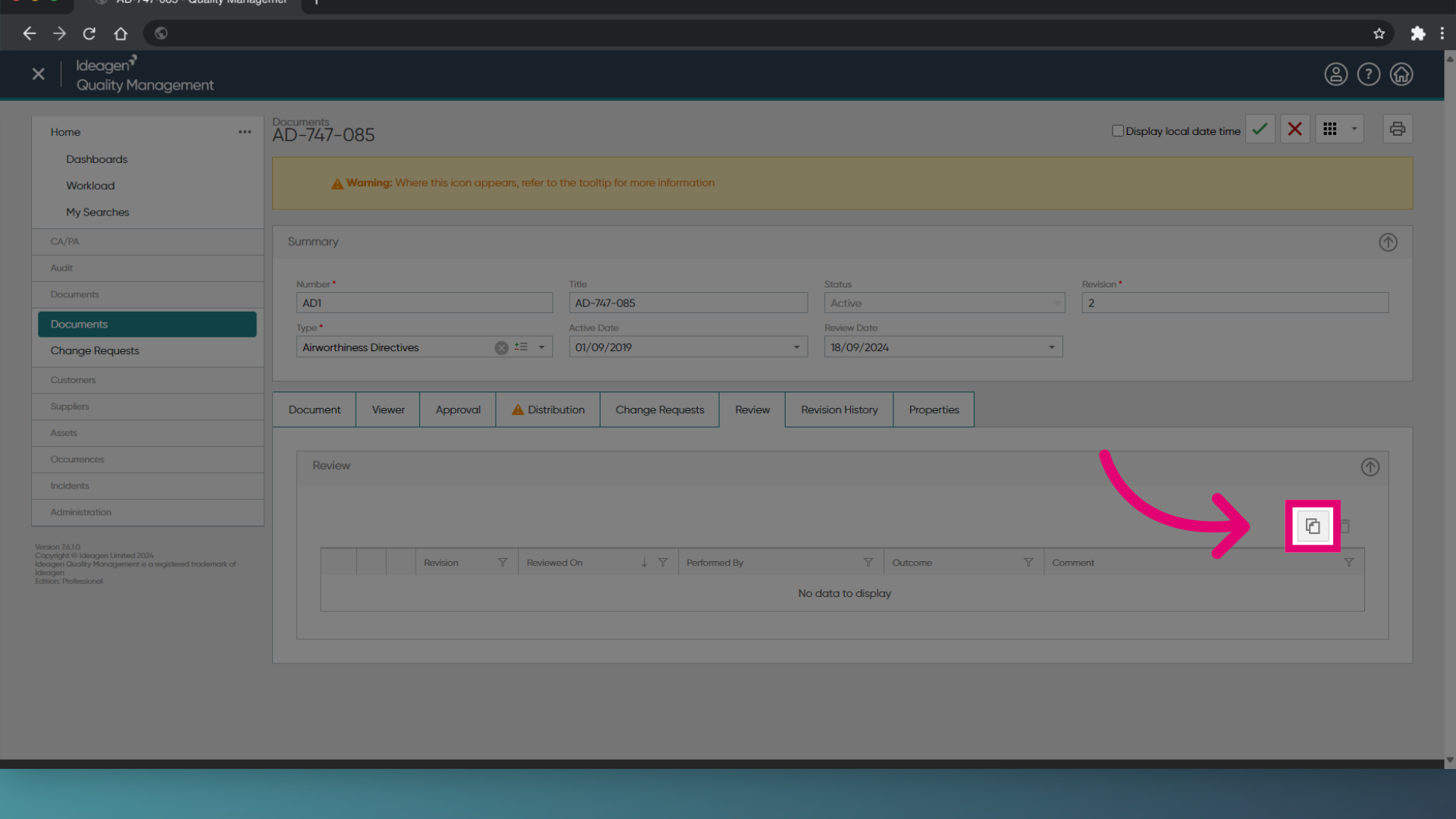
- Click Add Review.
- Select an Outcome.
- Enter a Comment.
- Click OK.
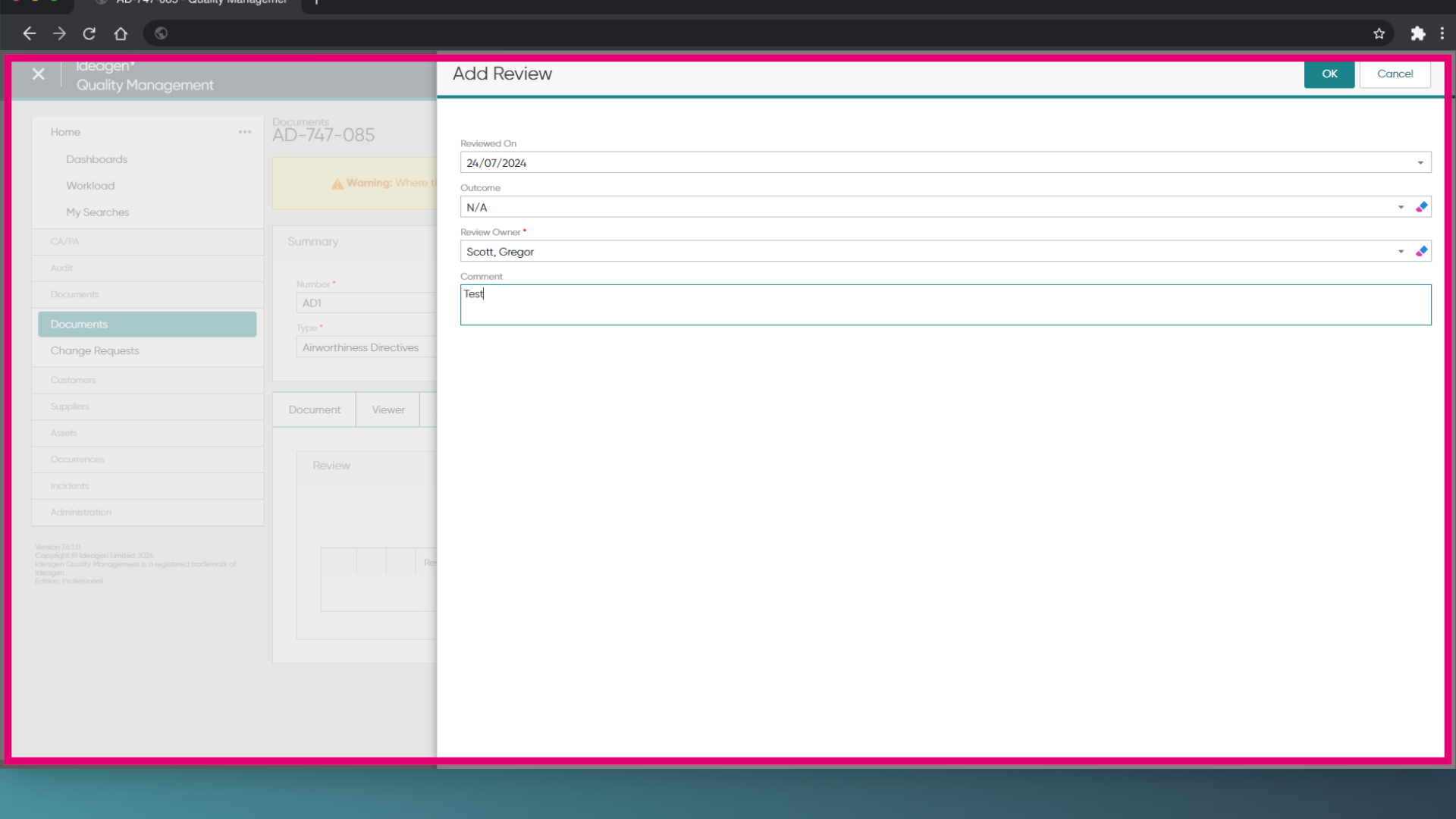
- Click Save (Tick icon).
Are you being asked to provide a signature?
Depending on the Document Type, you may be asked for an electronic signature. To complete the approval process, enter your system credentials and click Sign.
1. Scheduling a review
To schedule a Document review:
- Access the Documents module.
- Open the Document record.
- Select a Review Date from the calendar.
- Click Save.
2. Completing a review
To complete a Document review:
- Open the Document record.
- Expand the Review History section.
- Click New Review.
- Select an Outcome.
- Enter a Comment.
- Add Reviewers as needed.
- Raise Change requests as needed.
- Click OK.
Are you being asked to provide a signature?
Depending on the Document Type, you may be asked for an electronic signature. To complete the approval process, enter your system credentials and click Sign.