New article
Recently updated
Report Designer Example: Showing Audit Observations that are Raised as a Non-Conformance

In this example we will create a detail report for an Audit record that include details of any Non-Conformance records of
Creating your report can be performed in 2 stages:
1. Add 'Incident' Findings to the Report
For this report we must use the 'Incident Finding Collection' band, as this includes more CA/PA data than the 'Findings' band, in particular the CA/PA Source Type field
To add the Incident Findings Collection band:
- Open your Audit Record
- Click [File] > [Report Designer]
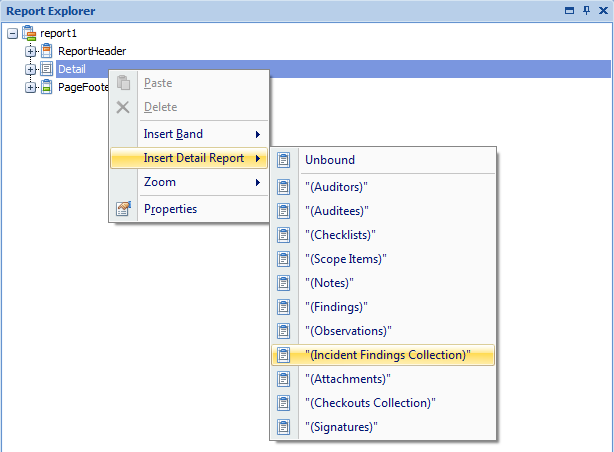
- In the Report Explorer Window, Right Click [Detail] > [Insert Detail Report] > ["(Incident Findings Collection)"]
2. Show Only 'Observation' CA/PA Records
We can include a Filter String to only display CA/PA Reports which meet certain criteria.
To add the Filter String:
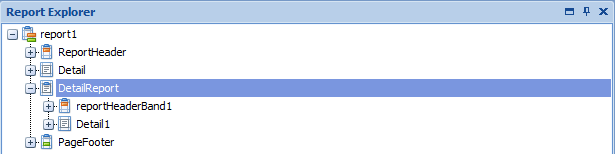
- Select the newly created DetailReport
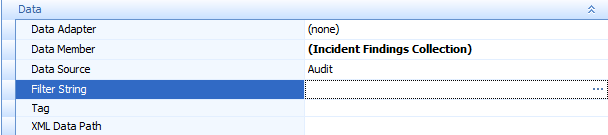
- In the Property Grid select Filter String
- Then click the Ellipses (...) button
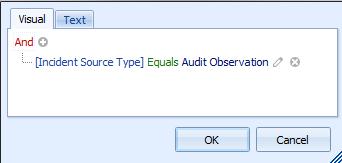
- To only Display the 'Audit Observation' CAPA's, set the filter as below.