


New article
Recently updated
How to use Bookmarks on a Report

Before adding a bookmark, the following options should be considered:
- The name of the bookmark should be self explanatory so that the user will understand where the bookmark will take them in the report.
- When setting a bookmark at a repeating field collection (e.g. Document Approval Items, CA/PA Stages), the bookmark should be added to a header or footer in order to avoid unnecessarily repeating the bookmark.
To add a bookmark:
- Highlight the field you want to act as a bookmark.
- Click on the Property Grid at the right-hand side and locate the Bookmark field.
- Enter a name for the bookmark as shown below (NB This should be something meaningful for the user that will be viewing the report).
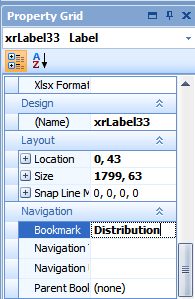
- Save the report.
To use a bookmark:
- Launch the report you want to view by clicking [File] then [Print Preview].
- Select the report and click [Preview].
- Within the Document Map on the left, click the bookmark name to visit the bookmarked section of the report.
