New article
Recently updated
How to Raise Audit Findings in the Incident Module

- Edit the Managed List Calendar Type
- Edit the Audit Finding Wizard in the Incident Module
- Raise your Audit Finding as an Incident
- Open “Administration” Module >> “Managed Lists” >>
- Navigate to “Audit Calendar”, click on this list entry once and press the “Manage” button.
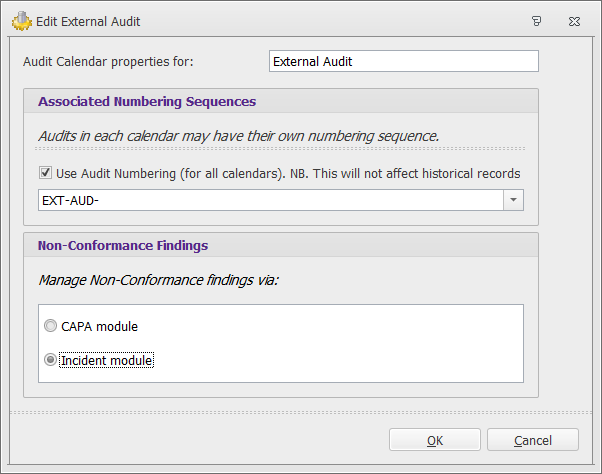
- Highlight the Audit Calendar Entry you wish to raise findings as incidents and press “Edit.
- In the “Non-Conformance Findings” section tick the “Incident Module” Field.
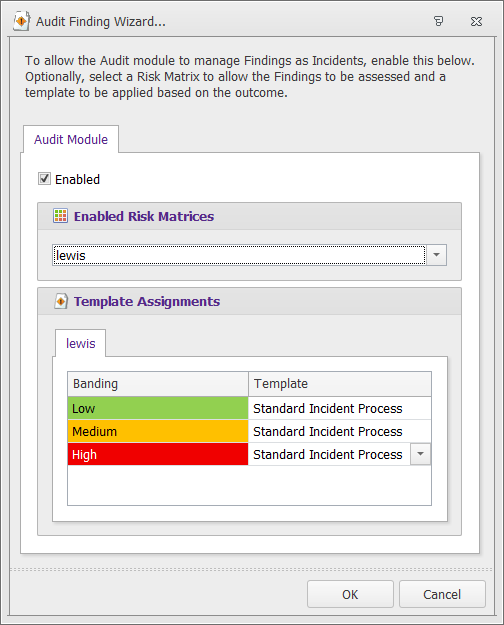
- In the “Incidents” module, navigate to “Edit” >> “Audit Finding Wizard”.
- Tick the “Enabled” box
- Select a Risk Matrix from the drop down to use when raising an audit incident.
- Select the Template to use for each banding for raising an audit incident.
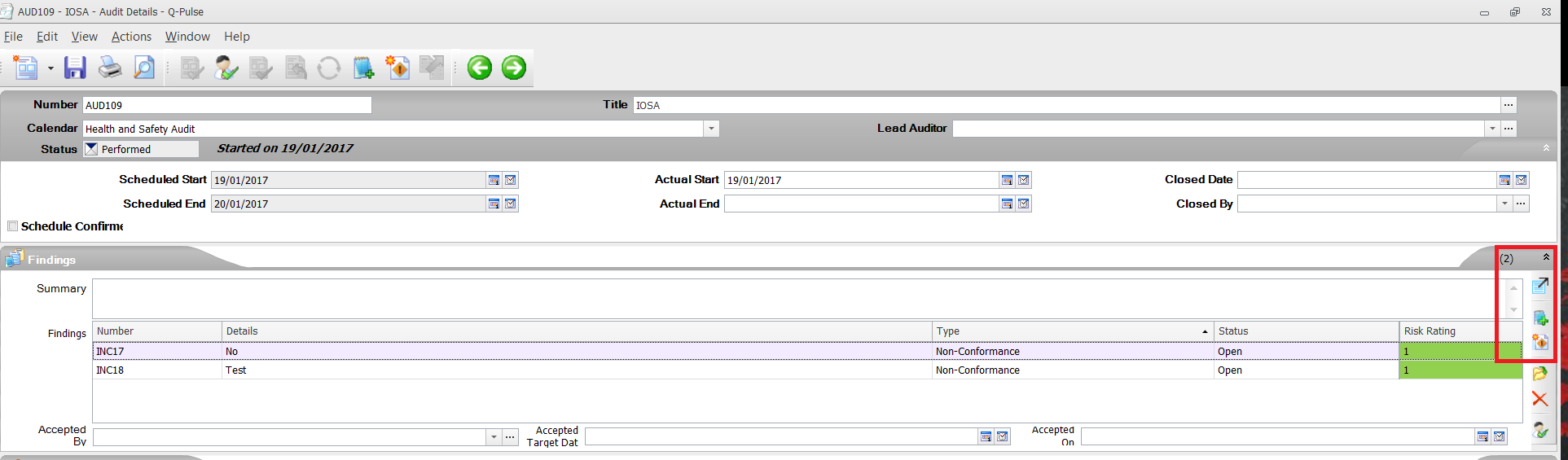
- In your audit, go to the “Findings” section and select “Raise a Non-Conformance”. Notice that the icon has changed to the “Incident” icon rather than “CAPA”.
- On the first screen enter in the “Event Title” and select “Scope Items”. You can add more “Classifications” on the bottom right of the page.
- Press “Next” and you will now perform a “Risk Assessment”. Select appropriate values for the likelihood and a Justification.
- Confirm the final details and press “Finish”.