New article
Recently updated
How to Archive an Asset

To configure what unavailable reasons will be archived:
- Under Administration
- Select [Managed Lists]
- Filter the module to Assets and click [Apply]
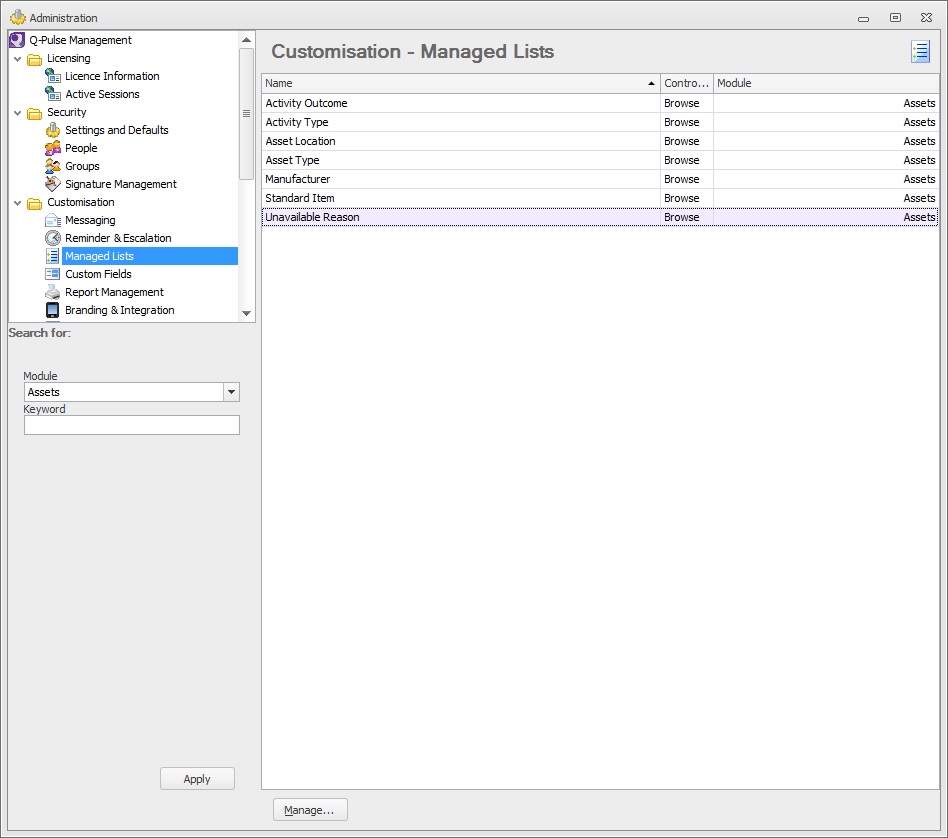
- Select Unavailable Reason and then click [Manage...]
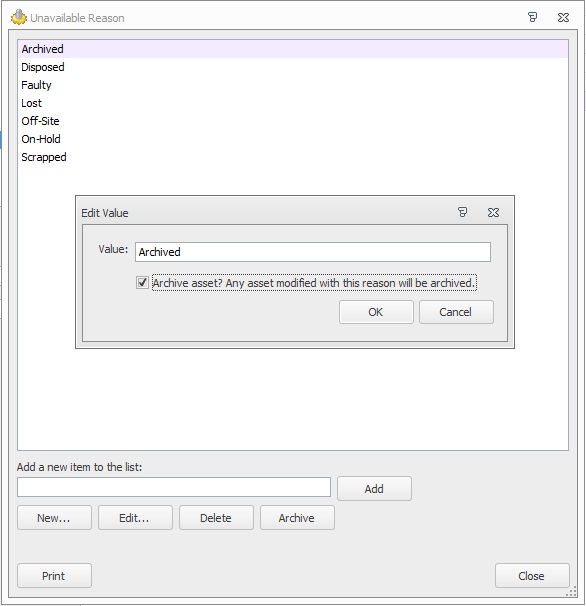
- You can either create a new reason or edit an existing reason
- Enter a name for a new reason (e.g. Archived) and click [Add]
- Double click the reason and check the box for [Archive asset?] and click [OK]
To archive an asset:
- Bring up an asset's details
- Change the Available radio option to No
- From the Unavailable Reason drop down menu select the option previously set up for archiving (e.g. Archived)
- Click [Save]
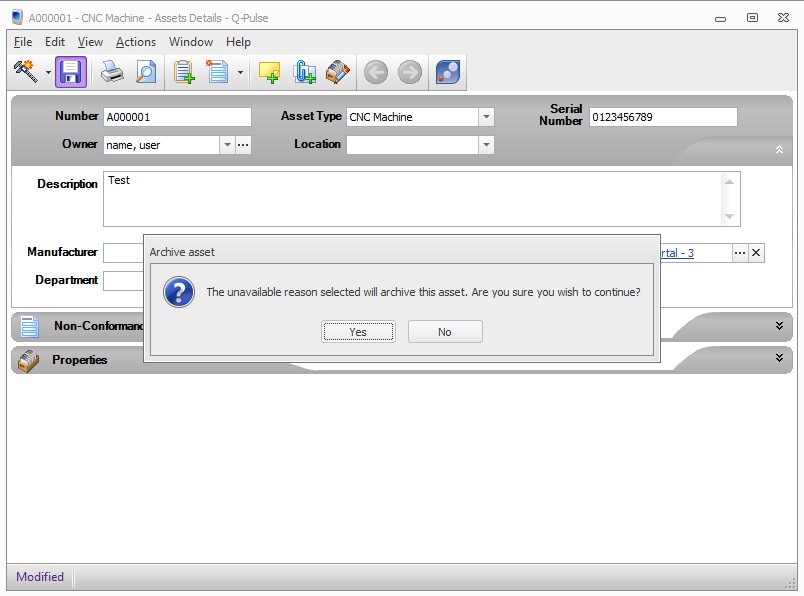
- You will be prompted with a window asking if you are sure you want to archive the asset, click [Yes]
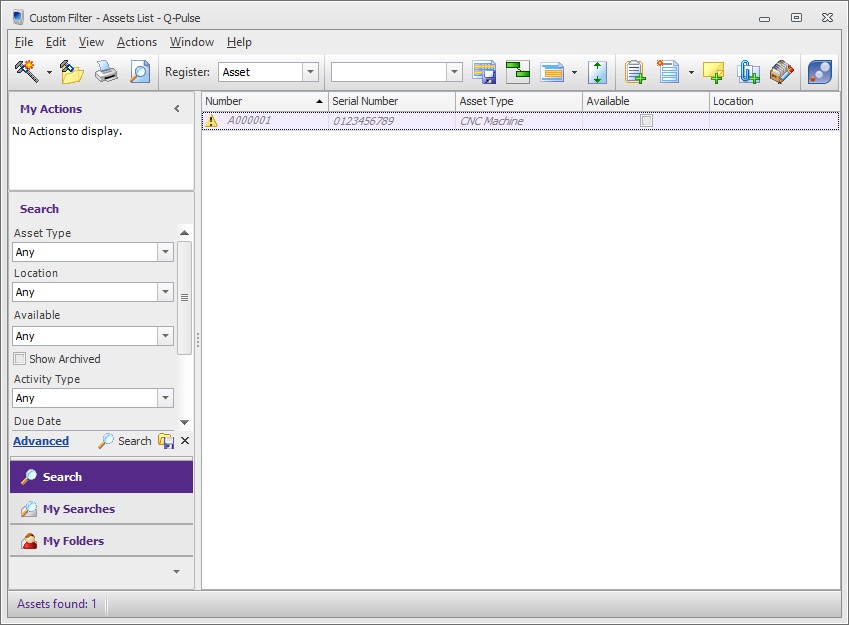
Now in the Assets Lists you can see the asset has changed and been made unavailable.