


New article
Recently updated
Setting predefined responses to checklists

Who is this article for?Users responsible for managing audit checklists.
Audit Checklist Respond permissions are required.
To standardise responses to checklist questions, you can enable predefined responses.
This article shows you where you can do that.
1. Setting predefined responses
To set predefined responses:
- Access the Audit module.
- Open Administration.
- Select Question Bank.
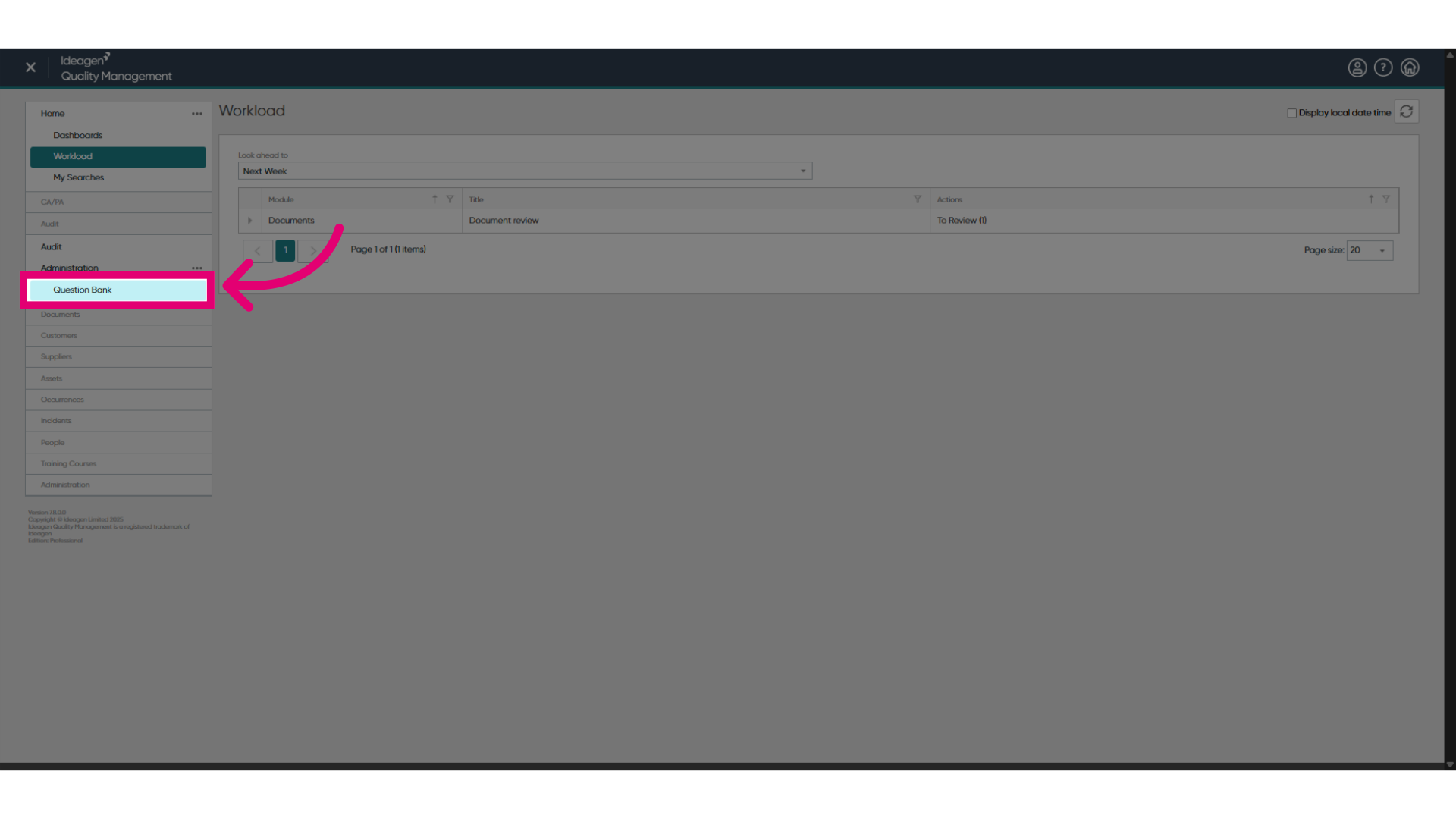
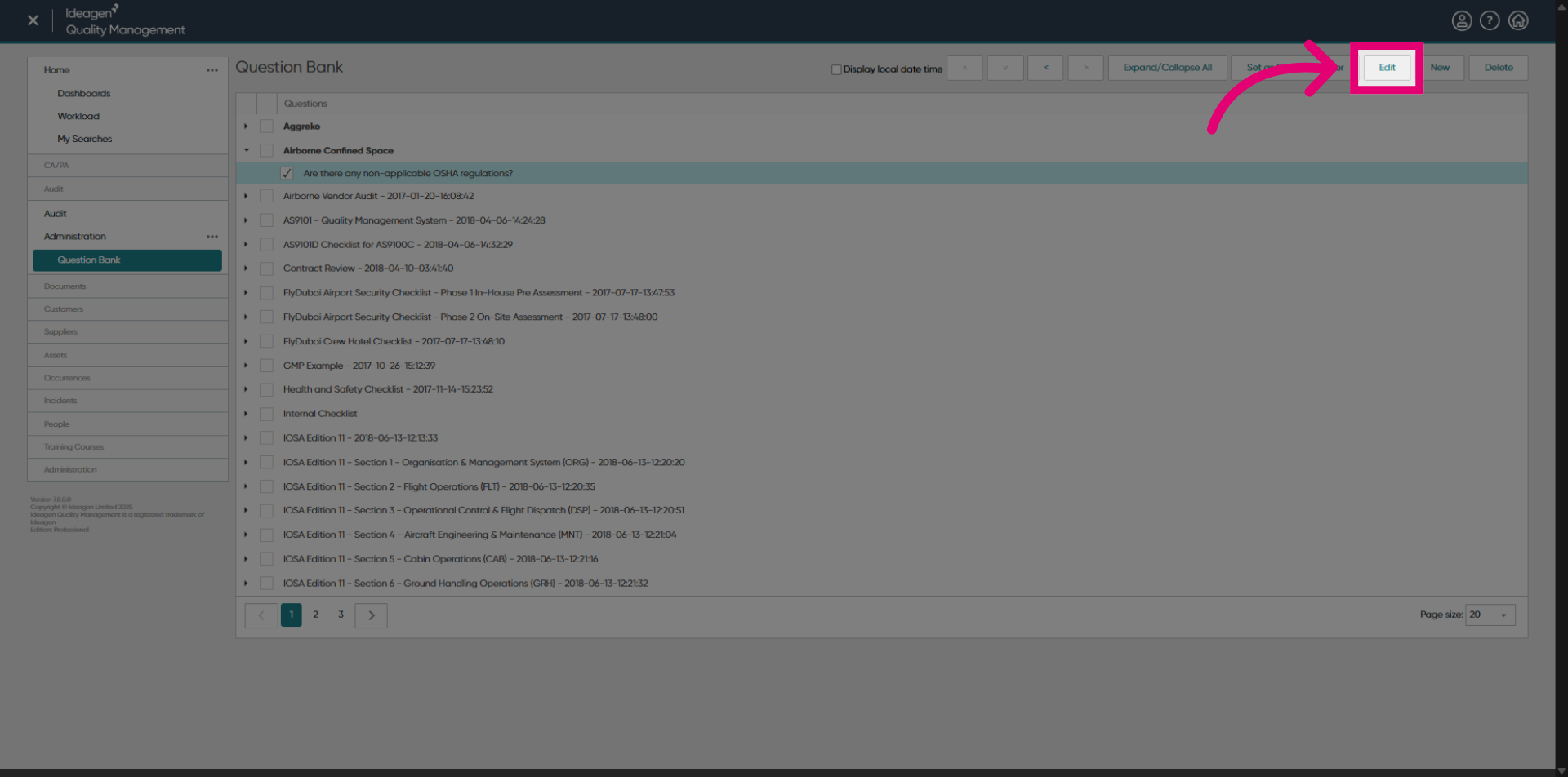
- Tick a question in the list.
- Click Edit.
- Switch to the Responses and Findings tab.
- Tick User predefined responses.
- Enter the response in the text field under option.
- Tick additional options as required.
- Click OK.
You can assign the same predefined responses to multiple questions by ticking more than one question in the list.
Any existing predefined responses that are currently present in the question will be overwritten when a 'group-editing' takes place.
Auditors can always assign a score when answering a question. Setting an available score will limit the maximum score they can assign.
1. Setting predefined responses
To set predefined responses:
- Access the Audit module.
- Click Edit....
- Select Question Bank.
You can also access the same settings from a checklist.
- Highlight a question in the list.
- Click Edit....
- Switch to the Responses and Findings tab.
- Tick User predefined responses.
- Enter the response in the text field under option.
- Tick additional options as required.
- Click OK.
You can assign the same predefined responses to multiple questions by highlighting more than one question in the list using Shift or Ctrl.
Any existing predefined responses that are currently present in the question will be overwritten when a 'group-editing' takes place.
Auditors can always assign a score when answering a question. Setting an available score will limit the maximum score they can assign.