


New article
Recently updated
Moving an Occurrence Report to a New Occurrence Form

There are generally two ways in how you would edit the context of a report:
- Launch the Occurrences module.
- Click [File], then [New].
- Select your new Occurrence form.
- Click [File], then [Report Designer].
- At the "Select a report" screen no reports will be visible. Click [Design] to create a new one.
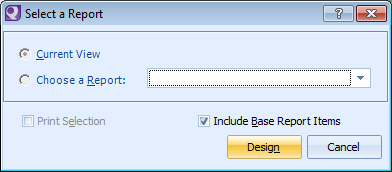
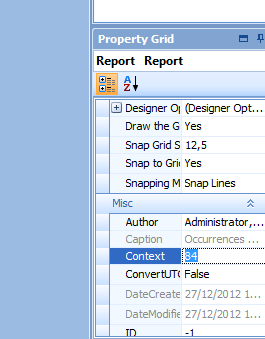
- When the report loads, go to the "Property Grid."
- Locate the "Context" property and note the value of this.
- Close Report Designer and also your blank Occurrence record. Do not save any changes.
- In the Occurrences module, click [File], then [New].
- Select your original Occurrence form.
- Click [File], then [Report Designer].
- At the "Select a report" screen, select the form you would like to move.
- Click [Design].
- When the report loads, go to the "Property Grid."
- Locate the "Context" property and then change this to the value noted in step 7.
- Save and close the report.
- Launch the Occurrences module.
- Click [File], then [New].
- Select your Occurrence Form that has the report you wish to copy to a new form.
- Click [File], then [Report Designer].
- At the "Select a report" screen, select your report and click [Design].
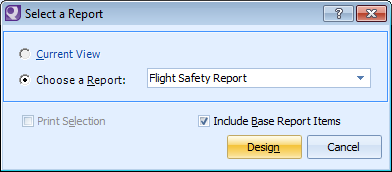
- When the report loads, select [File], then [Export].
- Save the file as a .repx file.
- Close Report Designer and also your occurrence record. Do not save any changes.
- In the Occurrences module, click [File], then [New].
- Select the Occurrence Form which has a blank report that has not yet been created.
- Click [File], then [Report Designer].
- At the "Select a report" screen no reports will be visible. Click [Design] to create a new one.
- Click [File], then [Import]
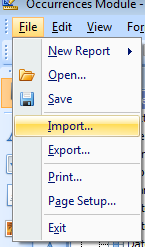
- Once the report has been displayed click [File], then [Save]
- Name the report and click [OK].