


New article
Recently updated
How to add a percentage breakdown of CA/PA records based on status

- Launch Report Designer from the CA/PA list view.
- Right-click on the Detail band, select [Insert Band] and then [Group Footer].
- On the left-hand side, expand Standard Controls in the Toolbox and drag and drop a Pivot Grid into the Group Footer.
- Position and re-size the pivot grid as needed.
- Click on the [>] icon at the top-right hand corner of the pivot grid and select [Run Designer]. If you don't see the [>] icon, click the pivot grid and it will appear.
- In the Property Editor, click the [Add] button.
- In the property grid that appears on the right hand side, select 'Status' in the drop-down list for Data Column Name.
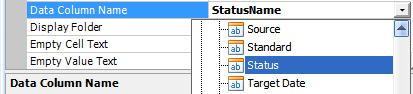
- Set the Caption to 'Status Name'.
- Click the [Add] button again.
- For the second field created, select 'Status' in the drop-down list for Data Column Name.
- Set the value of the Caption to 'Status'.
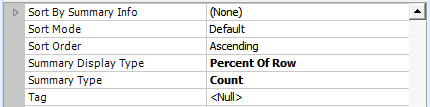
- Change the value of Summary Display Type to 'Percent of Row'.
- Change the value of Summary Type to 'Count'.
- On the left hand side, click [Layout].
- Drag and drop the Status field to the Drop Data Items Here area of the grid as shown below:
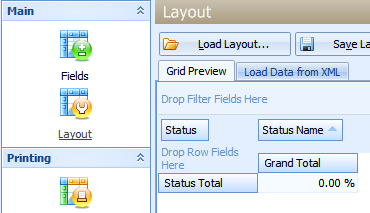
- Click [Apply] and then close the Property Editor.
- Save and preview your report.