


New article
Recently updated
Managing a Document

Who is this article for?Users responsible for Document management.
Document Deactivate, Delete, and Reinstate permissions are required.
Once a Document is no longer relevant to your processes and procedures, you may want to deactivate it. Deactivated Documents remain in the system, but are not part of the active registers. You also have an option to delete any Documents you no longer need record of.
This article walks you through the process of deactivating, reinstating, and deleting Documents from your system.
1. Deactivating a Document
To deactivate a Document:
- Access the Documents module.
- Open a Document record.
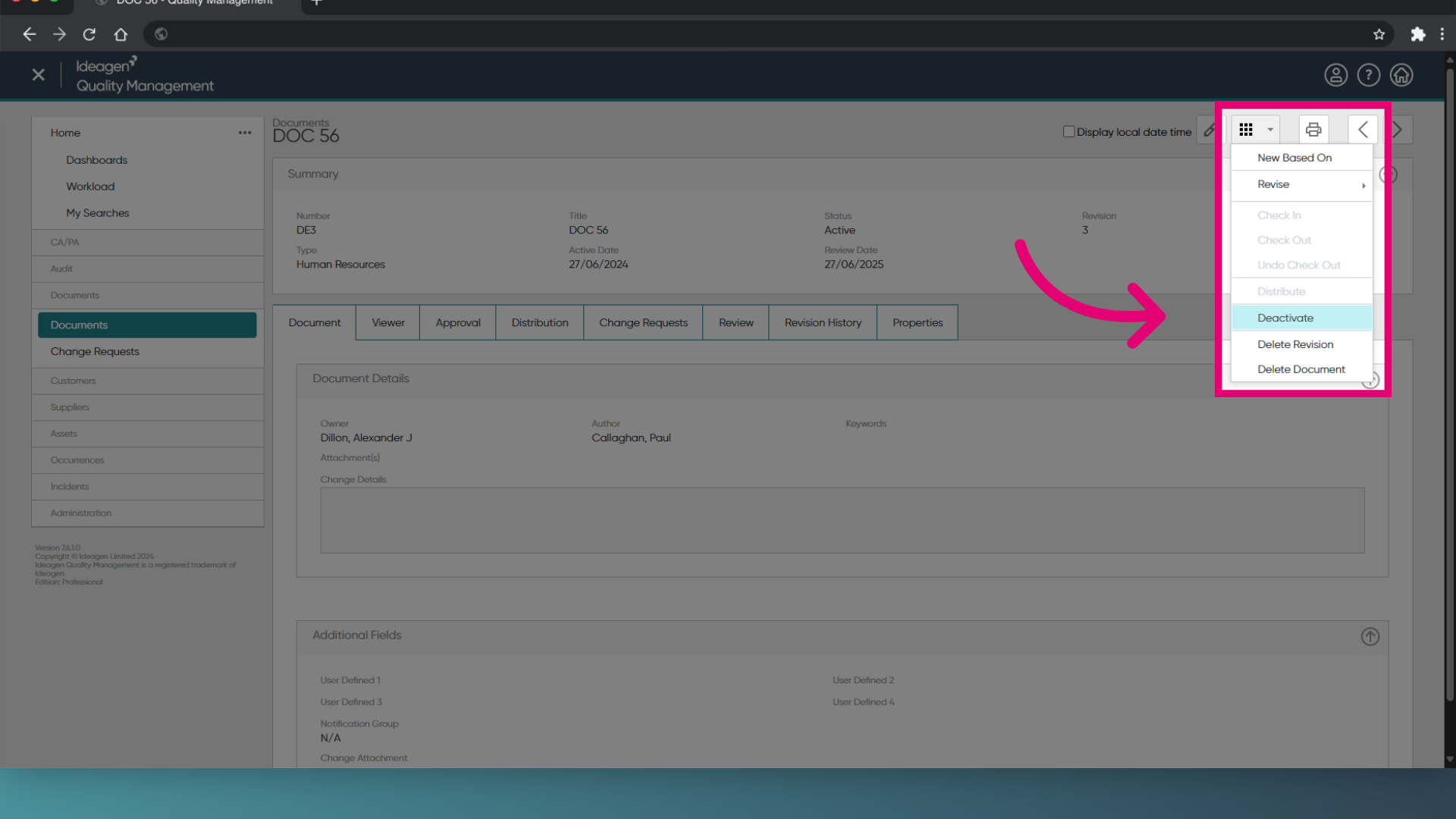
- Click the More menu.
- Select Deactivate.
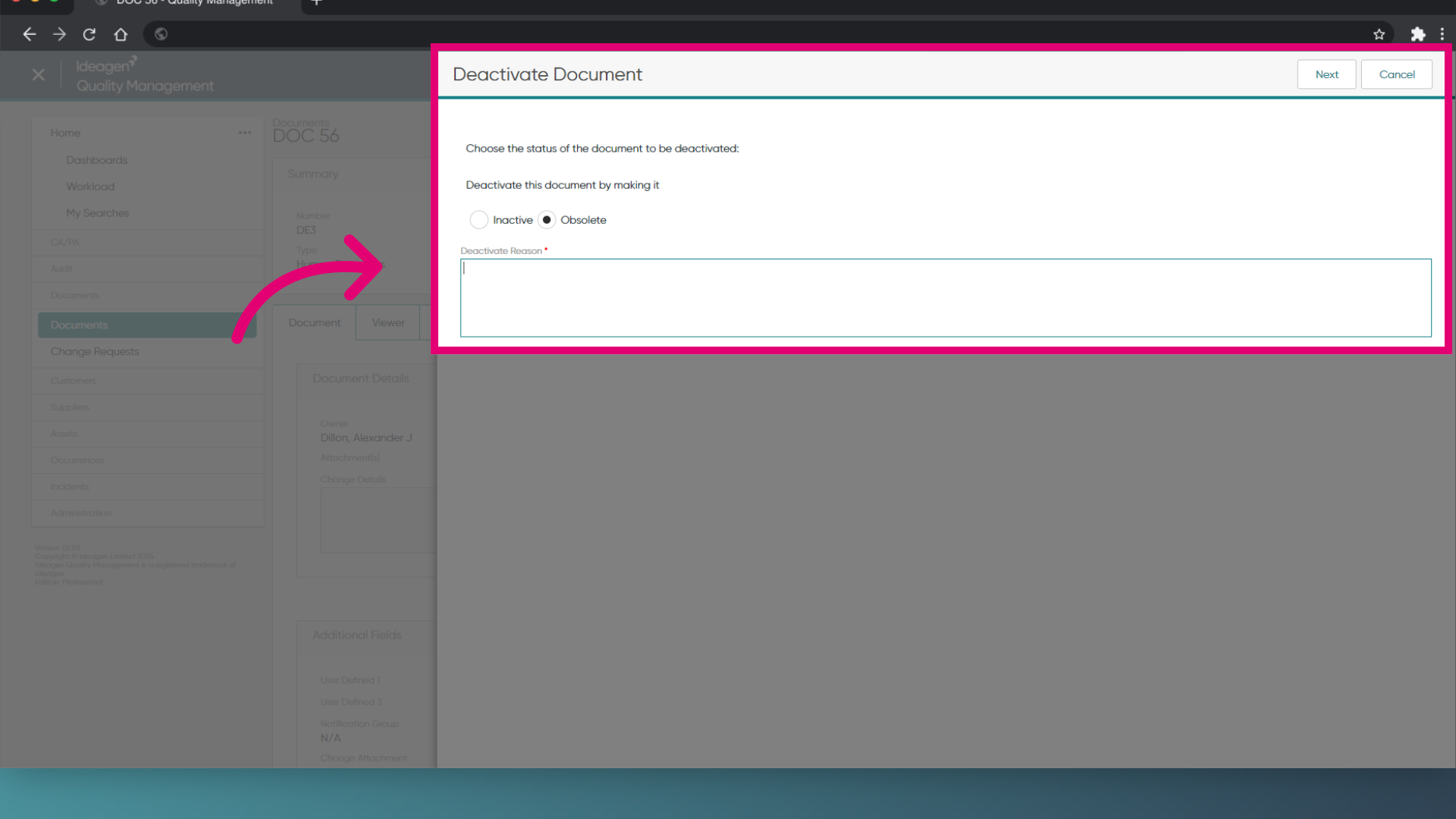
- Choose Inactive (recommended for Documents) or Obsolete (recommended for revisions).
You can reinstate a Document regardless of which option you choose. - Enter a Deactivate Reason.
- Click Next.
- Review the details.
- Click Finish.
2. Reinstating a Document
You can reinstate, or reactivate, previously deactivated Documents at any time.
To reinstate a Document:
- Access the Documents module.
- Open an inactive Document record.
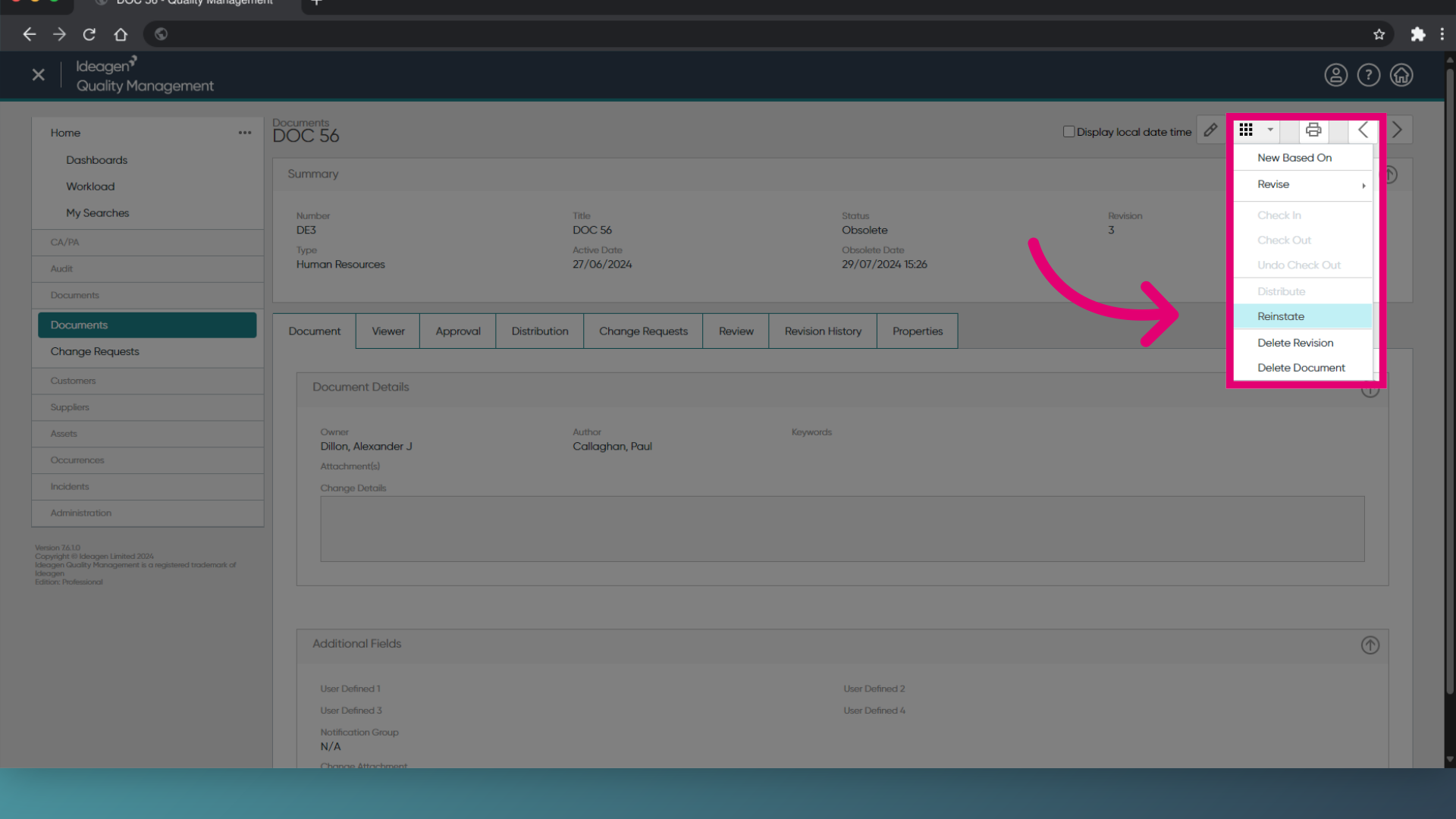
- Click the More menu.
- Select Reinstate.
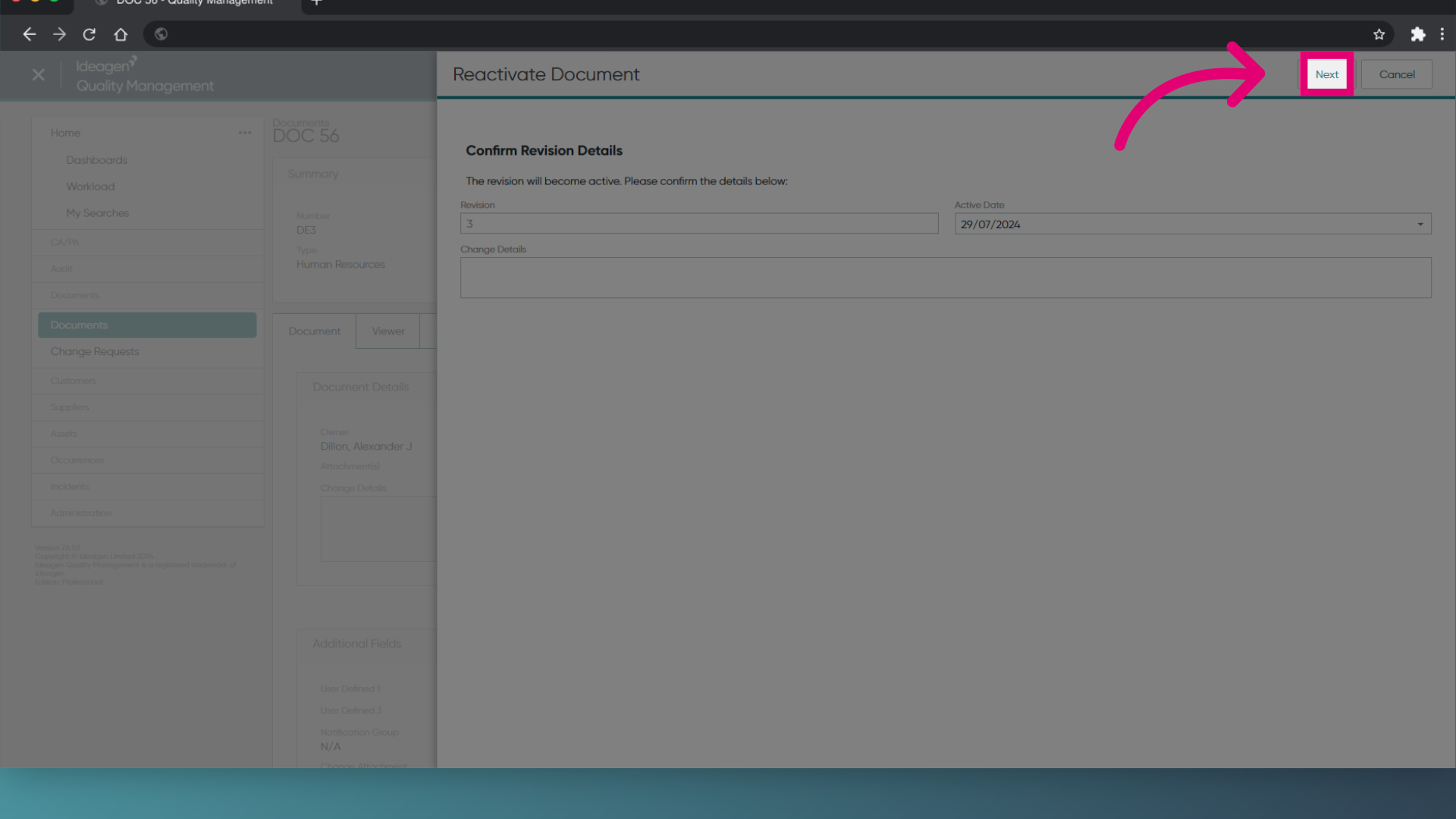
- Review the details.
- Click Next.
- Set distribution options.
This is optional. - Click Next.
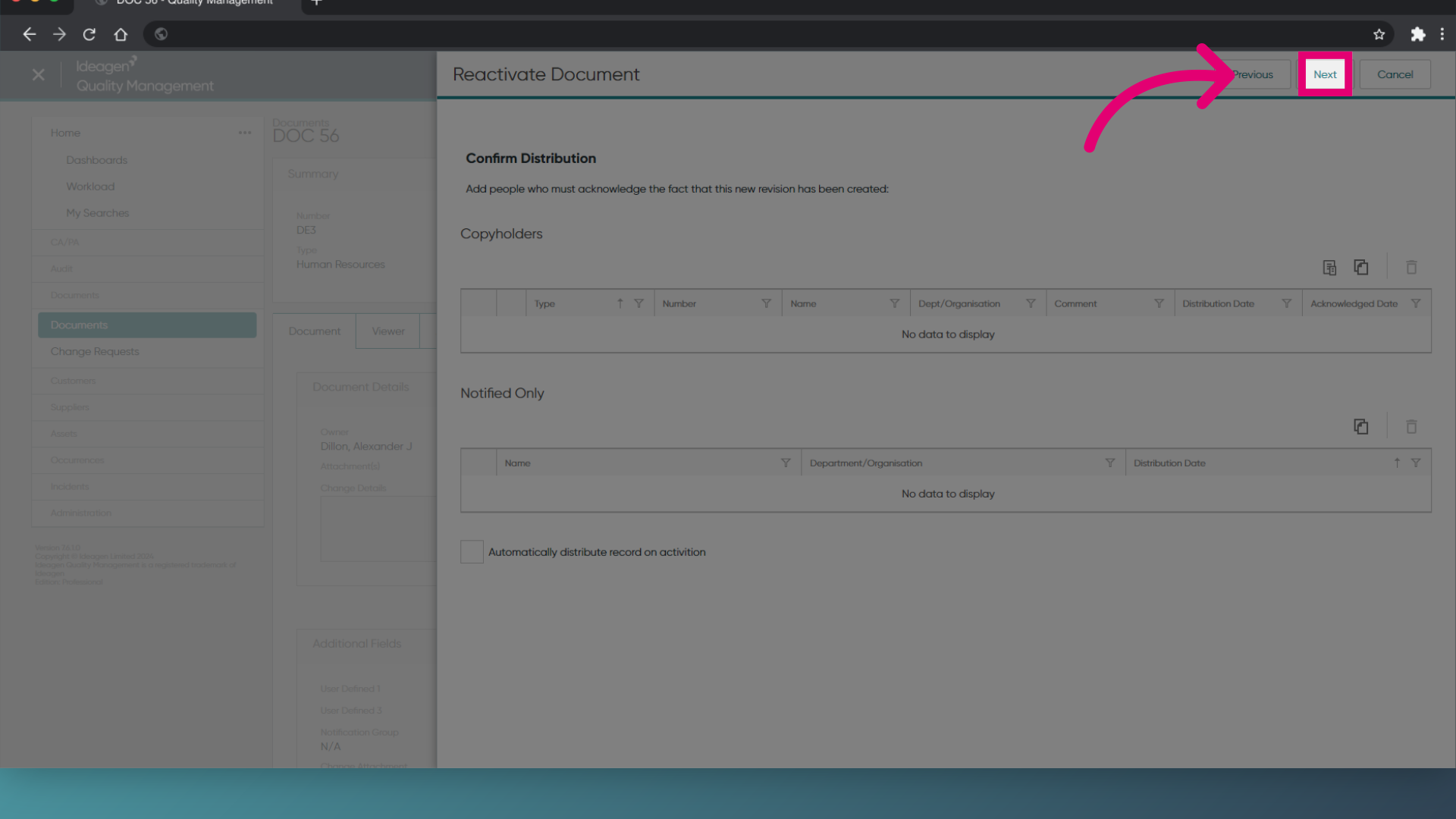
- Click Finish.
3. Deleting a Document
3.1. Deleting a Document
To delete a Document:
- Access the Documents module.
- Open a Document record.
- Click the More menu.
- Select Delete Document.
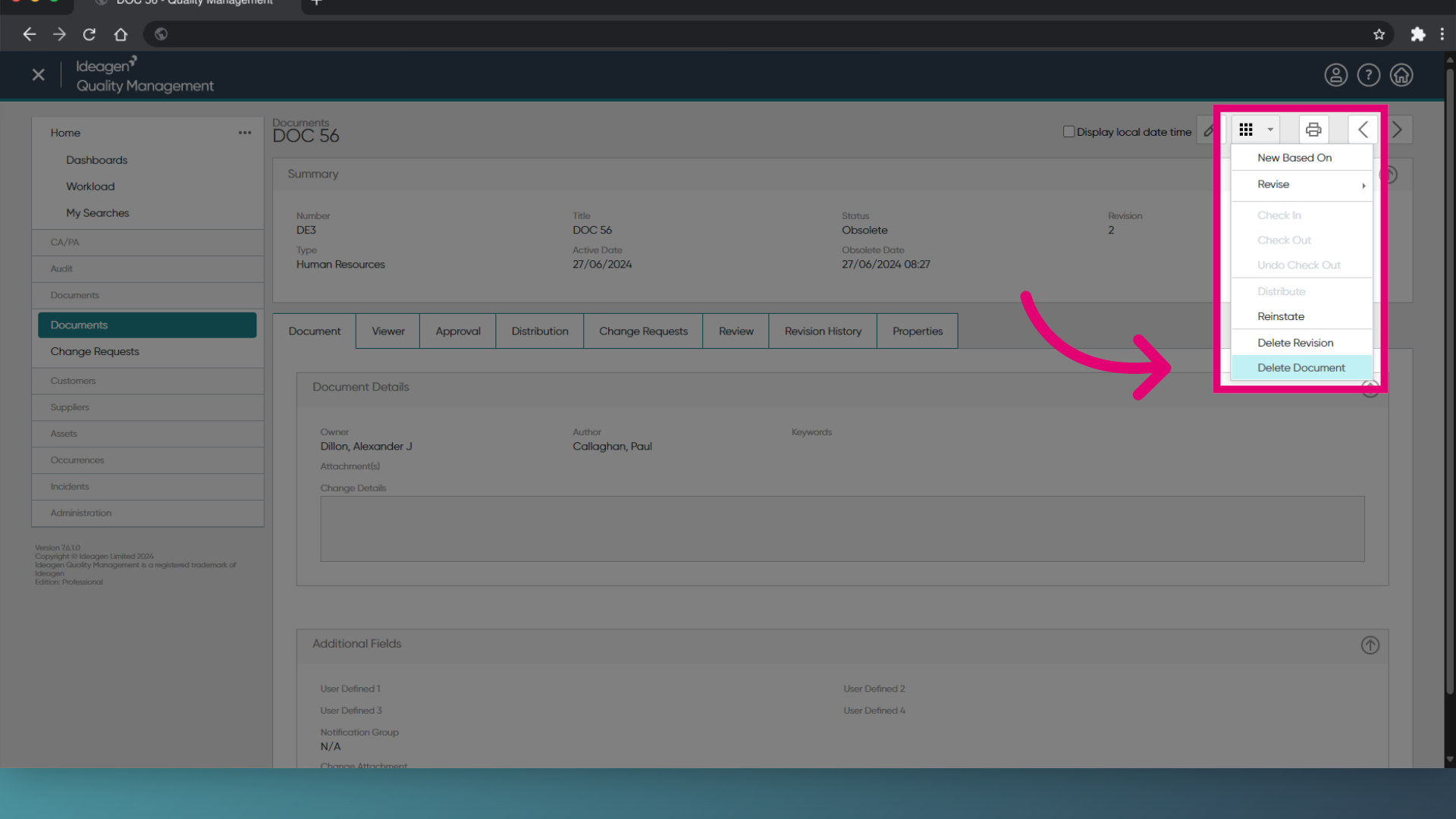
- Review the confirmation notes.
- Click OK.
Deleted Documents cannot be recovered. We recommend deactivating Documents instead, unless a mistake was made when the record was created (e.g. duplicate entry).
3.2. Deleting a revision
To delete a Document:
- Access the Documents module.
- Open a Document record.
- Click the More menu.
- Select Delete Revision.
- Review the confirmation notes.
- Click OK.
Deleted revisions cannot be recovered. We recommend deactivating revisions instead, unless a mistake was made when the record was created (e.g. duplicate entry).
1. Deactivating a Document
To deactivate a Document:
- Access the Documents module.
- Open a Document record.
- Click Actions.
- Select Deactivate Document....
This will open a wizard.
- Click Next.
- Choose Inactive (recommended for Documents) or Obsolete (recommended for revisions).
You can reinstate a Document regardless of which option you choose. - Enter a Deactivate Reason.
- Click Next.
- Review the details.
- Click Finish.
2. Reinstating a Document
You can reinstate, or reactivate, previously deactivated Documents at any time.
To reinstate a Document:
- Access the Documents module.
- Open an inactive Document record.
- Click Actions.
- Select Reinstate Document....
This will open a wizard.
- Click Next.
- Review the details.
- Click Next.
- Select distribution options.
This is optional. - Click Next.
- Click Finish.
3. Deleting a Document
3.1. Deleting a Document
To delete a Document:
- Access the Documents module.
- Open a Document record.
- Click Edit.
- Hover Delete.
- Select Document....
- Review the confirmation notes.
- Click OK.
Deleted Documents cannot be recovered. We recommend deactivating Documents instead, unless a mistake was made when the record was created (e.g. duplicate entry).
3.2. Deleting a revision
To delete a Document:
- Access the Documents module.
- Open a Document record.
- Click Edit.
- Hover Delete.
- Select Revision....
- Review the confirmation notes.
- Click OK.
Deleted revisions cannot be recovered. We recommend deactivating revisions instead, unless a mistake was made when the record was created (e.g. duplicate entry).