


New article
Recently updated
Performing searches

Who is this article for?
Users who want to perform advanced searches.
No specific access is required.
Each Ideagen Quality Management module list view includes a search area that allows you to locate records using the most frequently applied search criteria. Nevertheless, it is possible to conduct a search based on any field utilised within the module by utilising the advanced search feature.
Mazlan is an embedded AI capability within your Ideagen solutions, grounded in your data, your policies and global standards. Simply ask a question or describe what you need — Mazlan surfaces the right information, guides you through the workflow and prepares the output for your review. You stay in control.
Ready to unlock the Mazlan experience? Mazlan is only available to customers hosted on Ideagen infrastructure. Visit Implementing Mazlan in Ideagen Quality Management Professional to find out how to make the move.
-
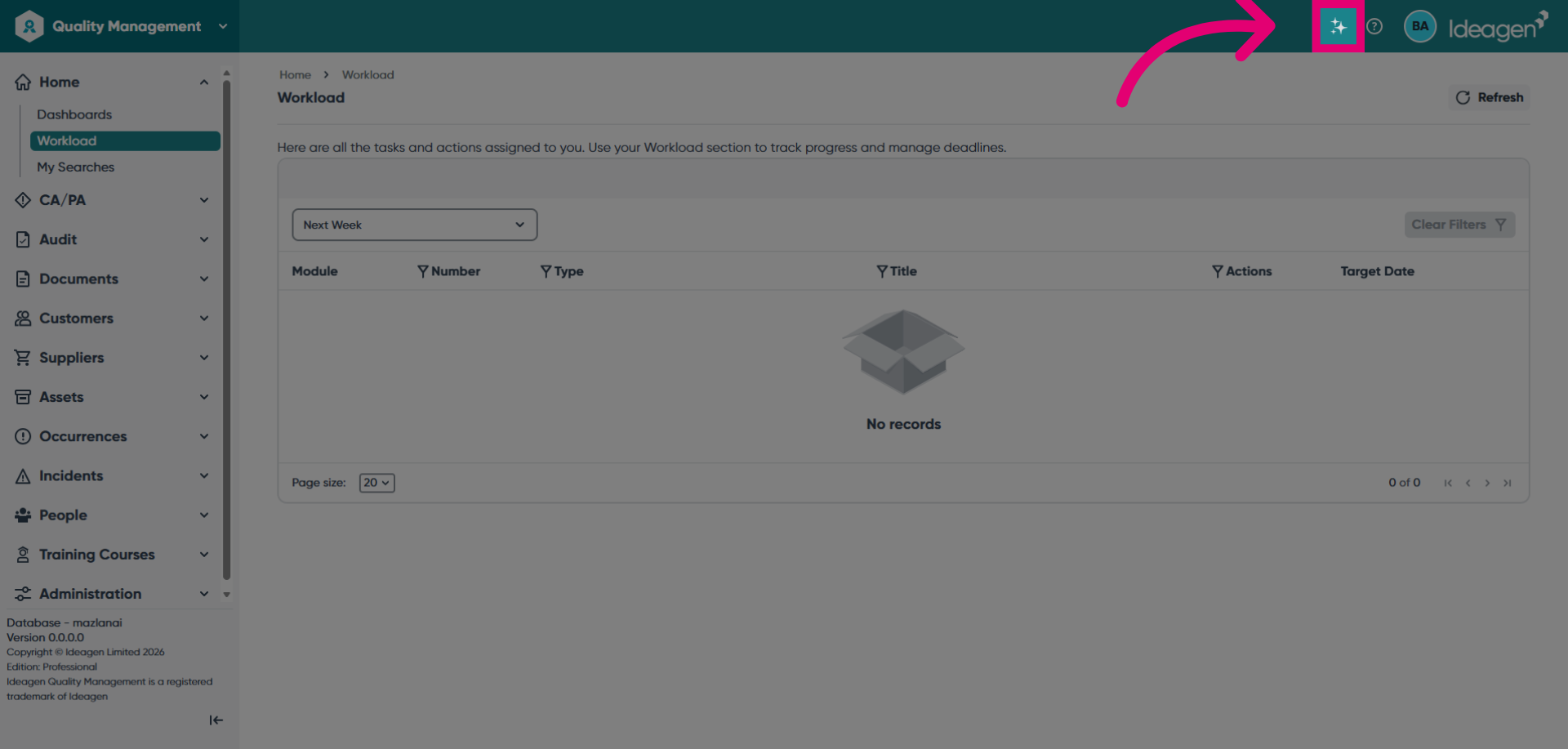
Open Mazlan by clicking the AI icon at the top of
the screen.
-
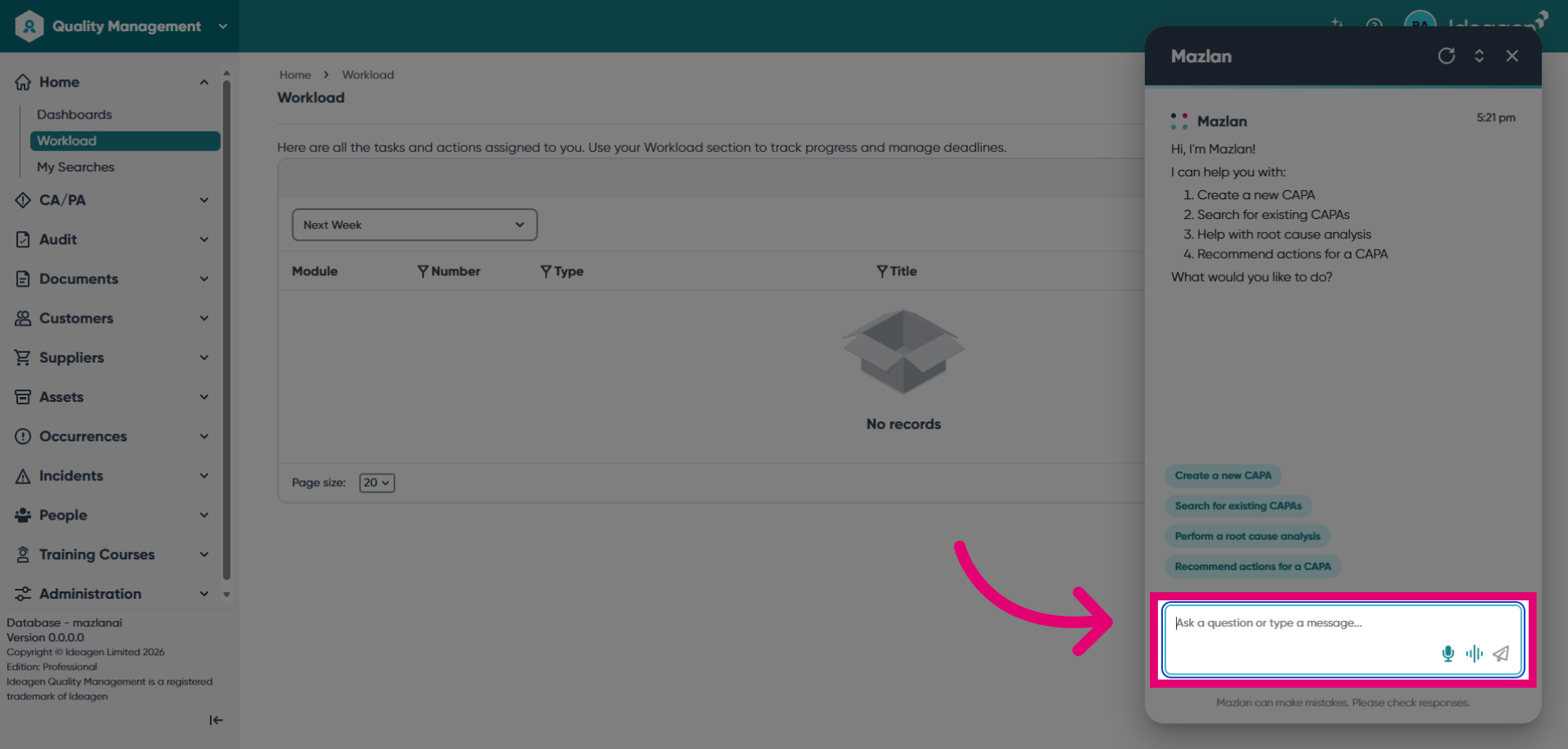
Enter your search criteria in the message input
field.
You can search for specific records, the latest record created, or
provide
details about the record you're looking for.
-
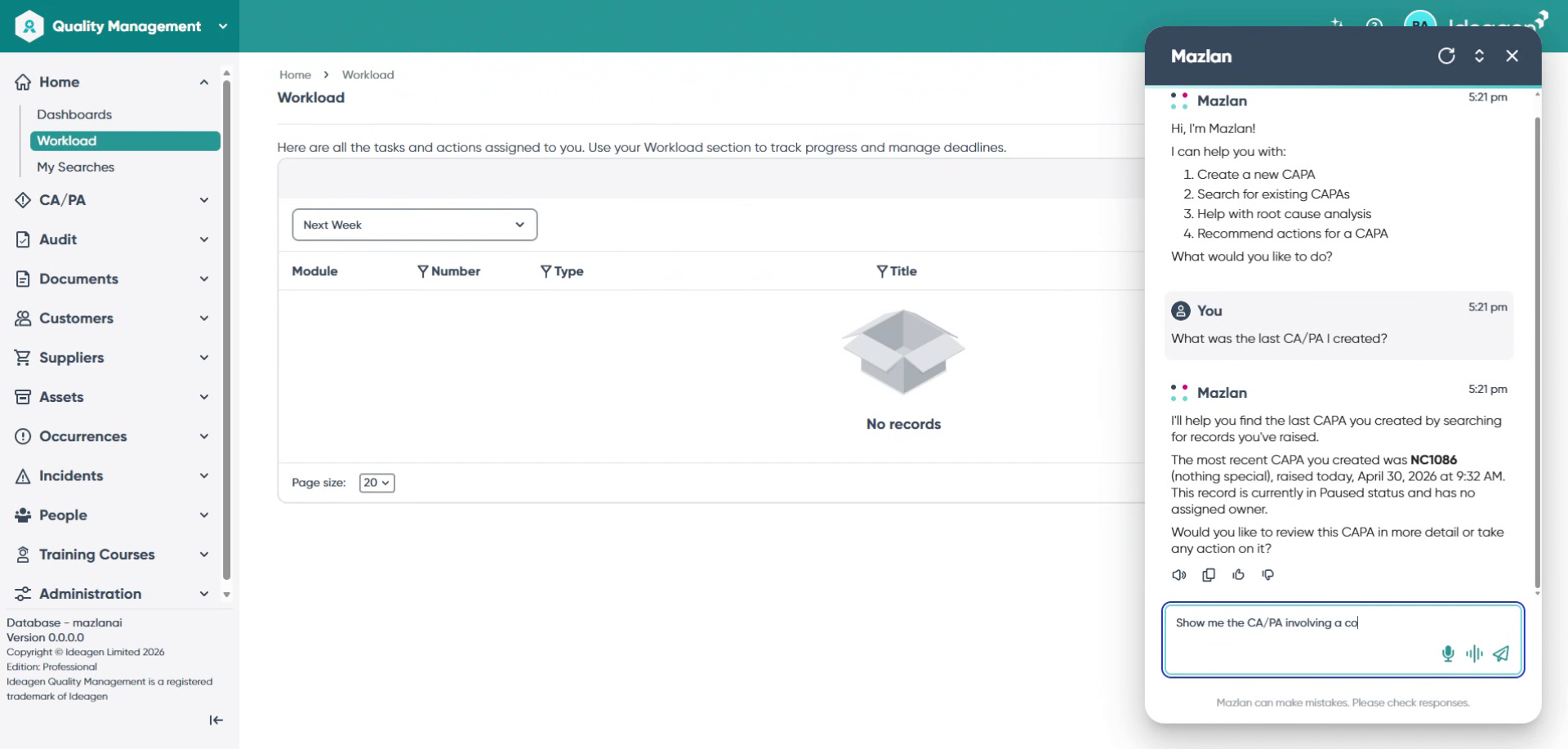
Enter your incident search query. For example, search
for records involving a colleague who tripped over loose cables.
Mazlan
will search the CA/PA module for any records matching this scenario.
-
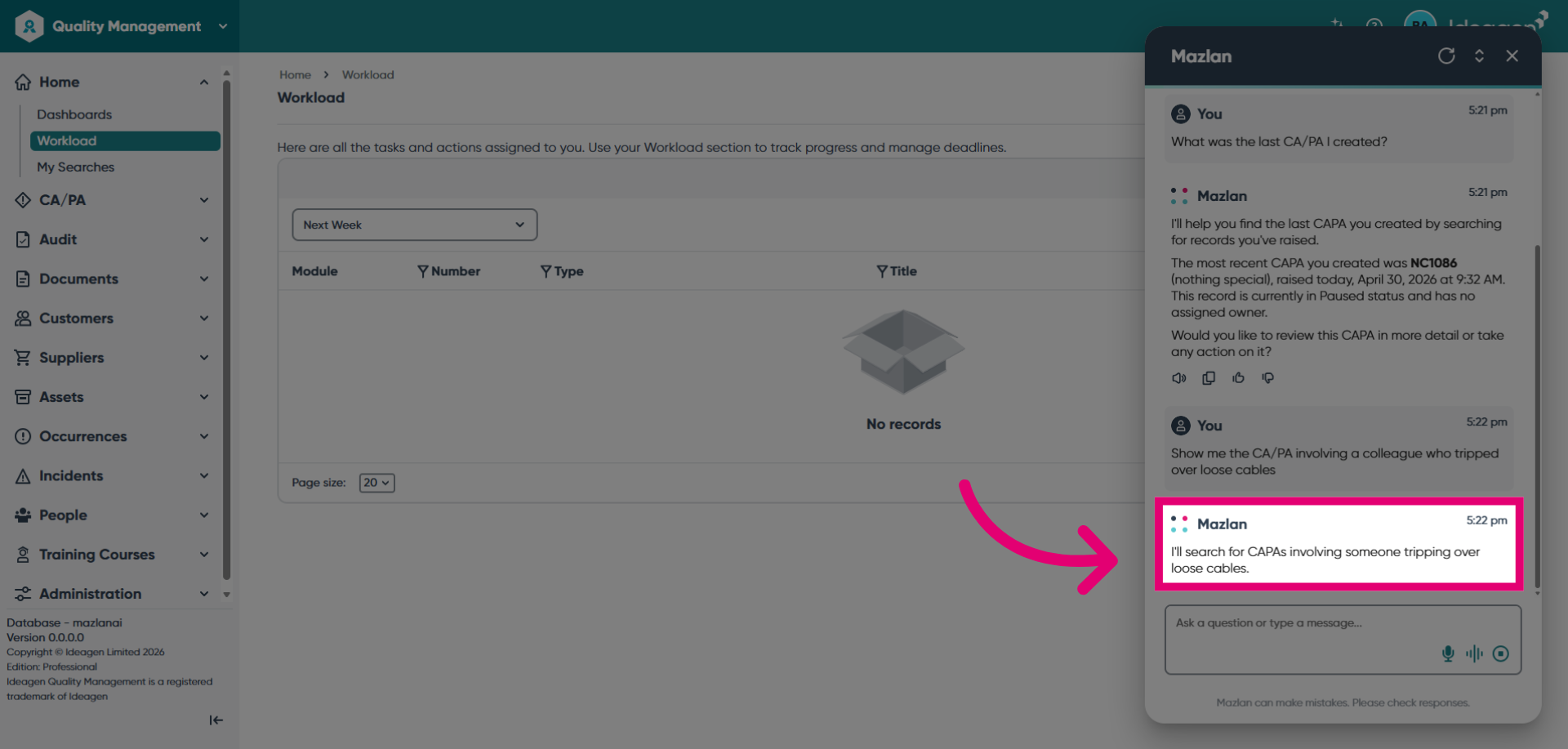
Mazlan will confirm the search is underway and begin
processing your request.
-
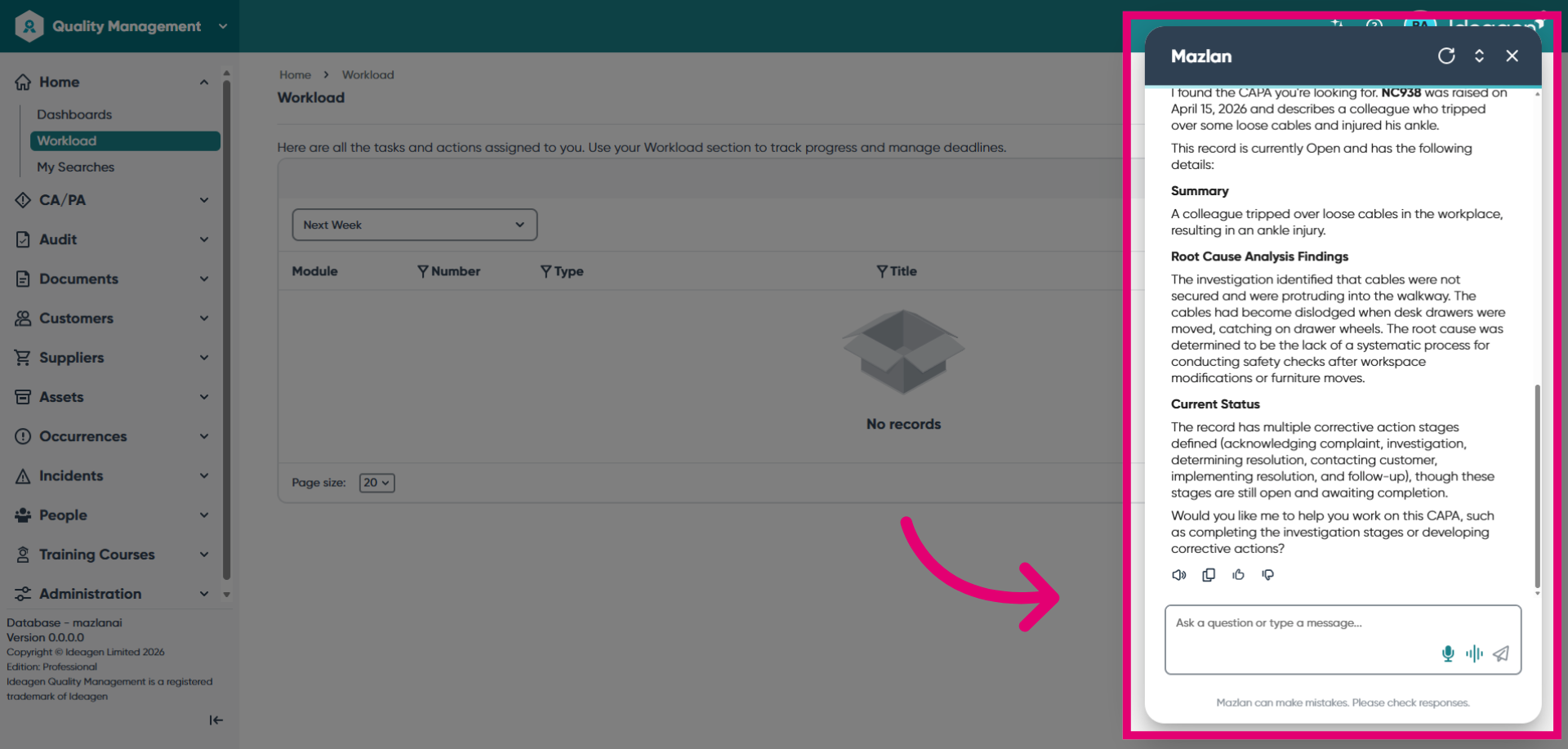
Review the search results for CAPAs related to the
specified
incident and click to continue.
-
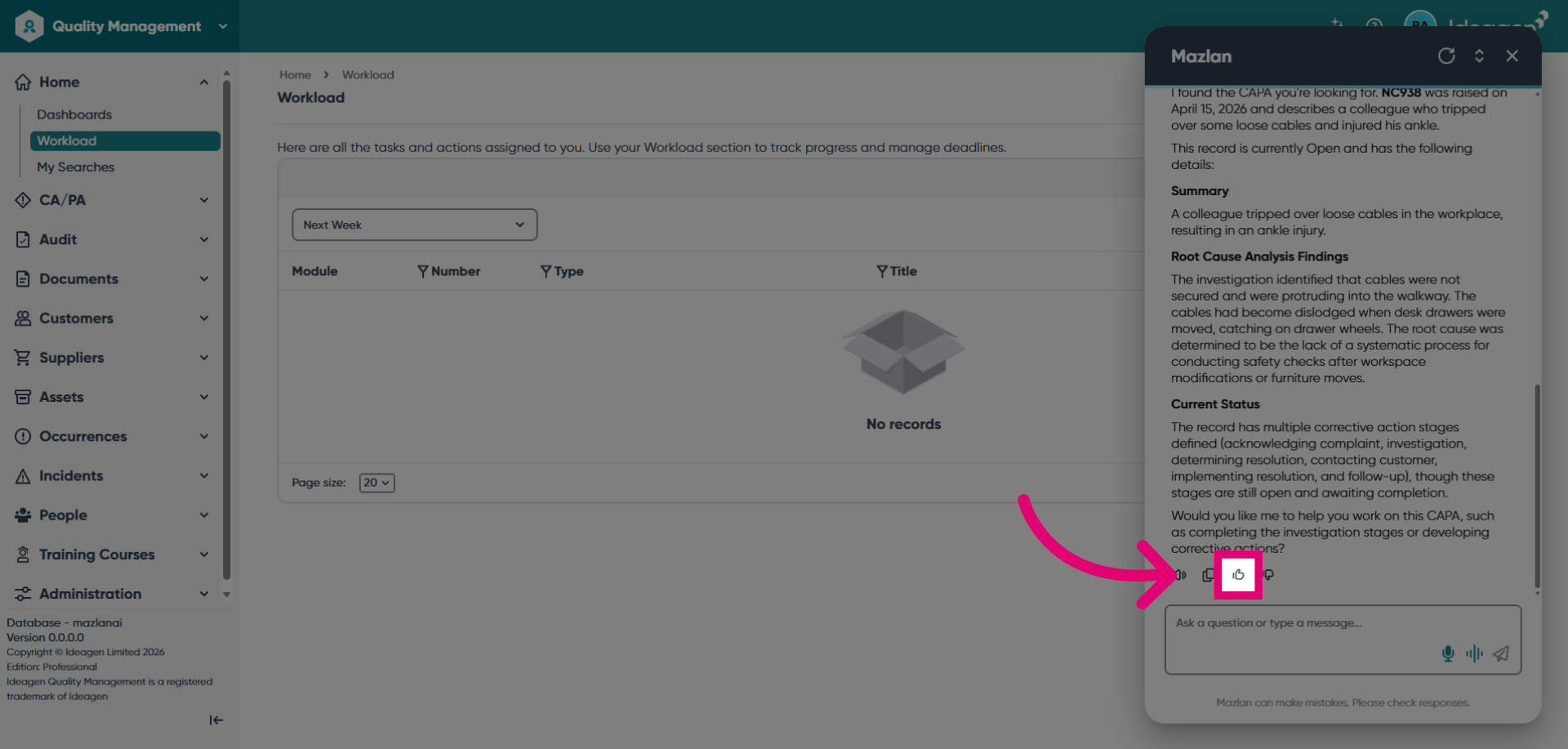
Rate the response you received from Mazlan to help
improve
future search results.
1. Creating a new advanced search
- Go to any list view.
- Click Advanced in the left-hand search area.
- The Advanced Search window will appear.
- If a quick search was done before in this module, it will be displayed.
-
For example, a quick search for documents with:
- Document Type: "Projects"
- Owner: "Richie Hewitt"
- Status: "Draft"
- Modify or clear existing search criteria.
-
To start a new search:
- Clear current criteria.
- Click And.
- Choose a search criterion from the first dropdown.
- Select an operator (e.g., equals, starts with, less than) from the second dropdown.
- Specify value(s) in the third (and fourth, if applicable) dropdowns.
- Check "ALL" to retrieve all records (e.g., leave third dropdown blank).
- Add conditions using "And" or "Or".
-
If an error occurs:
- Undo your last action.
- Redo the undone action.
- Remove a search line by selecting its option.
-
After setting up your search:
- Save it for future use.
- Run the search without closing the window.
- Run the search and close the window.
Only the person who created the search folder can edit or delete it.