


New article
Recently updated
Creating a question bank item

Who is this article for?Users responsible for managing audit checklists.
Edit Audit Question Bank permissions are required.
Question bank is a collection of pre-set questions you can pull into a checklist or checklist template to ensure an efficient and standardised process.
This article walks you through the process of adding a new section or question to the question bank.
1. Creating a section
To create a section:
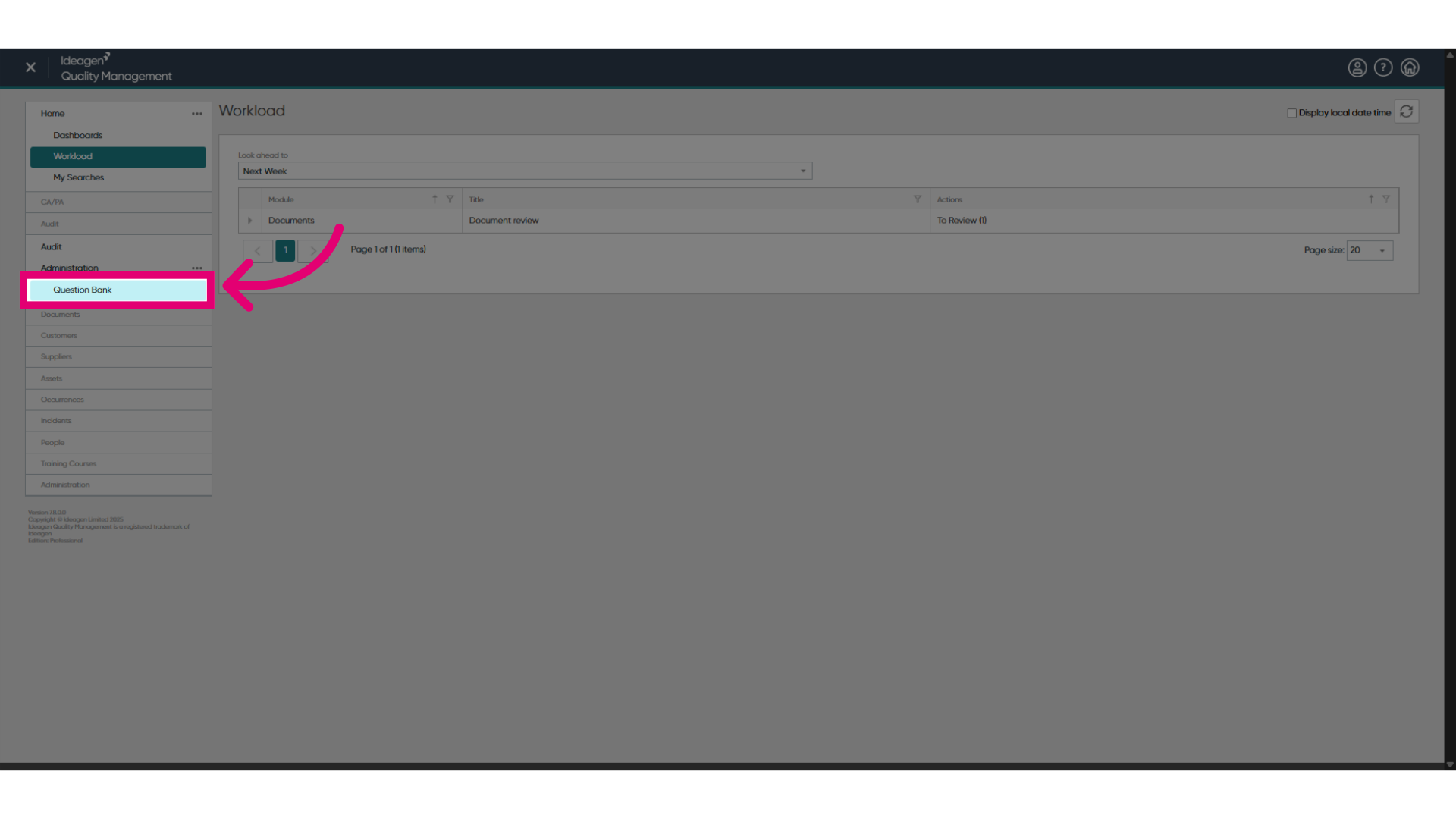
- Access the Audit module.
- Open Administration.
- Select Question Bank.
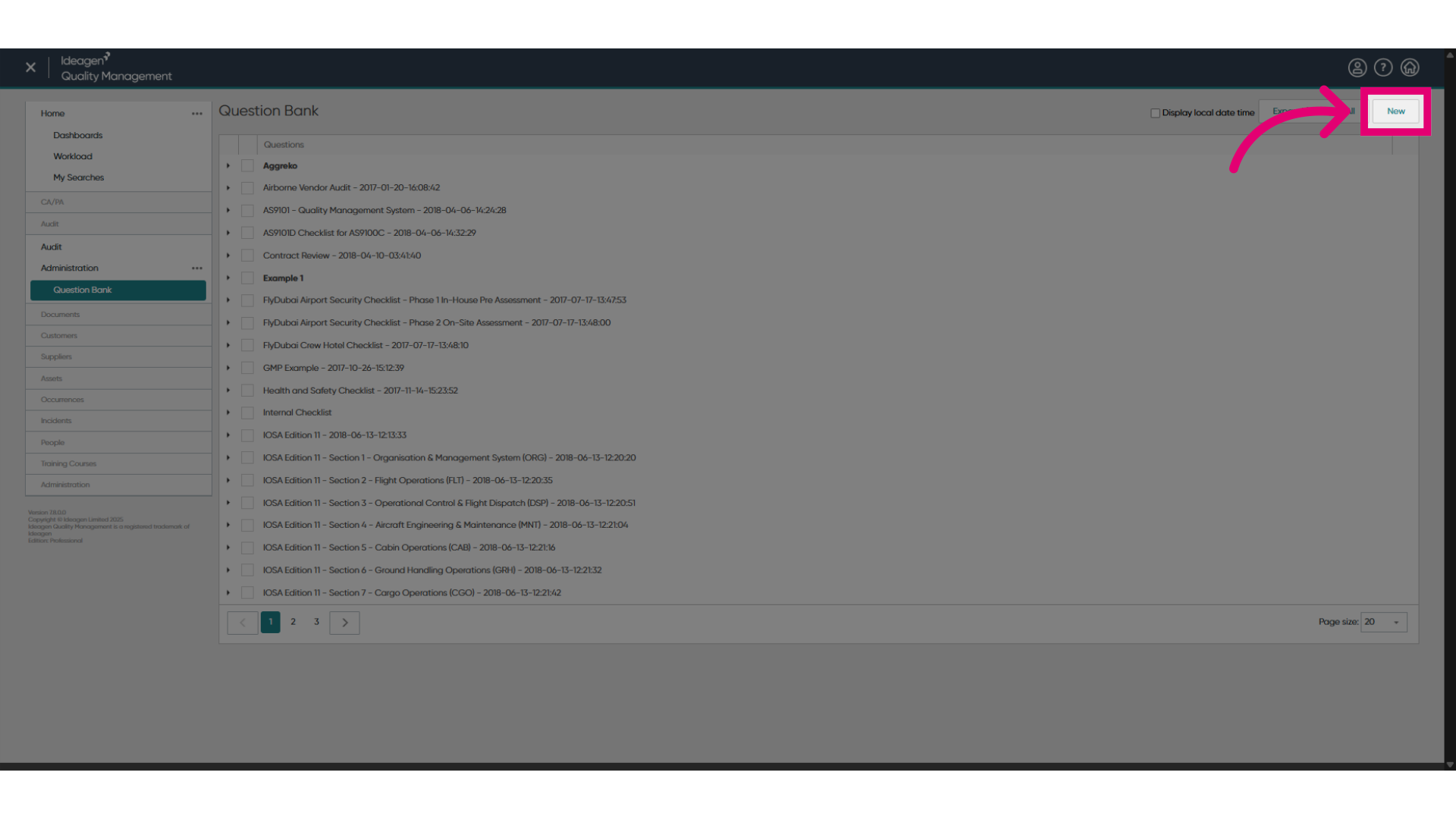
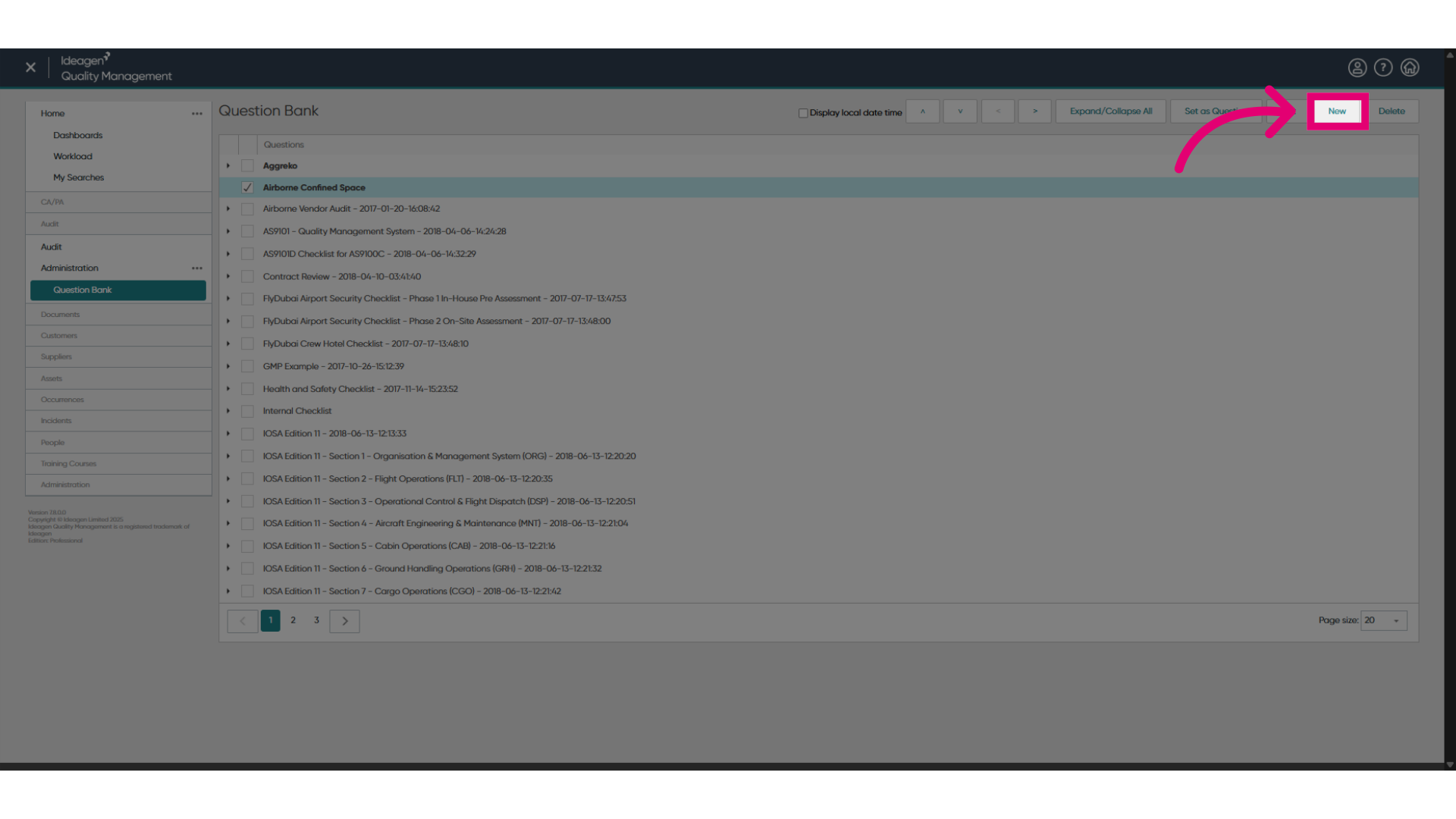
- Click New.
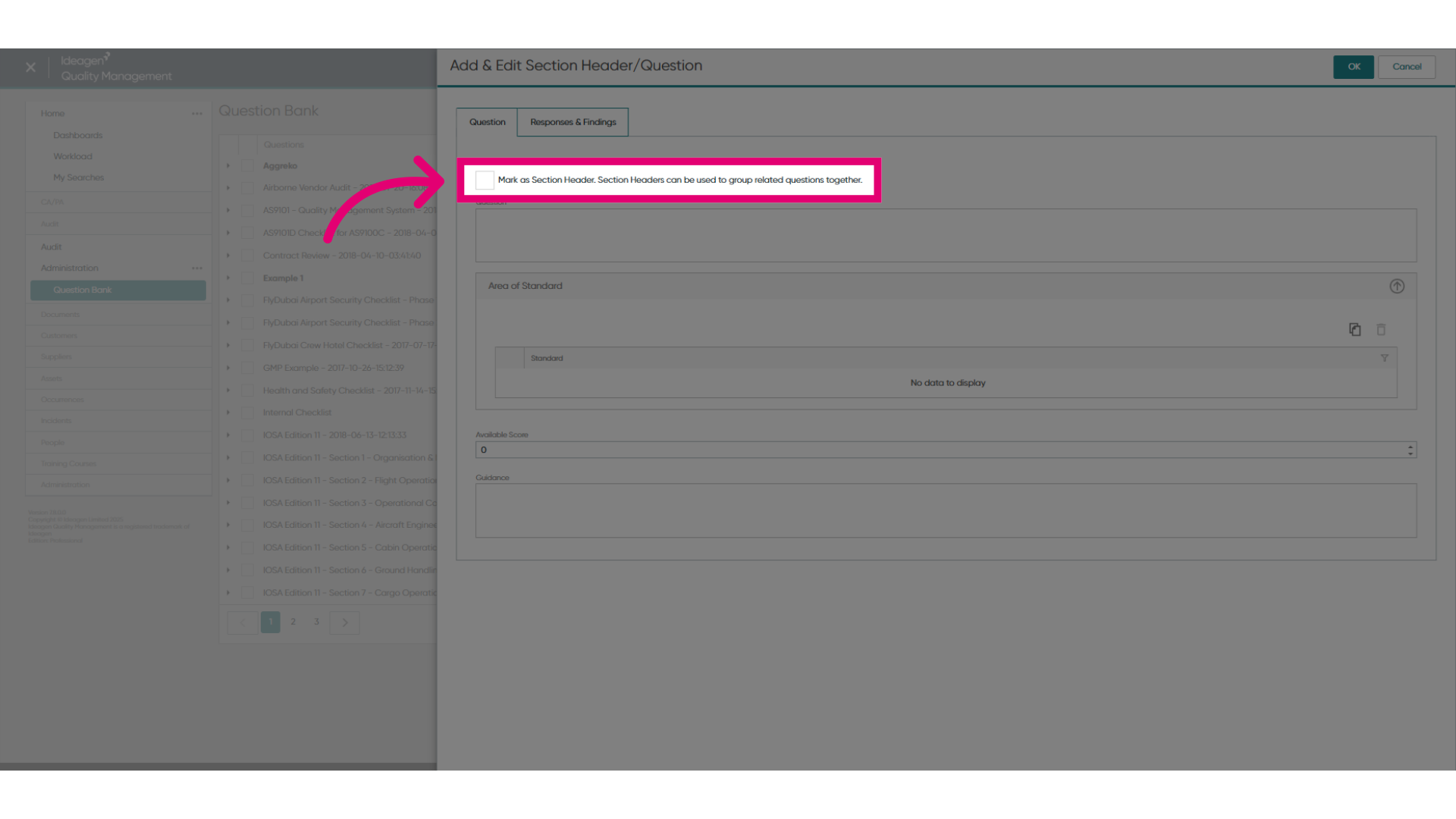
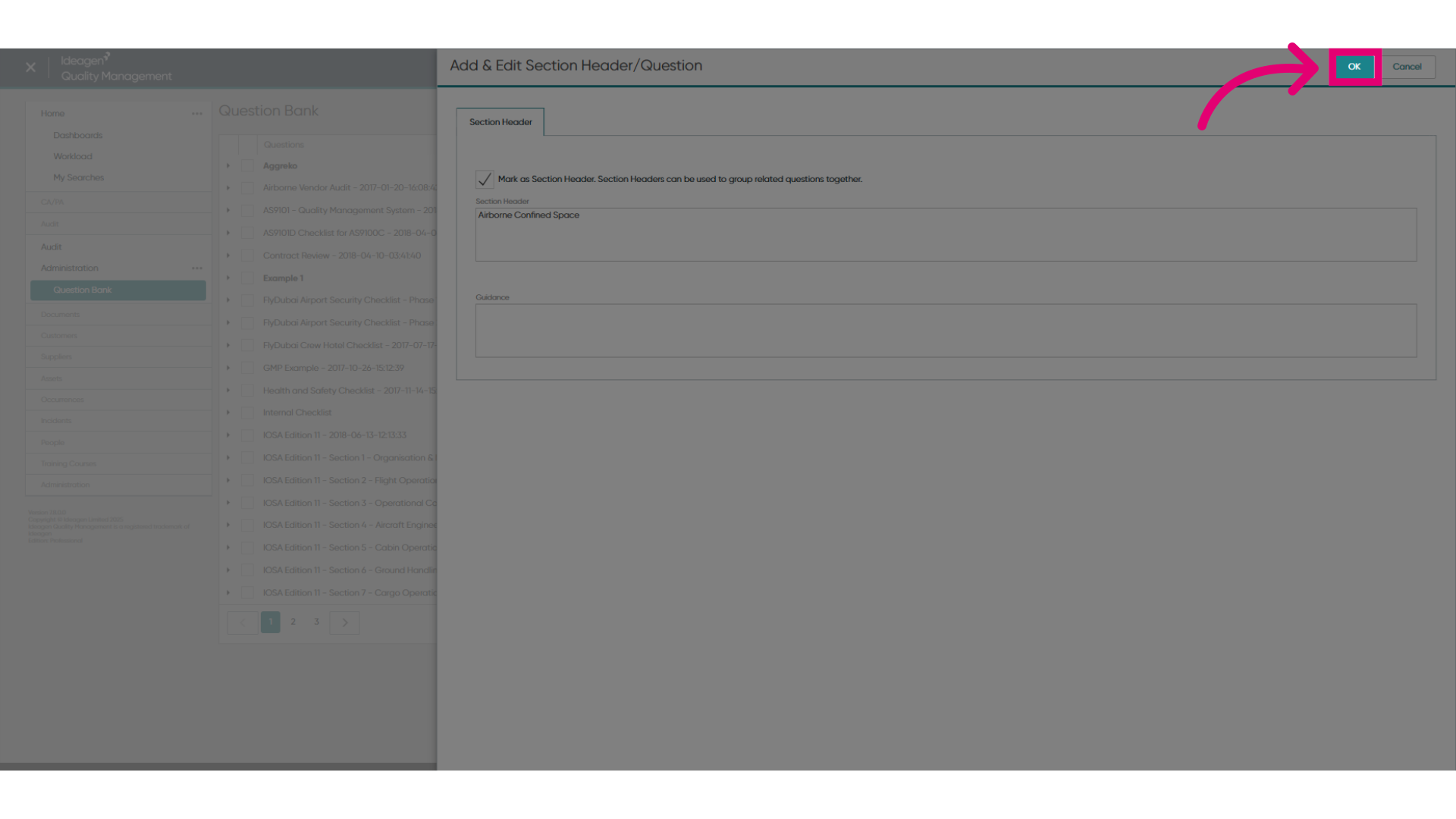
- Tick Mark as Section Header... box.
This will change the available fields.
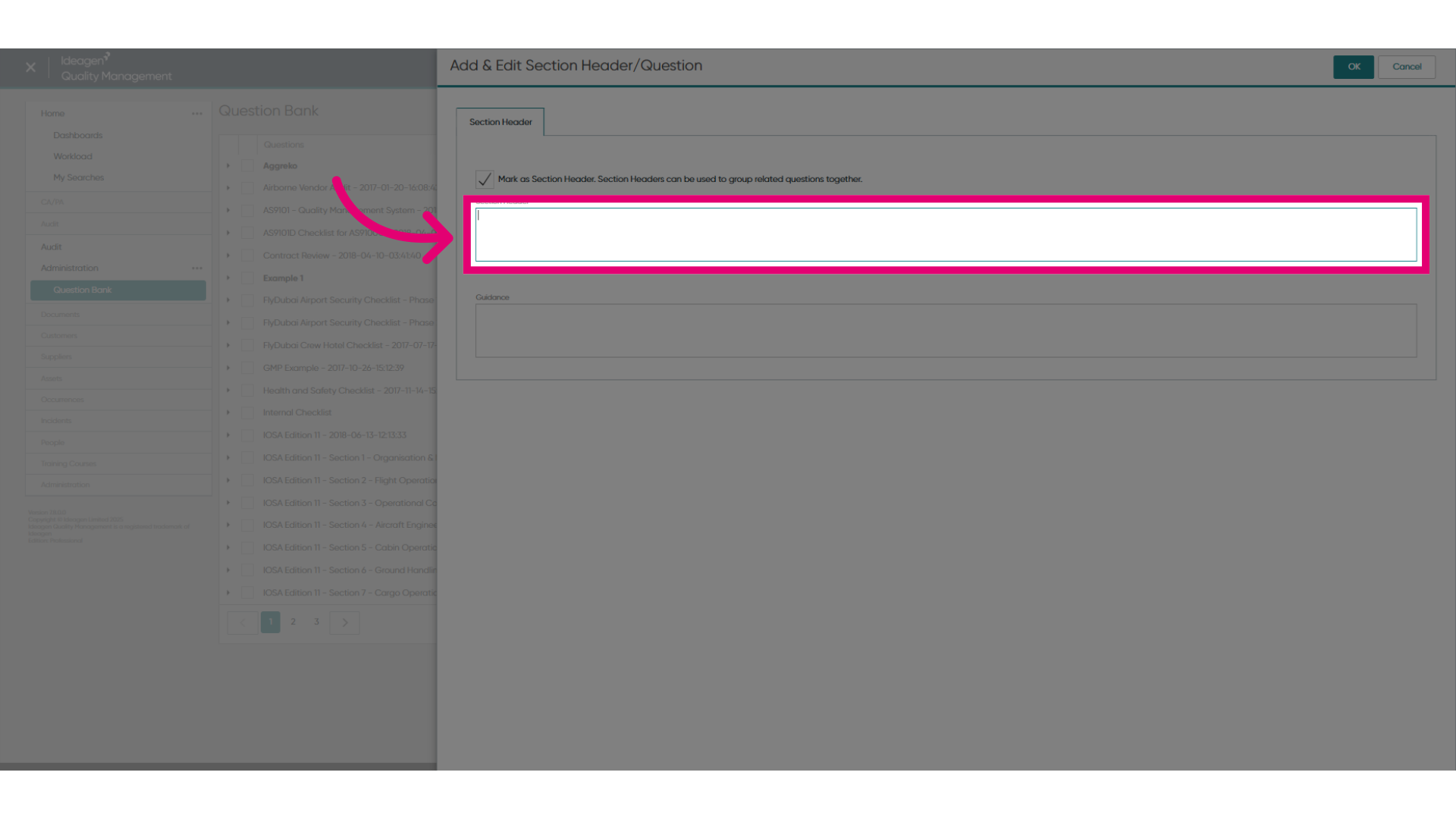
- Enter a Section Header name.
- Add optional Guidance.
- Click OK.
Your newly added section will appear at the bottom of the list in your question bank.
2. Creating a question
To create a question:
- Click New to create a standalone question.
To create a question within a section, first tick the box next to the section name.
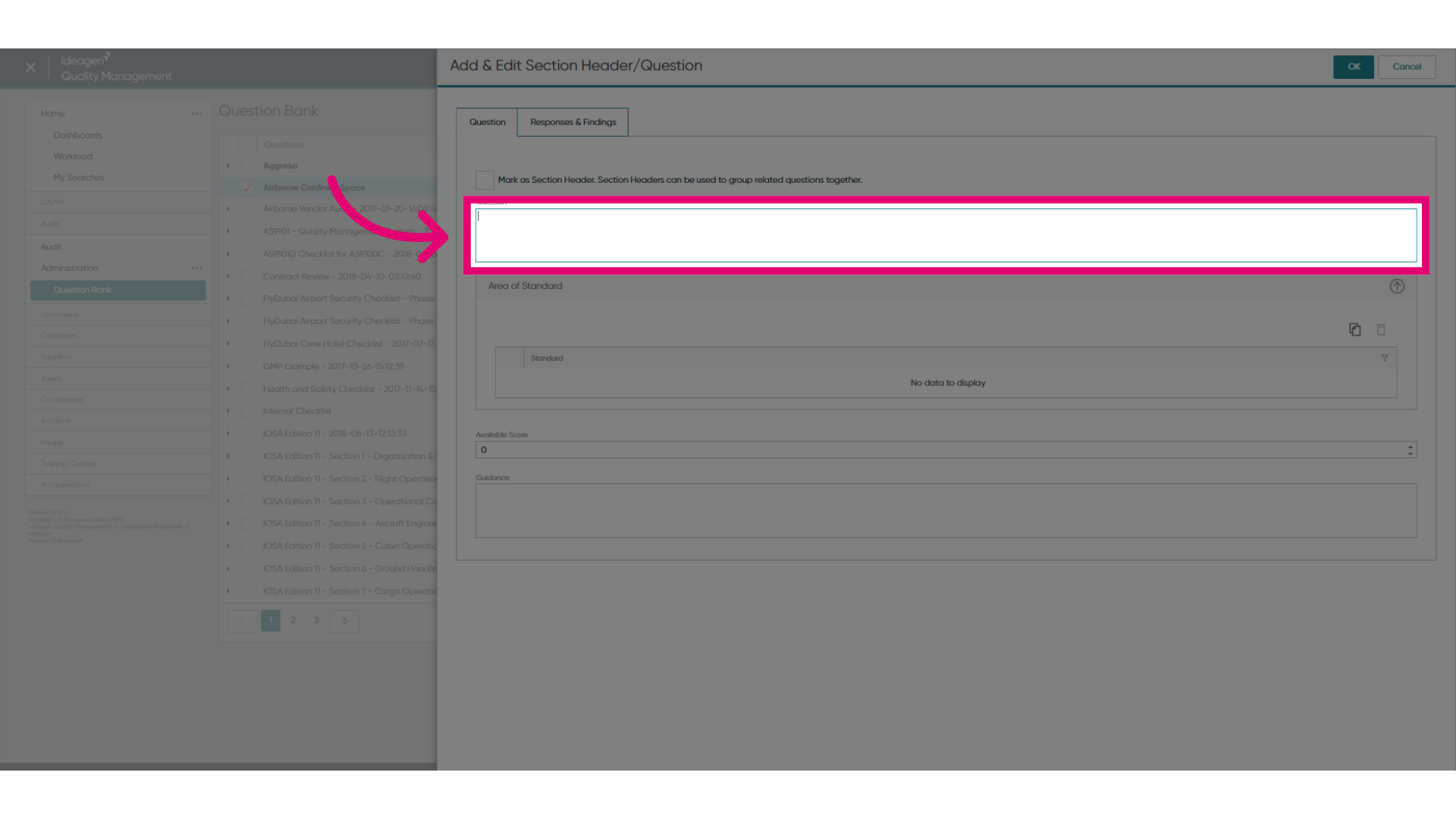
- Type in your Question.
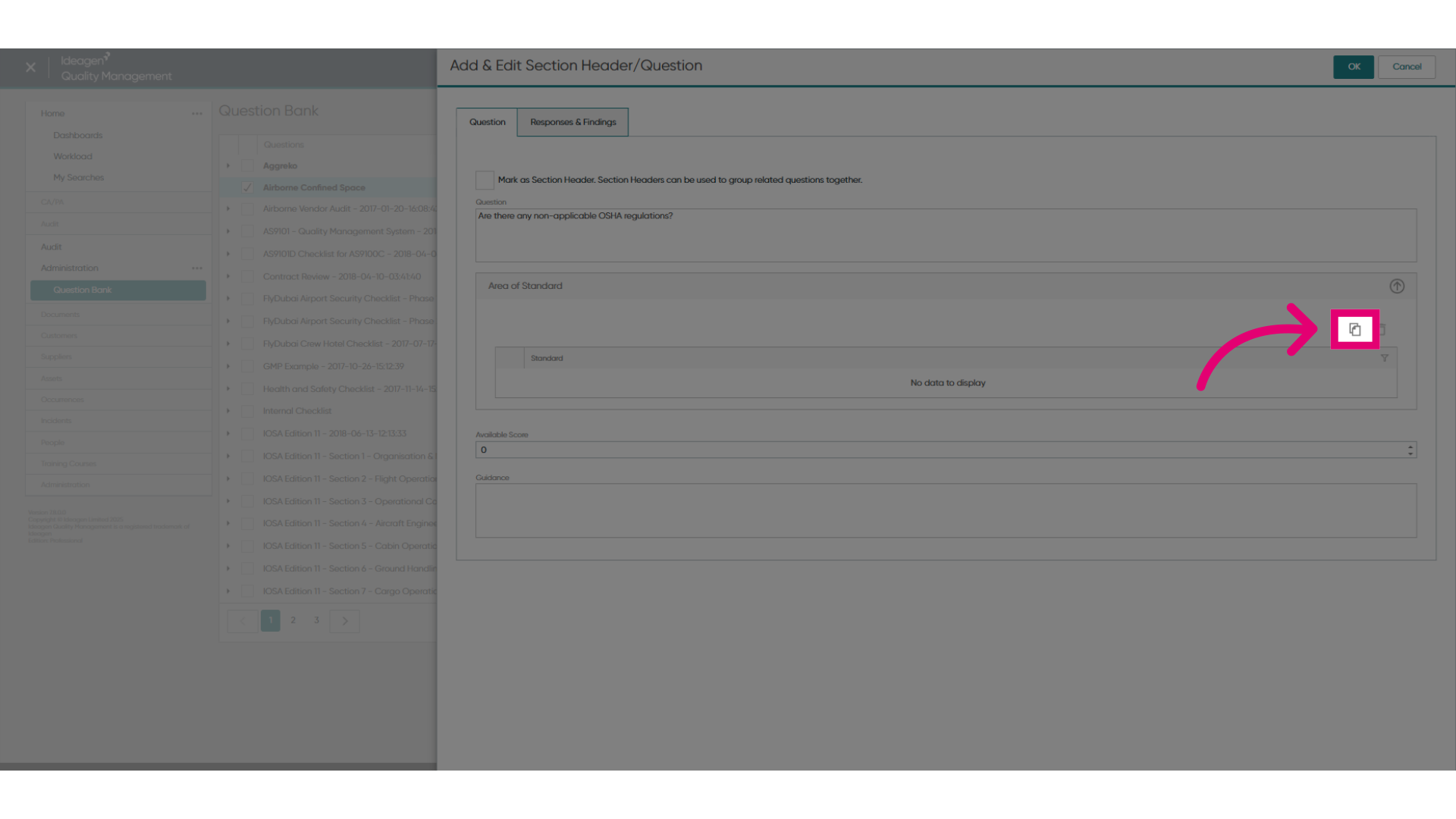
- Click Add Area of Standard(s) to add optional information applicable to the question.
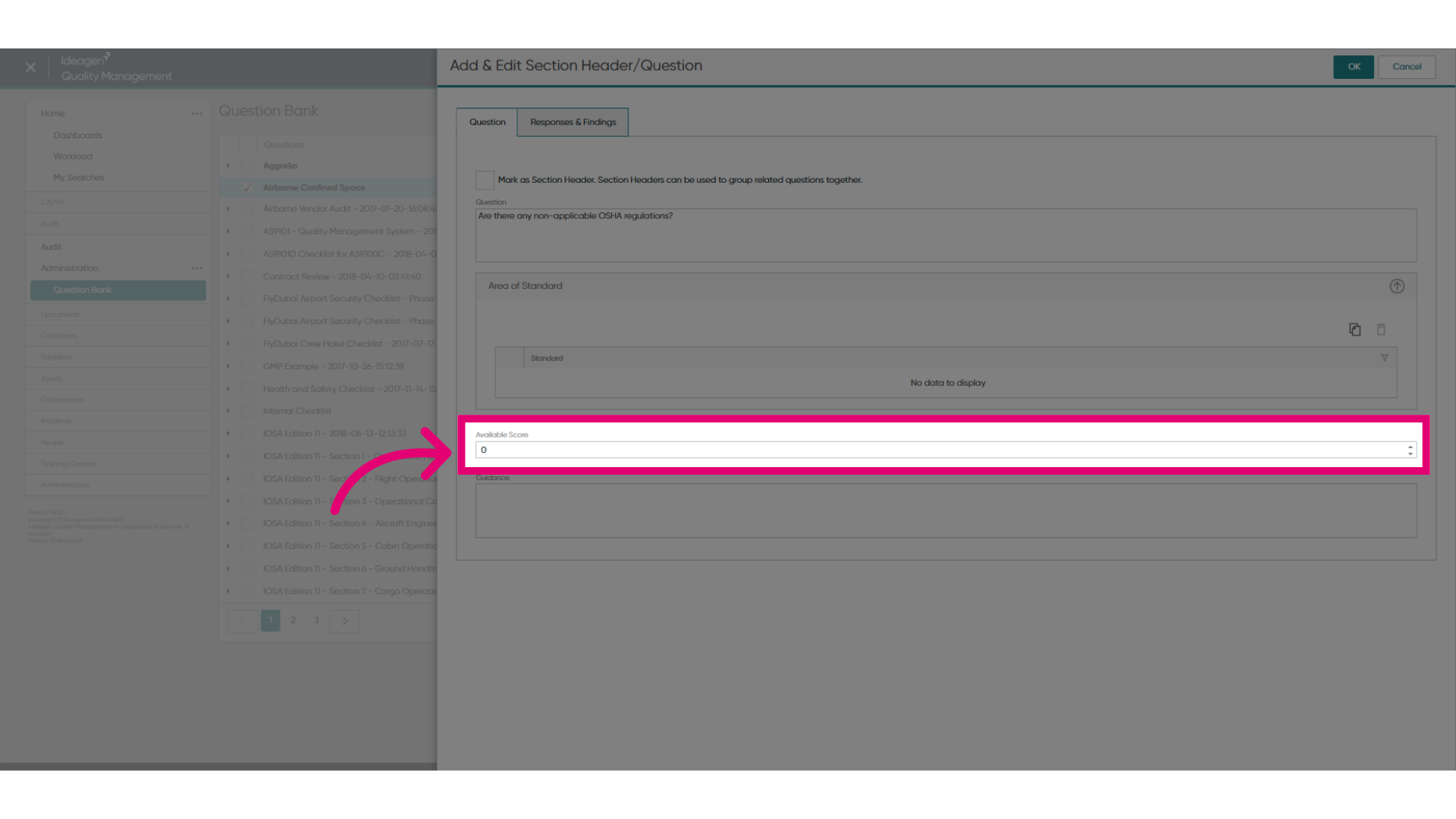
- Set Available score for the question if applicable.
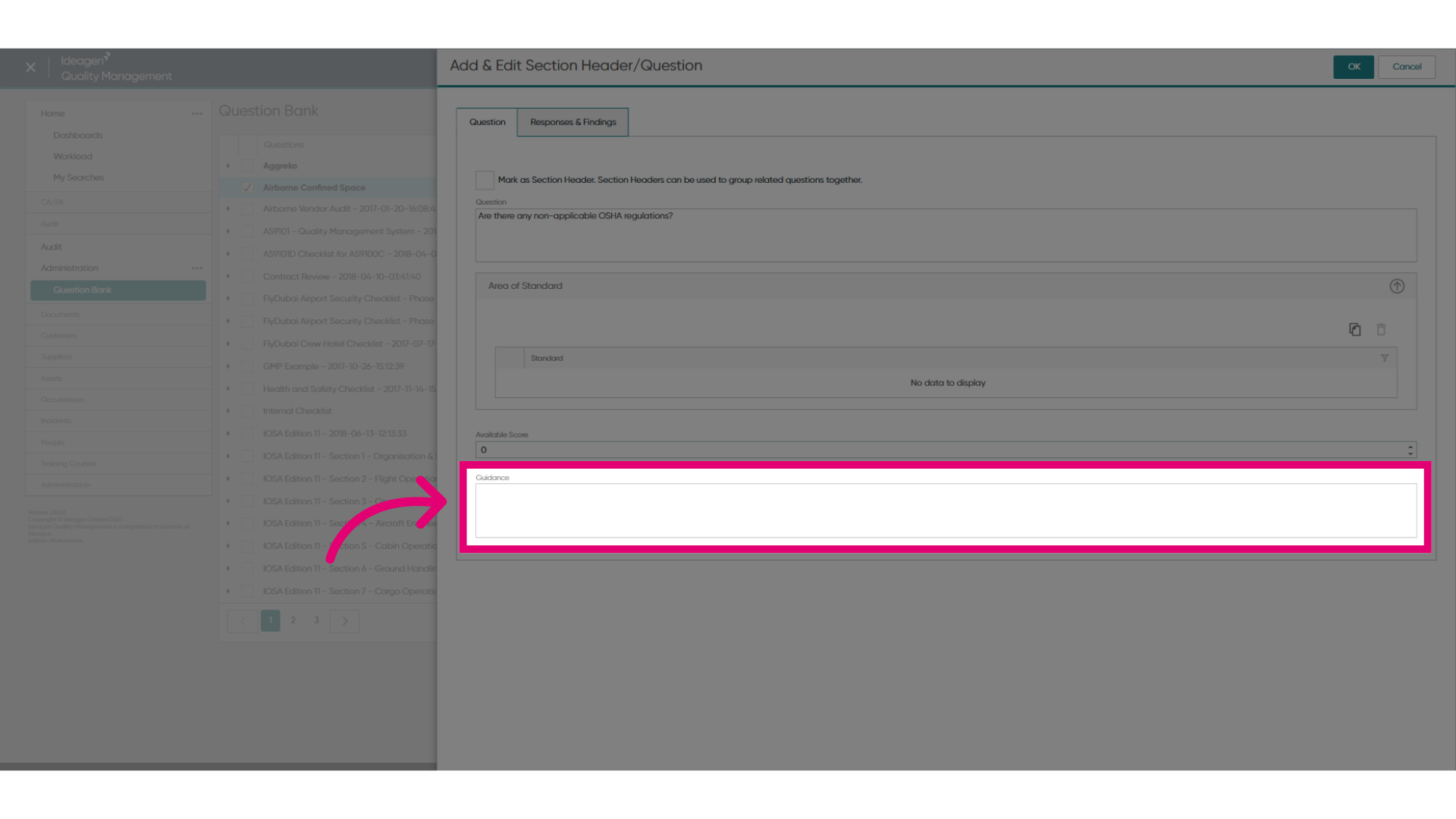
- Enter optional Guidance that may help answer the question.
- Click OK.
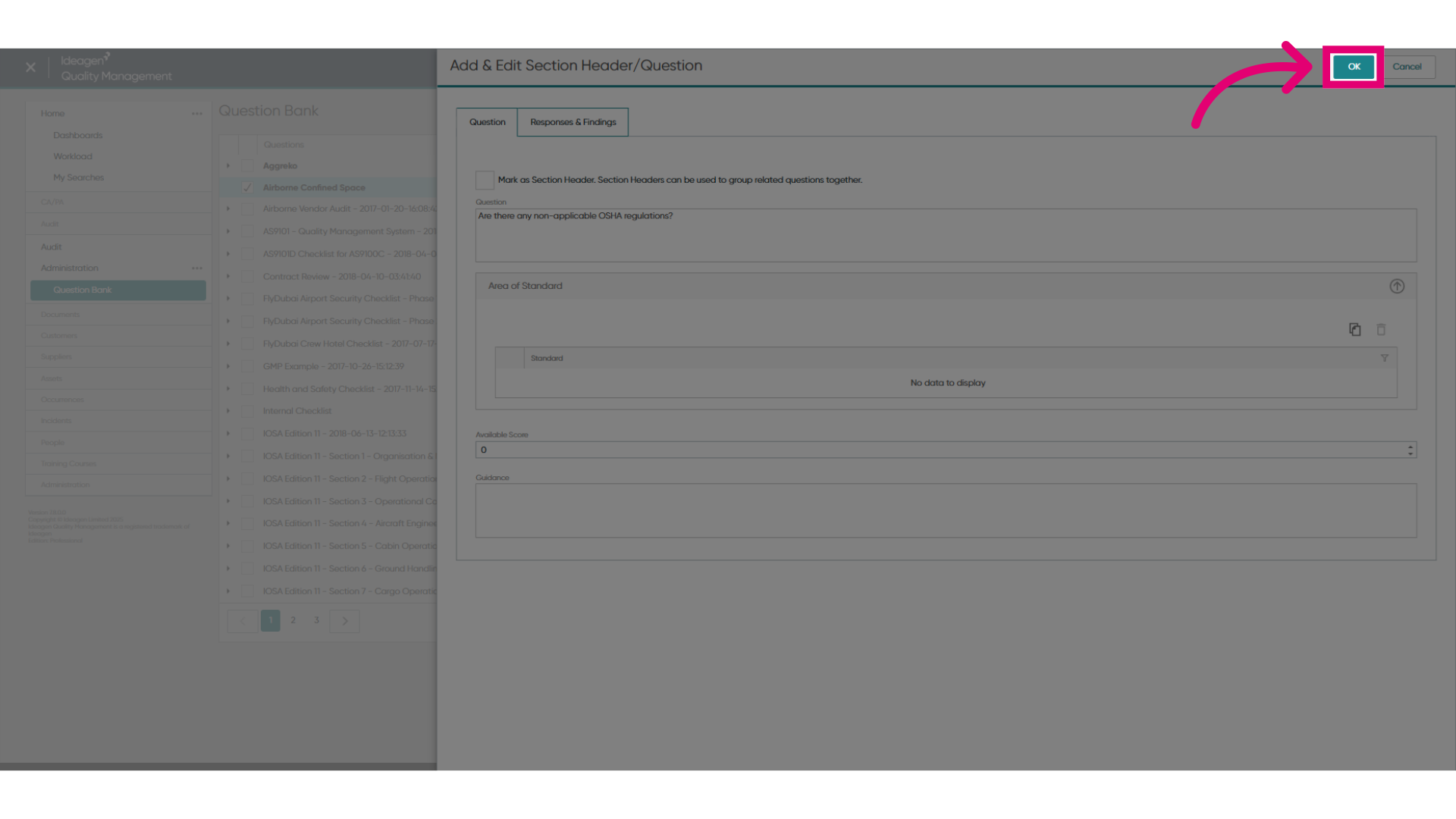
Repeat this process to add as many questions to the section or the question bank itself.
1. Creating a section
To create a section:
- Access the Audit module.
- Click Edit.
- Select Question Bank....
- Enter a Section Header name.
- Click Add Section.
Your newly added section will appear at the bottom of the list in your question bank.
2. Creating a question
To create a question:
- Enter a Question.
- Click Add Question.
To create a question within a section, first highlight the section in the list by clicking it.
You can add information and guidance to the question by editing it.