


New article
Recently updated
Creating a CA/PA record

Who is this article for?
Users working with CA/PA records.
Access to the CA/PA module is needed.
The CA/PA Lifecycle begins when a Ideagen Quality Management user first raises a CA/PA record to report a non-conformance or problem. However, because the CA/PA module is highly configurable, you can use CA/PAs to record and manage ideas or positive events.
You can raise a CA/PA using a template, by opening a blank CA/PA form or via a wizard. You can also raise CA/PAs in other Ideagen Quality Management modules, such as the Audit module or Customer module.
Mazlan is an embedded AI capability within your Ideagen solutions, grounded in your data, your policies and global standards. Simply ask a question or describe what you need — Mazlan surfaces the right information, guides you through the workflow and prepares the output for your review. You stay in control.
Ready to unlock the Mazlan experience? Mazlan is only available to customers hosted on Ideagen infrastructure. Visit Implementing Mazlan in Ideagen Quality Management Professional to find out how to make the move.
Creating a CAPA Record in Mazlan
-
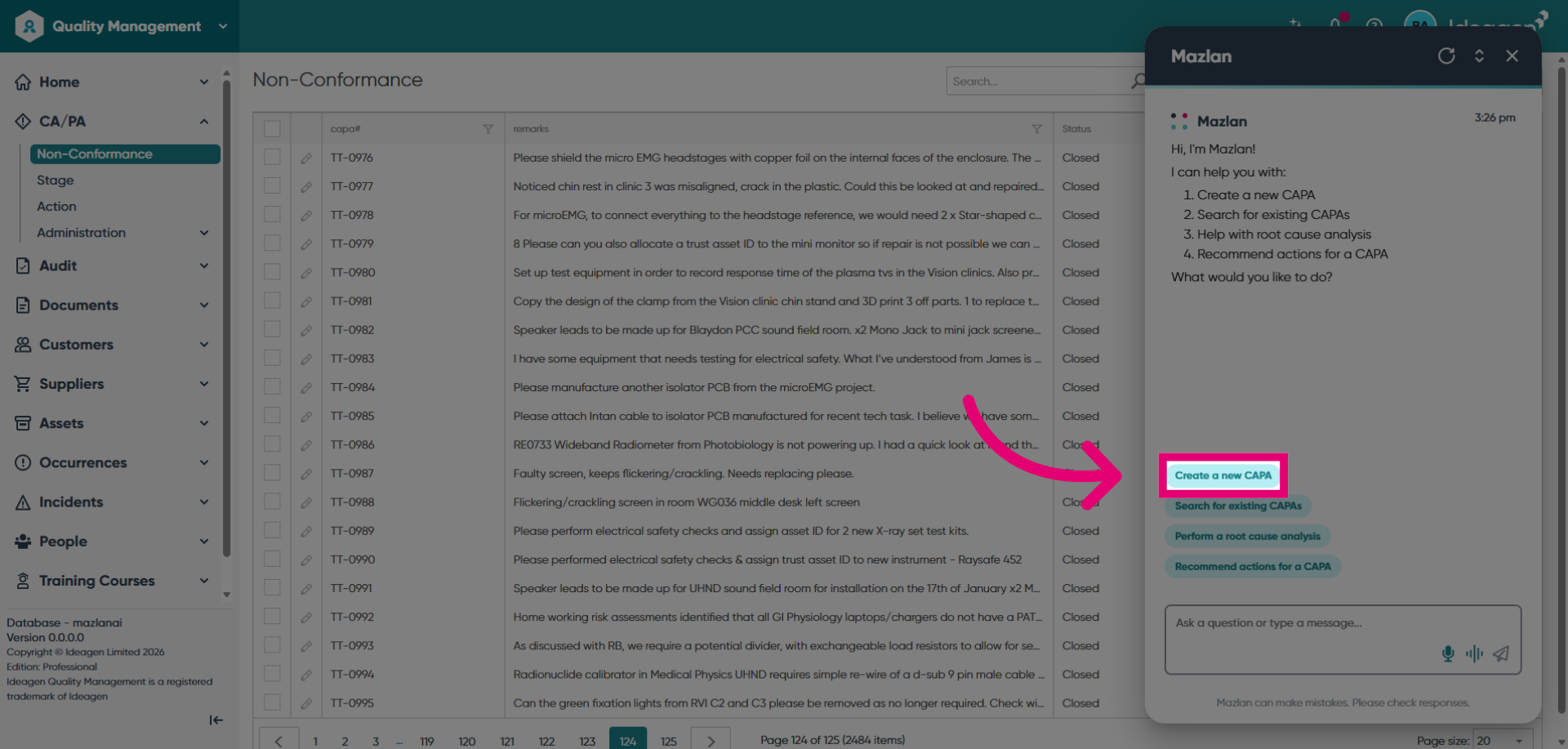
Launch Mazlan and click create a new CAPA to add
a new record in the system.
-
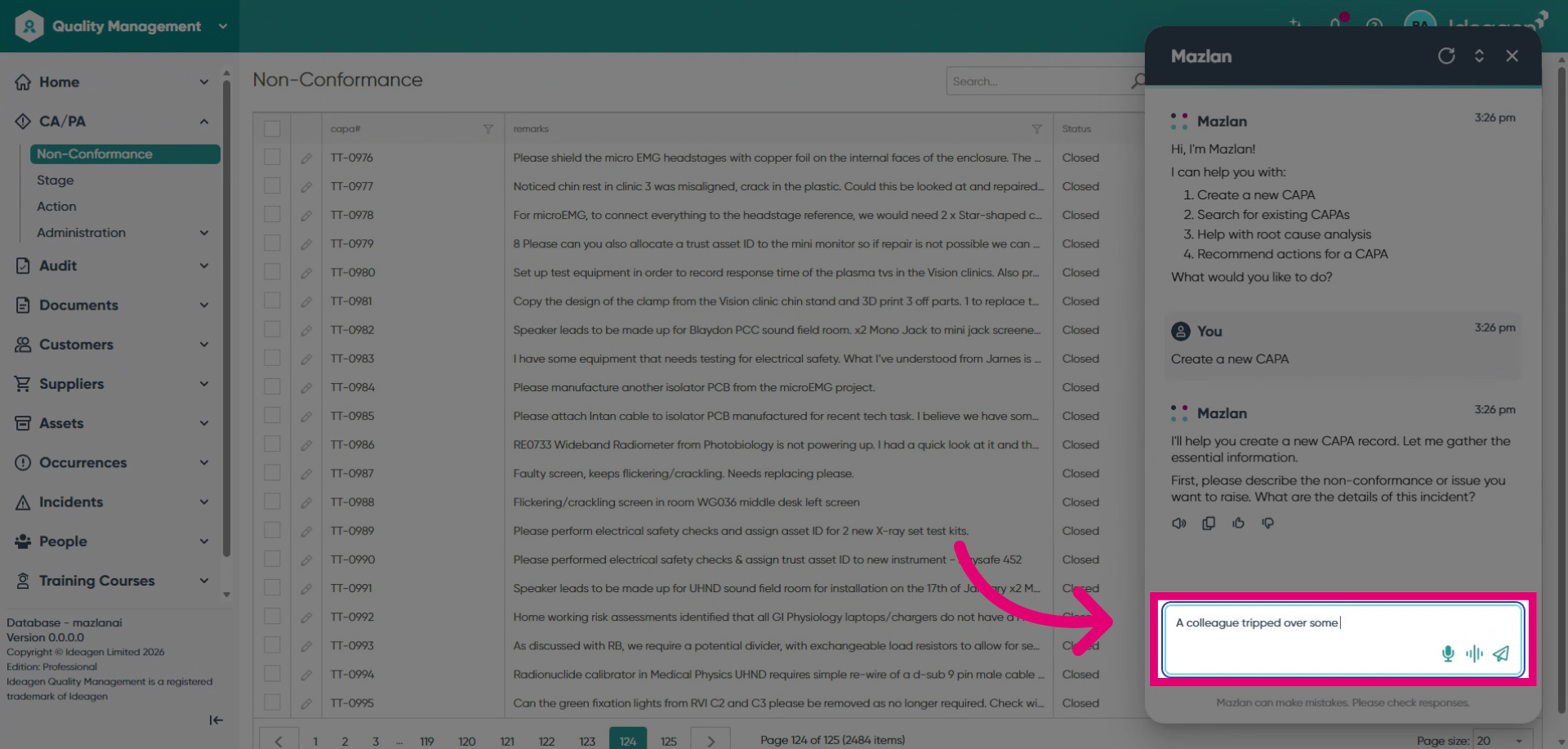
Mazlan will prompt you for the information it needs. Simply update
the chat box with the information you have available.
-
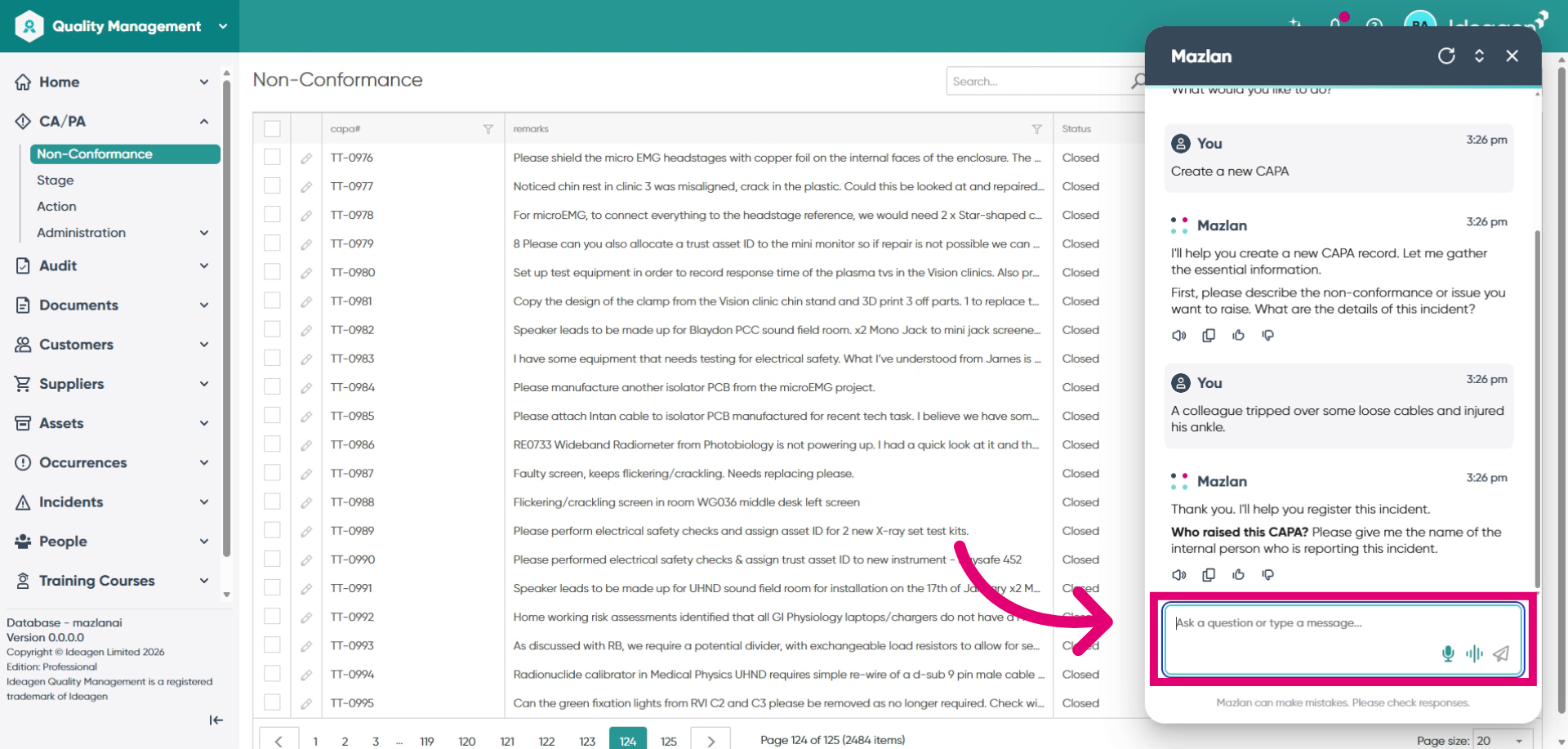
At the appropriate time Mazlan will prompt you to enter the
name of the user raising the record.
-
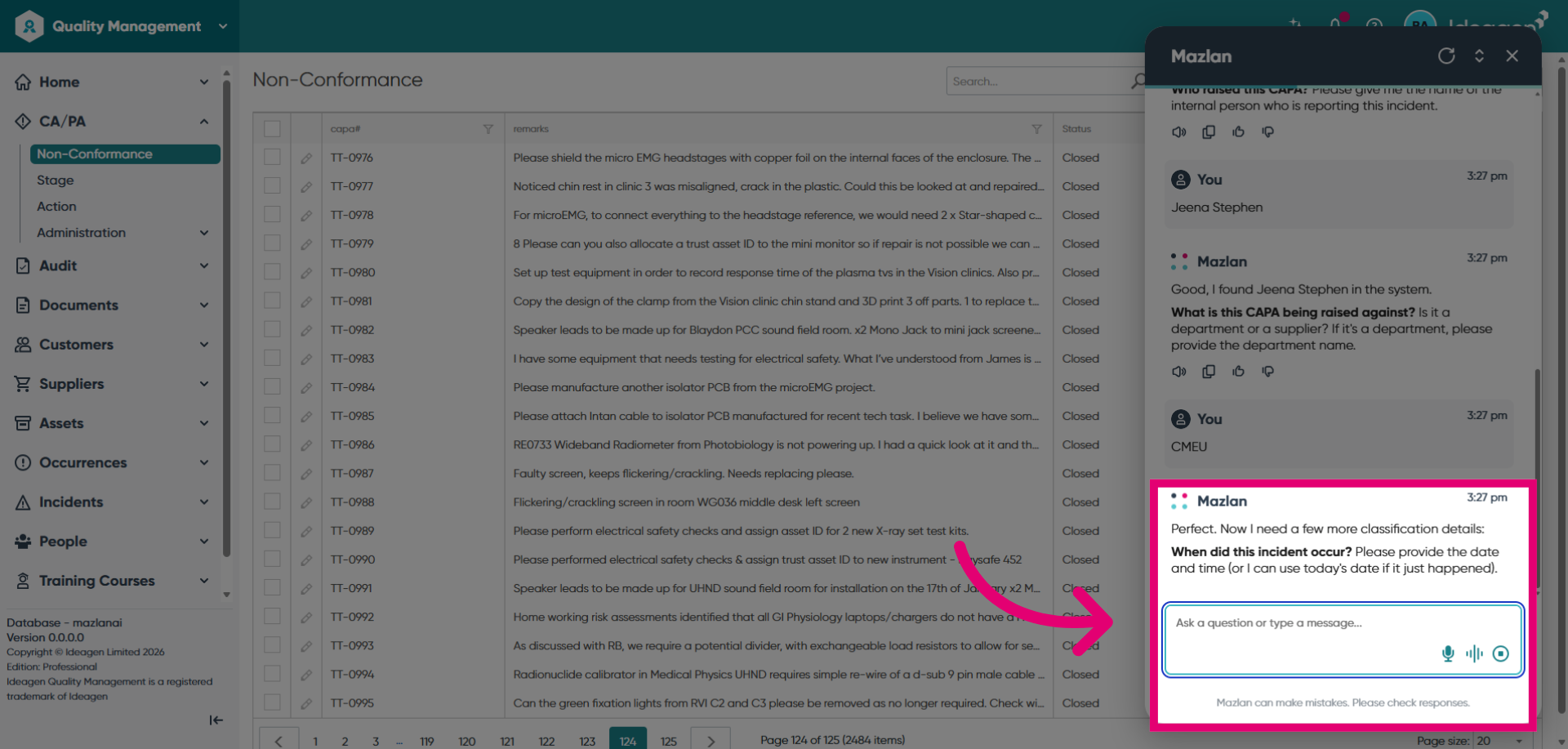
Mazlan will also prompt for other information, such as
record type, relevant department, dates and more.
-
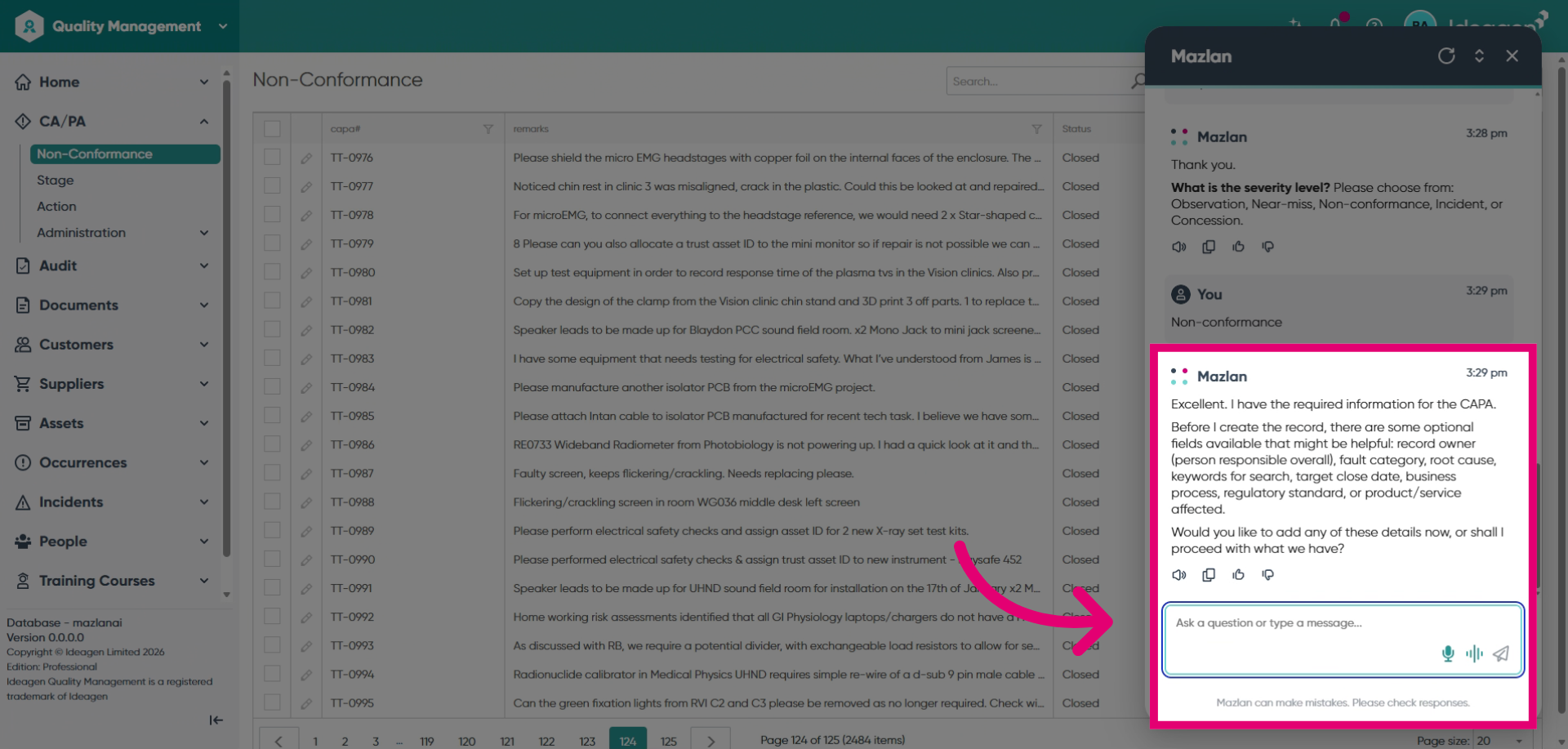
Mazlan will then confirm the details and give you the opportunity
to enter any other information that needs to be
identified.
-
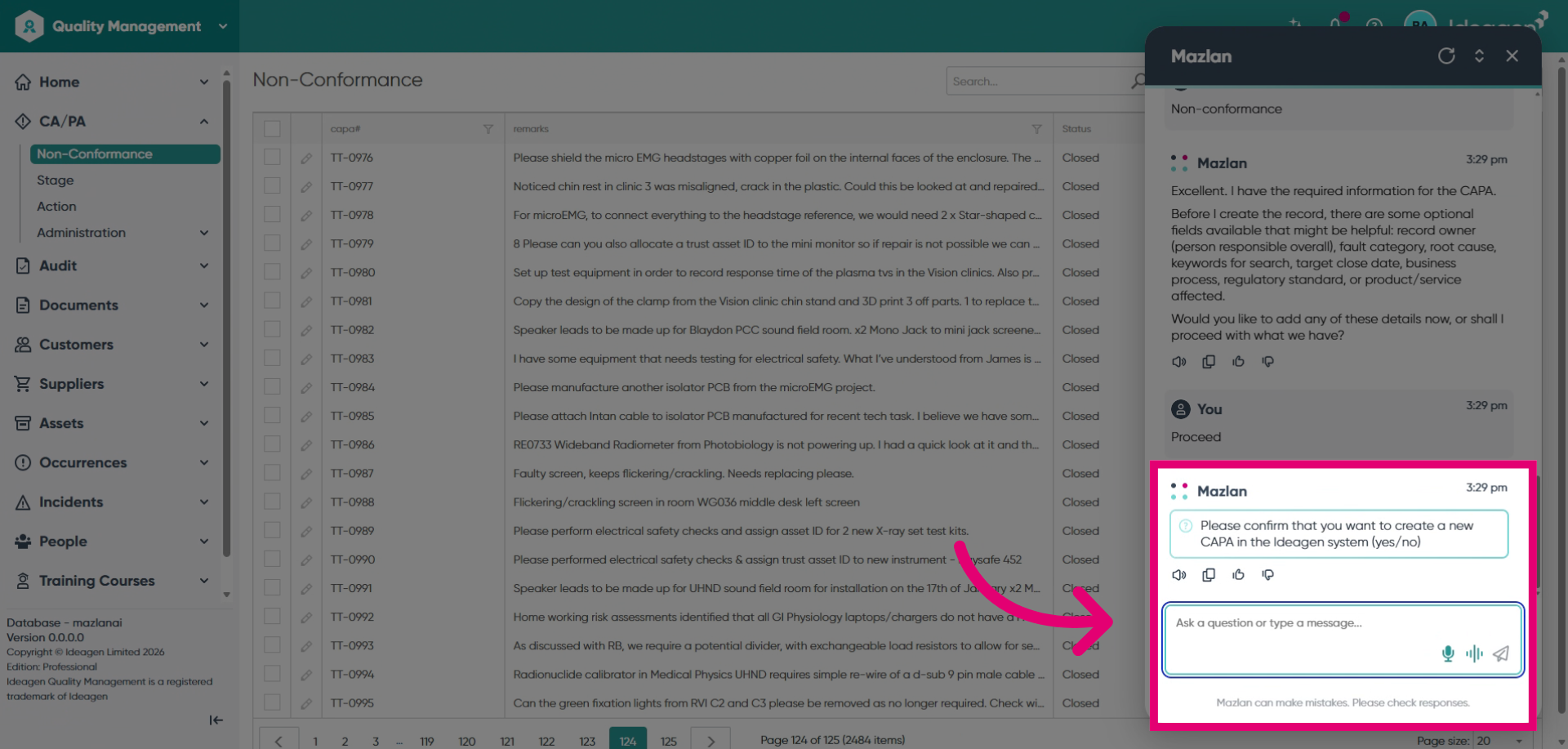
You will then be prompted to finalise the creation.
Once confirmed, Mazlan will raise the record for you and fill in
all of the appropriate fields.
-
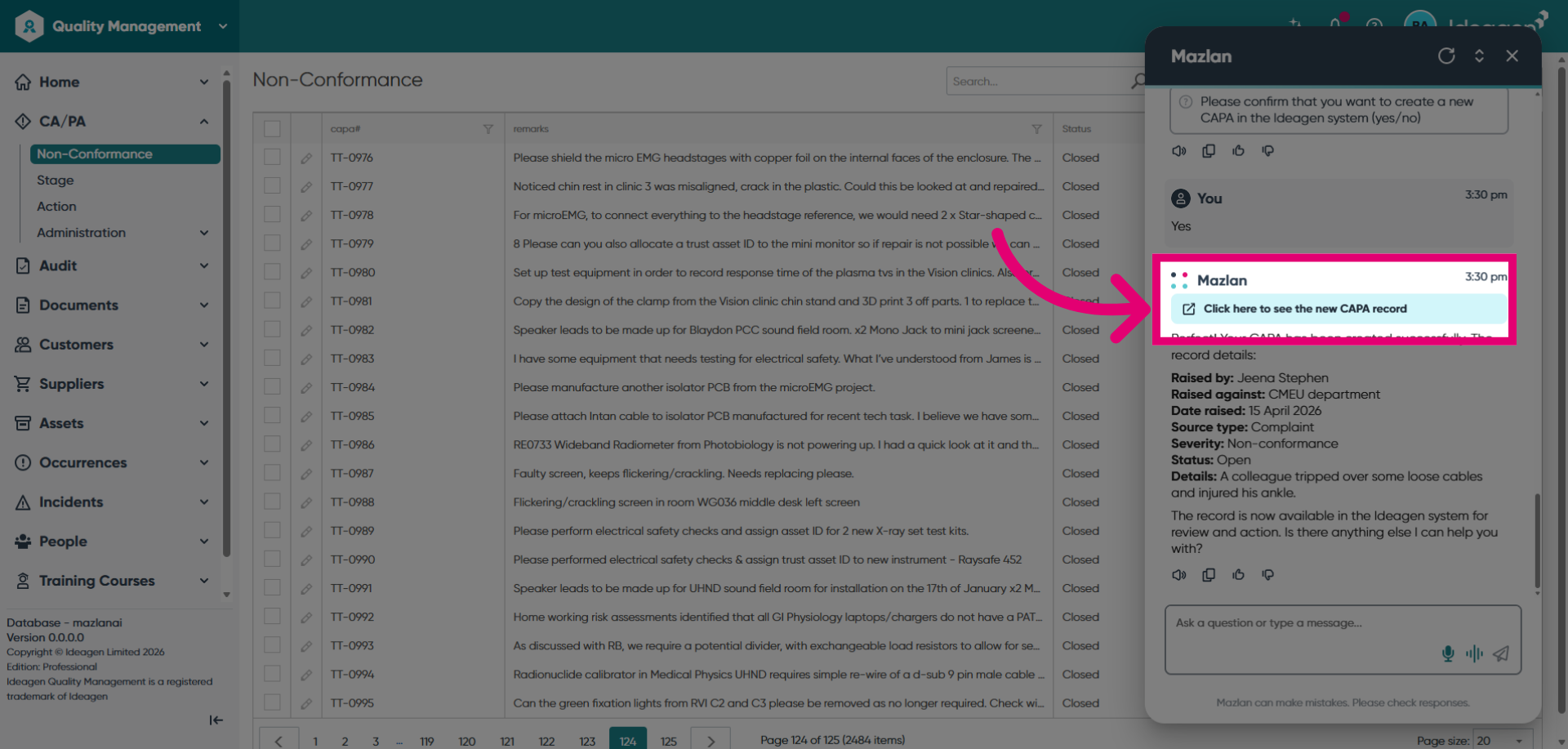
Click Click here to see the new CAPA record to open
and review the newly created record.
1. Raise a CA/PA using a Template
Templates are used to apply stages of work to a CA/PA. Each stage can have multiple stage actions, and a workflow can be used to ensure stages are worked on in a certain order. When you create a CA/PA from a template, the status, owner, target date and any stages, actions and workflow in the template will be applied to the CA/PA record.
To raise a CA/PA using a template:
- Open the CA/PA List view.
- Click on New, then select From Template, then select your desired template.
- When the New Non-Conformance From Template panel opens, fill in the required fields and then click OK.
The CA/PA record will be displayed on the screen with the appropriate template of stages and actions applied.
2. Raise a CA/PA from a Standard Form
A 'blank' CA/PA record can also be created. When you raise a CA/PA this way, all the information from the default CA/PA template will be applied to your new CA/PA record.
To raise a new CA/PA using the standard form:
- Open the CA/PA List view.
- Click on New, then select New Non-Conformance.
- When the New Non-Conformance From Template panel opens, fill in the required fields and then click OK.
The CA/PA record will be displayed on the screen with the appropriate template of stages and actions applied.
3. Raise a CA/PA Based on an Existing CA/PA Record
You can also use an existing CA/PA as the basis for a new CA/PA, When you do this, the CA/PA Source, Owner, Raised By / Against, Process, Document, Standard and Product / Service from the existing CA/PA will be copied to your new one. The CA/PA Status will always default to "Open". In addition, any stages or workflow will be copied, but no stage actions.
To create a new CA/PA based on an Existing CA/PA record:
- Open the CA/PA List view.
- Select an existing CA/PA record using the selector checkbox.
- Click on New, then select New Based On.
- When the New Non-Conformance panel opens, click OK to proceed.
4. Raise a CA/PA Based on a Wizard
You can raise a CA/PA using a Wizard. This will allow you to control which fields can be populated, make fields mandatory and assign default values. Wizard's are created and configured by your Ideagen Quality Management administrator.
To create a new CA/PA based on a Wizard:
- Open the CA/PA List View
- Click on the New, then select From Wizard and choose your select Wizard
- When the Wizard panel opens you can step through the Wizard by filling out the required information and clicking [Next] a the top right of the panel.
- Once you get to the end of the Wizard, click the [Finish] button. This will complete the process and raise the CA/PA
1. Raising a CA/PA
- Although you can create a new CA/PA record from a blank record, you should normally use wizards.
- Open the CA/PA module and click the black triangle beside the New Non-Conformance icon.
- Select From Wizard, then choose the wizard relating to the issue you wish to report.
- Because the wizards are created by your organisation, each one will be different.
- Click the Next button to progress through the wizard.
- You should enter as much as information as you can about the non-conformance you are raising.
- You will not be able to proceed to the next page until you have completed all mandatory fields.
- Every CA/PA record requires a CA/PA source. This describes what type of non-conformance you are raising. This field is mandatory, but may not appear in the wizard if it chosen automatically, based on the wizard you chose.
- Once you reach the end of the wizard and click Finish, a CA/PA record will be raised.
- This CA/PA record will be assigned stages and stage actions based on the CA/PA source selected.
- All Stages and Stage Actions must all be completed before the CA/PA can be closed.
2. Raising CA/PAs from the LaunchPad
You can raise CA/PAs directly from the LaunchPad by doing the following:
- Click the person button on the LaunchPad.
- Click the LaunchPad icon.
- Click the Panel tab and choose CA/PA from the drop-down list.
- Tick the boxes beside every wizard you want to access from the LaunchPad (below Raise new records via wizard), then click [OK].
- To access these wizards from the Launchpad, expand the CA/PA section, then click New, then From Wizard.